

Create an alarm
Create an alarm to be told when a measurement goes out of bounds, for example when the cell count at the outlet rises above a limit. With more than one condition, the alarm goes off only when all of them are met at about the same time.
Before you start, make sure the series you want to watch has data. The series list only offers series that exist, meaning a device has reported that metric at a location under a tag.
-
In the left navigation, open Alarms.
-
Select Create alarm.
-
Enter an Alarm name and, if you like, a Description.
-
Under Anchor condition, choose the Metric series and set Operator, Threshold and Consecutive values (see the table below).
-
To add another condition, select Add condition and fill it in the same way, and also set its Correlation window. Repeat for more conditions.
-
Select Create. The button stays disabled until the alarm has a name and every condition has a metric series.
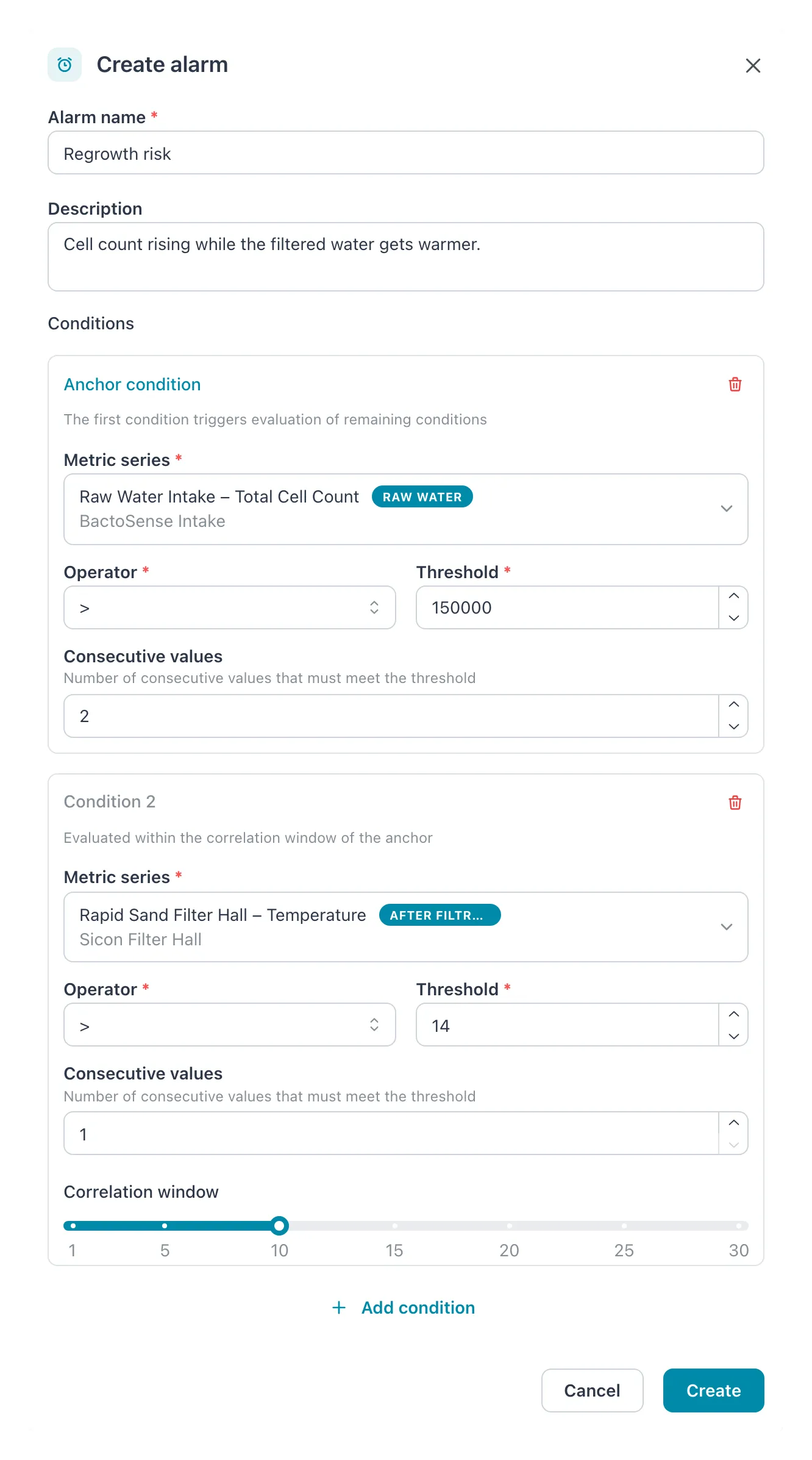 The first condition is the anchor. The second is checked within the Correlation window around it, here 10 minutes either way.
| Field | What to enter |
|---|---|
| Alarm name | What people will see in the list and in notifications, for example Outlet cell count high. Required, at most 255 characters, unique in the workspace. |
| Description | Optional. What the alarm is for and what to do when it goes off. |
| Metric series | The series to watch. Each is listed as location – metric, with its tag and the device underneath. Type to search by location, device, metric or tag. |
| Operator | How to compare each value with the threshold: > (default), <, >=, <=, = or !=. |
| Threshold | The limit, in the unit the metric is shown in. Default 0. |
| Consecutive values | How many values in a row must meet the condition, 1 to 10. Default 1. |
| Correlation window | Conditions after the anchor only. How far before or after the anchor’s values this condition may be met: ±1 to ±30 minutes. Default ±5. |
Result: the message Alarm created successfully appears. The new alarm is selected in the list, enabled, with Never triggered. From now on it is checked about once a minute against the latest values.
How the conditions work together
Section titled “How the conditions work together”The first condition is the anchor. It decides when the alarm is checked: it is met when the series’ latest values, as many as Consecutive values, all meet the operator and threshold. Each further condition is then checked around that moment. It is met when its own series has that many values in a row meeting its threshold within the correlation window before or after the anchor’s latest value. The alarm goes off only when every condition is met. The full rules are in How alarms work.
Example. You want to know when the cell count in the raw water rises and the filtered water gets warmer at the same time, because together they point to regrowth rather than a one-off reading.
| Metric series | Operator | Threshold | Consecutive values | Correlation window | |
|---|---|---|---|---|---|
| Anchor condition | Raw Water Intake – Total Cell Count | > |
150000 | 2 | — |
| Condition 2 | Rapid Sand Filter Hall – Temperature | > |
14 | 1 | ±10 minutes |
At 08:40 the cell count exceeds 150,000 for the second value in a row, so the anchor is met. The alarm then looks for a temperature value above 14 between 08:30 and 08:50. There is one at 08:36, so the alarm goes off. Had the water stayed below 14 °C, the alarm would not have gone off, however high the cell count.
- An alarm needs at least one condition. The trash icon on a condition removes it; the only remaining condition cannot be removed.
- The first condition is always the anchor. To make another condition the anchor, remove conditions and add them again in the order you want.
- A value counts only if it is less than 15 minutes old. When a series stops reporting, the alarm is not evaluated. After 24 hours of alerting without data, it is closed as Stale. See How alarms work.
- An alarm goes off once and then stays Alerting until its conditions are no longer met. It does not send a new notification for every new value.
- Nobody receives an email for the alarm until they subscribe to Alarm triggered. See Choose email notifications.
If it does not work
Section titled “If it does not work”| Message | What to do |
|---|---|
| An alarm with this name already exists. | Choose another name. Names are unique in the workspace, disabled alarms included. |
| Failed to create alarm. Please try again. | Check your connection and try again. If it keeps failing, reload the page; the series may have been removed. |
| The series you want is not in the list | The series has no data yet, or it belongs to another workspace. Check that the device reports that metric. |
Related
Section titled “Related”- How alarms work — the anchor, the correlation window and the states
- Alarms — the screen
- Edit, disable or delete an alarm
- Choose email notifications
- Plot metrics — look at a series first to choose a sensible threshold