

Add and edit metrics
A metric is a kind of value a workspace records — Total Cell Count, Temperature, pH. Here you choose which metrics the workspace uses, and you set how their values are shown: unit, number of decimals and the range you expect. This is the only place to set unit and decimals.
Viewers and Operators have no Settings gear. If they open this page by its web address, it is read-only: they cannot add, edit, enable or disable metrics.
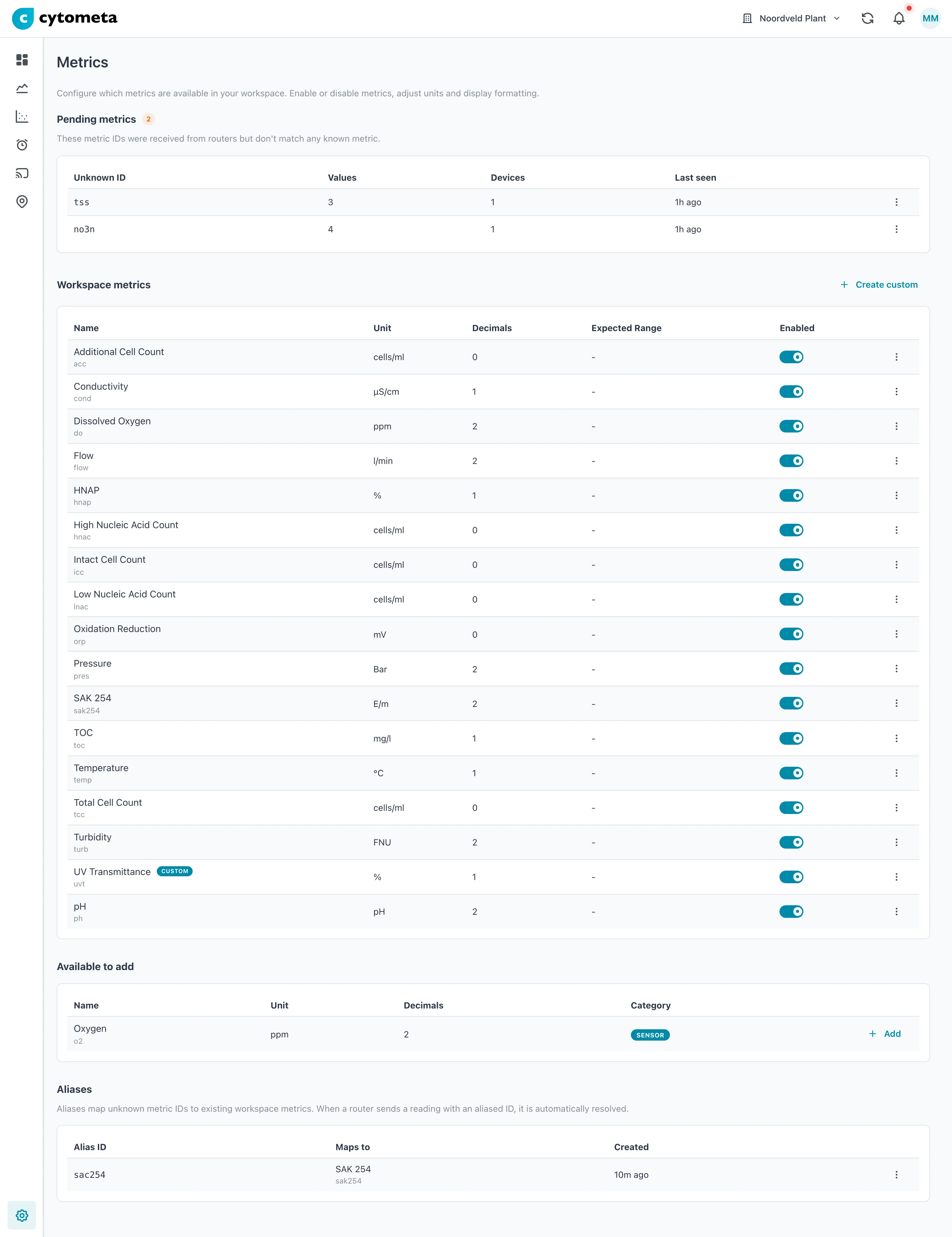 Custom marks a metric the workspace created itself. The catalog metrics it does not use yet are under Available to add.
What is on the page
Section titled “What is on the page”Workspace metrics lists the metrics this workspace uses:
| Column | Shows |
|---|---|
| Name | The metric’s name with its ID underneath, for example Total Cell Count / tcc. A Custom badge marks a metric your workspace created itself. |
| Unit | The unit shown with every value. |
| Decimals | How many decimal places values are shown with. |
| Expected Range | Minimum - Maximum, or - when no range is set. |
| Enabled | A switch. Turned off, the metric is hidden from charts and dashboards. |
Available to add lists the metrics from the Cytometa catalog that the workspace does not use yet, with their default unit and decimals and a Category badge: Sensor (a value from a water-quality sensor, such as pH) or Sample (a value calculated from a flow-cytometry sample, such as a cell count).
When routers send values with IDs that match no metric, a Pending metrics section appears at the top of the page. See Resolve pending metrics.
Add a metric from the catalog
Section titled “Add a metric from the catalog”-
Select the gear () at the bottom of the left navigation, then select Metrics.
-
Under Available to add, select Add on the metric’s row.
Result: the message Metric added successfully appears and the metric moves to Workspace metrics, with the catalog’s unit and decimals. Values with that ID that arrive from now on are stored and shown.
Create a custom metric
Section titled “Create a custom metric”Use a custom metric for a value that is not in the catalog, such as a sensor you connect through a FlowControl’s analog inputs.
-
On the Metrics page, select Create custom.
-
Fill in the fields (see the table below).
-
Select Create.
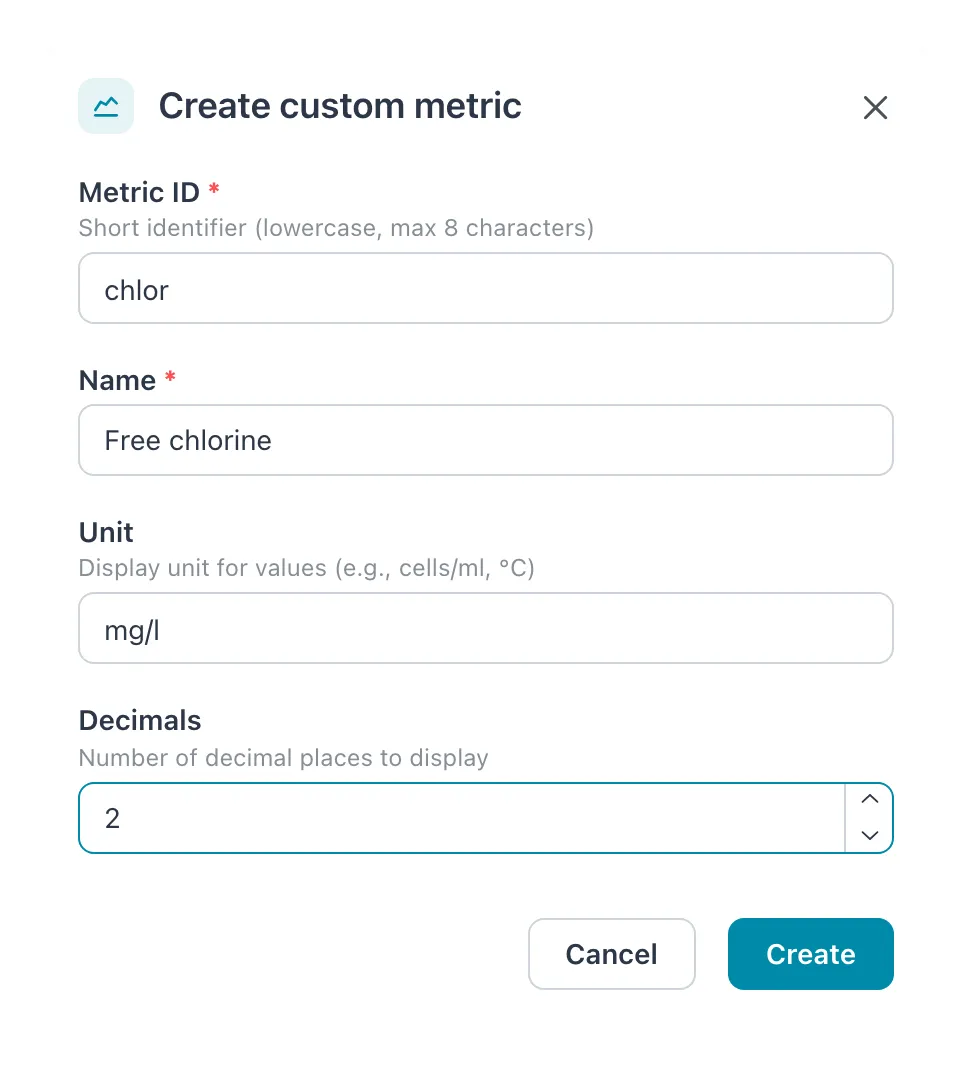 The metric ID is short and lowercase. Name, unit and decimals are what charts and tables show.
| Field | What to enter |
|---|---|
| Metric ID | The ID the router sends for this value. 1 to 8 characters: lowercase letters, digits and underscores. Capitals are turned into lowercase and other characters are dropped as you type. Cannot be changed later. |
| Name | The name people see, up to 100 characters. Required. |
| Unit | Optional, up to 20 characters, for example cells/ml or °C. |
| Decimals | 0 to 6. Default 0. |
Result: the message Custom metric created successfully appears and the metric is listed with a Custom badge. To set an expected range, edit it afterwards.
Edit a metric
Section titled “Edit a metric”-
On the Metrics page, open the menu (⋮) at the end of the metric’s row and select Edit.
-
Change the fields you need (see the table below).
-
Select Save.
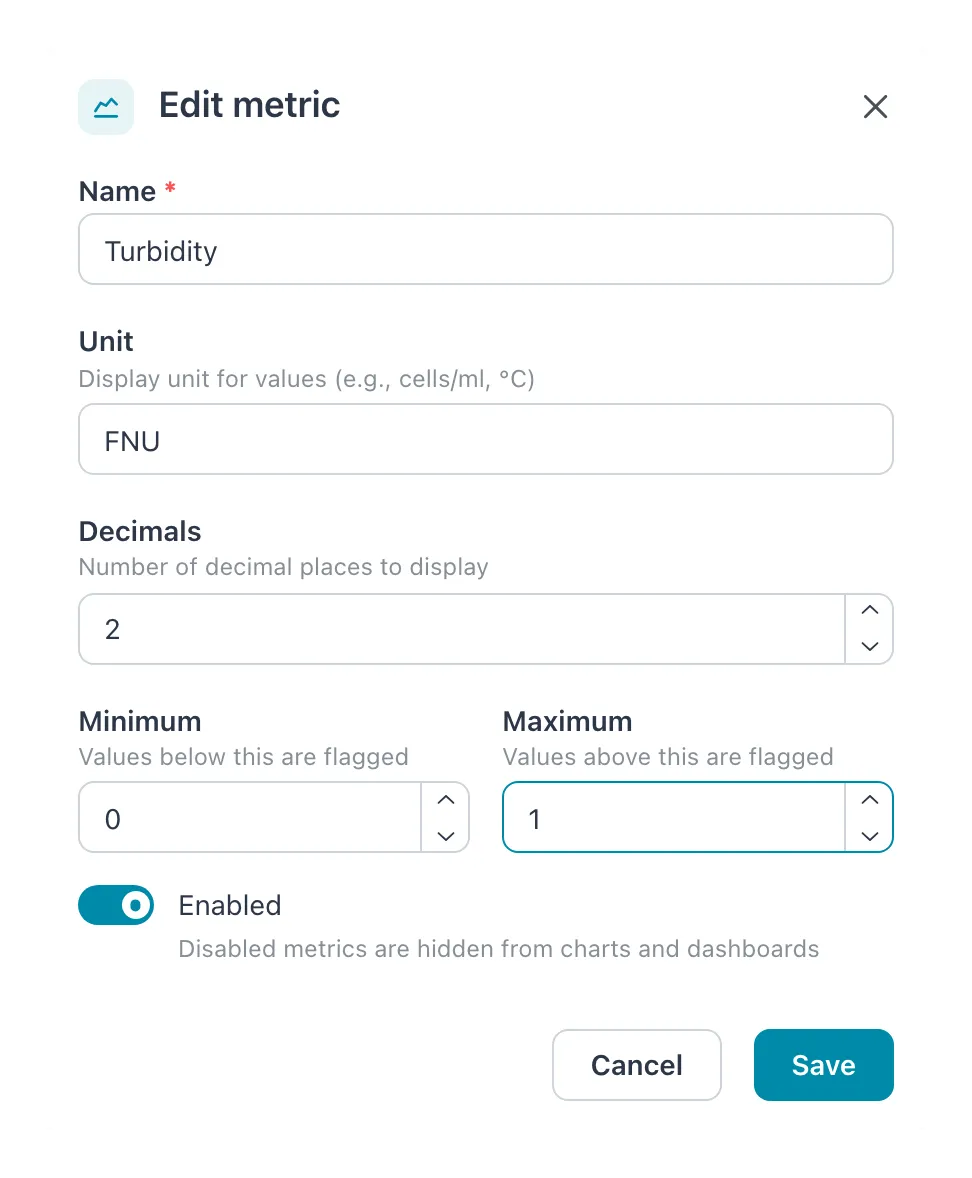 Values below Minimum or above Maximum are flagged. The dialog has no ID field: a metric’s ID cannot be changed.
| Field | What it does |
|---|---|
| Name | Up to 100 characters. Required. |
| Unit | Up to 20 characters. Changing the unit does not convert values — it only changes the label. |
| Decimals | 0 to 6 decimal places. |
| Minimum, Maximum | The expected range. Values below the minimum or above the maximum are flagged. Leave empty for no limit. |
| Enabled | Off hides the metric from charts and dashboards. |
Result: the message Metric updated successfully appears. You can also turn a metric on or off directly with the Enabled switch in the table; the change is saved at once.
Remove a custom metric
Section titled “Remove a custom metric”Only custom metrics can be removed. A catalog metric stays in the list; turn its Enabled switch off if you do not want to see it.
-
Open the menu (⋮) on the custom metric’s row and select Delete.
-
In Remove metric, select Delete.
Result: the message Metric removed successfully appears.
If it does not work
Section titled “If it does not work”| Message | What to do |
|---|---|
| This ID is reserved by the metric catalog. Use “Add” to adopt it instead. | The ID belongs to a catalog metric. Find it under Available to add and select Add. |
| A metric with this ID already exists in your workspace. | Choose another ID, or edit the existing metric. |
| A metric does not appear in charts | Check that its Enabled switch is on. |
Related
Section titled “Related”- Resolve pending metrics — values with unknown IDs
- Plot metrics
- Create an alarm — alarms use the same metrics
- Limits and rules