

Bactosense
The bNovate Bactosense (CORE, SMART or PURE) is an online flow cytometer. Each measurement arrives as a sample with its FCS file and cell counts; the instrument also reports its own status, its cartridge and the errors it raises.
On the device page
Section titled “On the device page”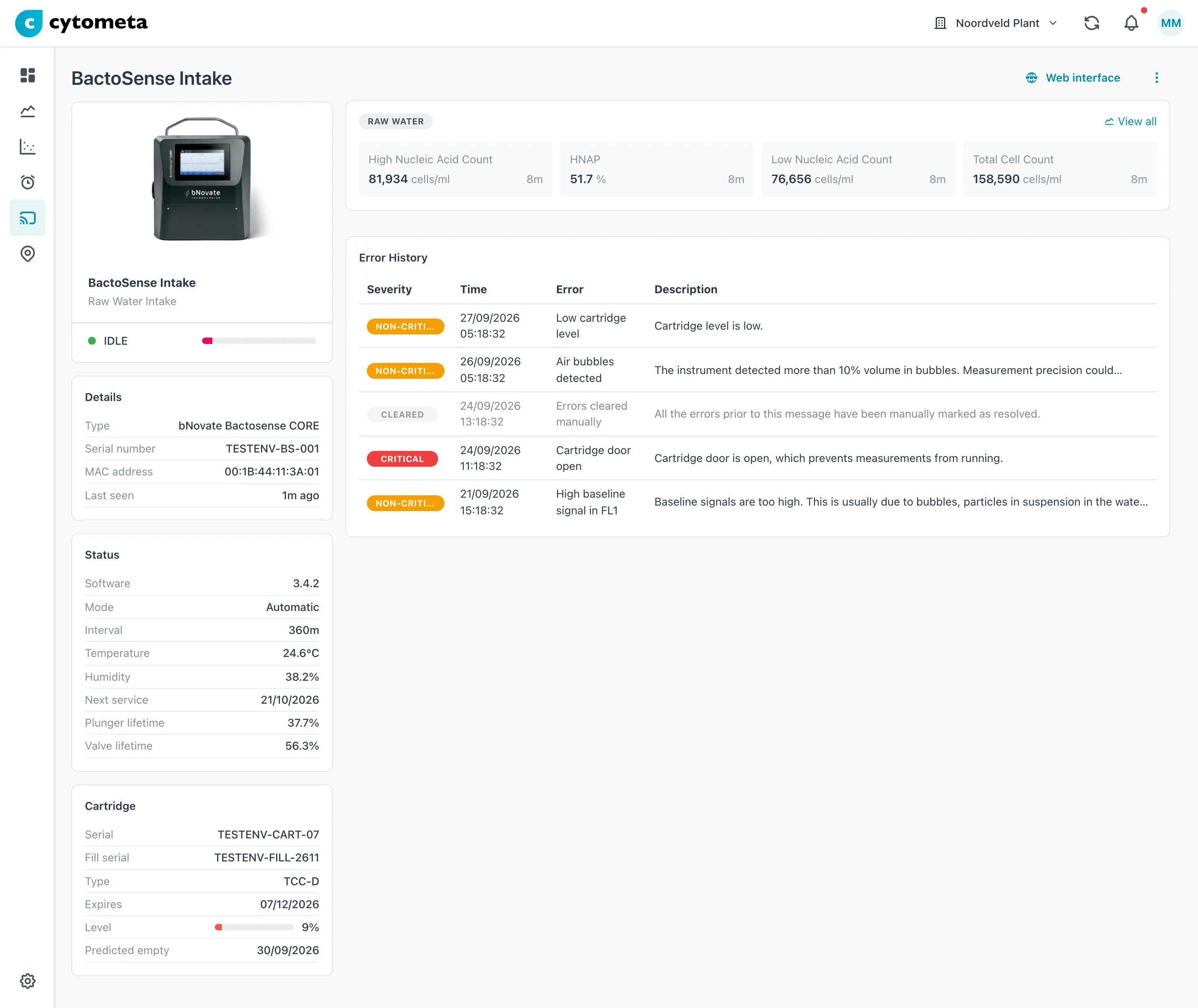 The cartridge bar is red because the cartridge is nearly empty. The error history lists what the instrument reported, newest first.
In the device list, an online Bactosense shows the status text the instrument sends, word for word, instead of Online, and a bar with the cartridge level (red below 25 %).
Status — shown once the instrument has sent it:
| Row | Meaning |
|---|---|
| Software | The instrument’s software version. |
| Mode | Automatic, PLC or Manual. |
| Interval | The measurement interval in minutes, in Automatic or PLC mode. |
| Temperature, Humidity | Inside the instrument. |
| Next service | When the instrument is due for service. |
| Plunger lifetime, Valve lifetime | The share of rated motions left, in %. |
Cartridge — shown when a cartridge is inserted: Serial, Fill serial, Type, Expires, Level and Predicted empty. The level bar is red below 25 %, orange below 50 % and green above. Predicted empty appears once there is enough history to predict it. Cartridge warnings also arrive as notifications.
Error History — only shown when the instrument has reported errors. The newest come first:
| Column | Meaning |
|---|---|
| Severity | Critical — the instrument stopped measuring or needs attention now. Non-critical — a warning; measuring goes on. Cleared — an earlier error was cleared. Rows without a severity are dimmed. |
| Time | When the instrument reported it. |
| Error | The error title, or its code when there is no title. |
| Description | The instrument’s explanation, cut to one line. |
A critical entry at the top is the one to act on; cleared entries below it are history.
Configure a Bactosense
Section titled “Configure a Bactosense”Choose how the samples are tagged, how often the instrument measures, and the login Cytometa Cloud uses for its web interface.
-
In the left navigation, open Devices and select the Bactosense.
-
Open the menu (⋮) and select Edit.
-
Select the Configuration tab.
-
Change the fields you need (see the table below).
-
Select Save.
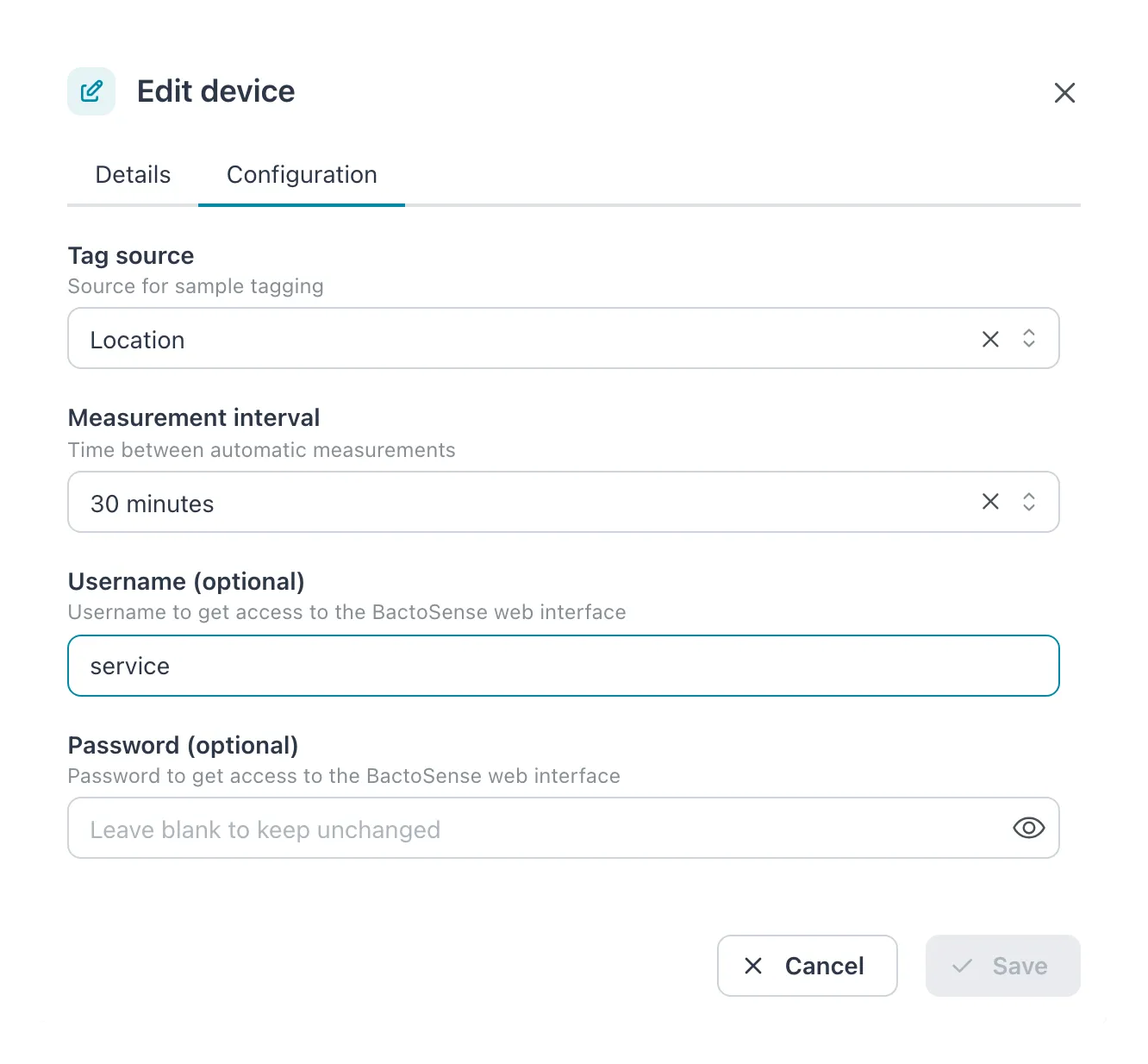 Tag source, measurement interval and the credentials for the instrument’s web interface.
| Field | Allowed values | What it does |
|---|---|---|
| Tag source | Location or Sample name; empty means Location | Which tag each sample is filed under. See below. |
| Measurement interval | 30 to 300 minutes, in 30-minute steps | The time between automatic measurements. Leave it empty to keep the interval set on the instrument. |
| Username (optional) | Any text | The user name for the Bactosense web interface. |
| Password (optional) | Digits only | The password for the Bactosense web interface. Leave it blank to keep the current password. |
Result: the message Settings updated successfully appears and the dialog closes. The Interval row of the Status card shows the new interval once the instrument has applied it.
Location or Sample name
Section titled “Location or Sample name”Every sample is filed under a tag, and the tag is part of the series it belongs to.
- Location — the sample gets the tag of the device’s location, or the tag of the flow that a FlowControl at the same site reports. Use this when the instrument measures one water stream, or when a FlowControl switches the streams for it.
- Sample name — the sample gets a tag made from the sample name typed on the instrument; the sample name becomes the tag’s display name. A new name makes a new tag, and so a new series. Use this when operators run samples by hand and name them after the stream, for example Tap 3.
- Username and Password go together: fill in both, or leave both empty.
- The password may contain only digits.
- The password is never shown. The field is always empty when you open the dialog; a blank field keeps what is stored.
If it does not work
Section titled “If it does not work”| Message | What to do |
|---|---|
| Both username and password must be set, or leave both empty | Fill in the other field too, or clear both. |
| Password must contain only numbers | Use digits only. |
| Failed to update settings. Please try again. | Try again; if it keeps failing, reload the page. |
Related
Section titled “Related”- Edit a device
- Flow Cytometry — the samples this instrument sends
- Open remote access
- Manage tags