

Find your way around
Every screen has the same frame: a header across the top, a navigation bar down the left, and the page itself in the middle. This page explains the frame and how to move between workspaces and organizations.
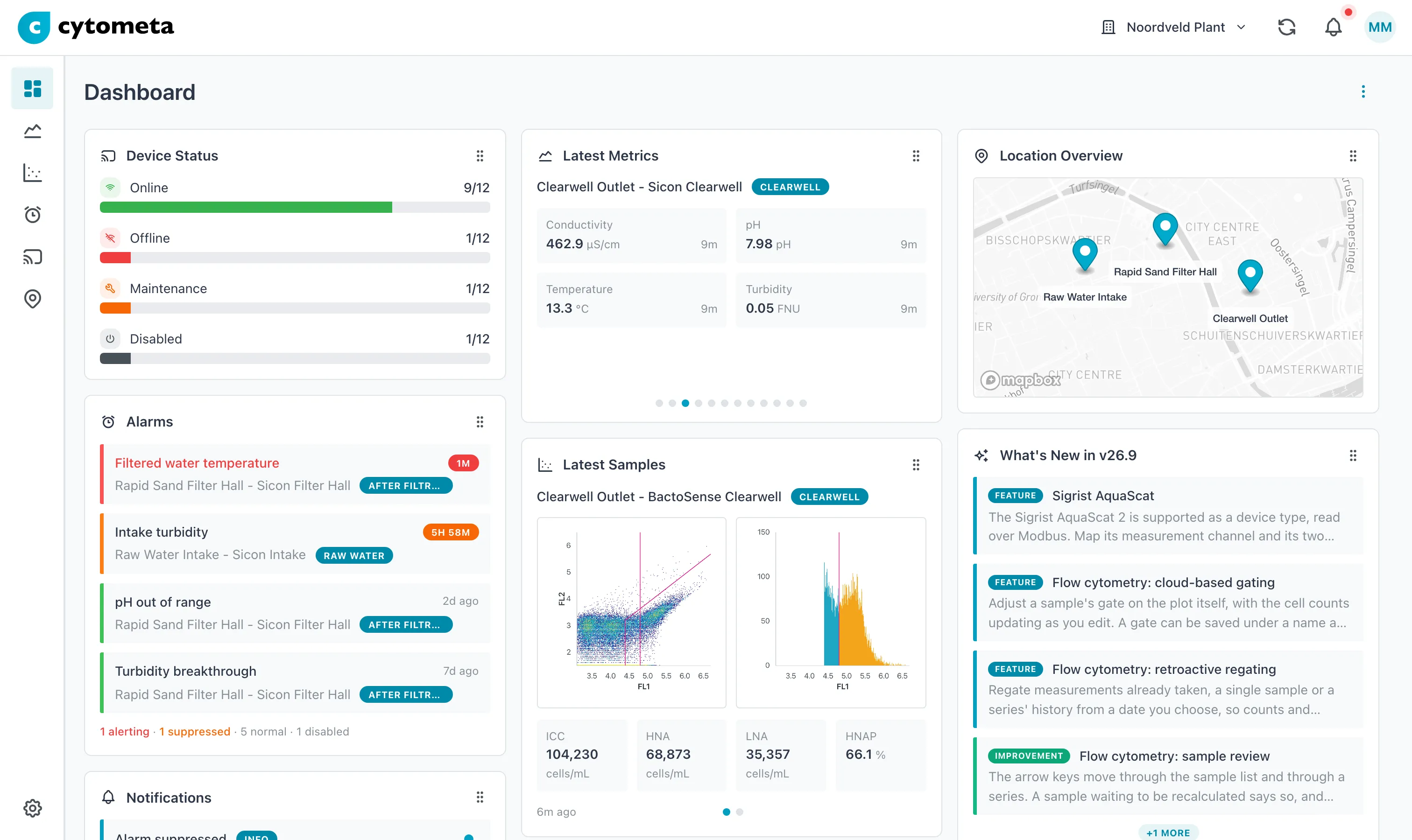 The header holds the workspace switcher, Regate requests, the bell and your initials. The icons on the left open each screen, with the Settings gear at the bottom.
The header
Section titled “The header”From left to right:
| Item | What it does |
|---|---|
| Logo | The Cytometa Cloud logo. |
| Workspace switcher | The name of the current workspace with a arrow. It appears only when you have access to more than one workspace in this organization. See Switch workspace. |
| Regate requests | Opens the list of flow-cytometry recalculations of the last 90 days, with their progress and failures. While samples are being recomputed its label reads Recomputing samples. See Follow regate progress. |
| Notifications | The bell opens your latest notifications. Choose All notifications or Unread only, select Mark all as read, or open the full list with View all notifications. See Notifications. |
| Your initials | Opens the user menu. |
The user menu
Section titled “The user menu”Select your initials to open it. It shows your name, email address, the current organization and the current workspace, and then:
- View profile — your name, language, color scheme, password, two-factor authentication and trusted devices. See Set up your account.
- Switch organization — only when you belong to more than one organization. See Switch organization.
- Logout — sign out.
At the bottom: Cytometa Cloud Professional and the version number. Quote the version when you contact support.
The left navigation
Section titled “The left navigation”On a desktop the navigation shows icons only. Hover over an icon to see its name.
| Icon | Item | What you find there |
|---|---|---|
| Dashboard | The overview of the workspace: device status, alarms, notifications, latest values and samples. See Dashboard. | |
| Metrics | Charts of any series, saved views and export. See Metrics. | |
| Flow Cytometry | Samples, their plots and gates. See Flow Cytometry. | |
| Alarms | Alarm rules and what they triggered. See Alarms. | |
| Devices | The instruments, their status and remote access. See Devices. | |
| Locations | The measuring sites. See Locations. | |
| Settings | At the bottom. Workspace and organization settings. See Settings. |
All workspace roles see the six items at the top. What you can do on each screen depends on your role — a Viewer sees the same screens without the buttons that change things.
Settings appears only for Managers and Admins of the workspace, and for organization administrators. Operators and Viewers do not see it. Organization administrators see a second section, Organization Settings, on the Settings page.
Notifications have no item in the navigation. Open them from the bell in the header or from the Notifications widget on the Dashboard.
On a phone
Section titled “On a phone”On a narrow screen the layout changes:
- The navigation is hidden behind a menu button at the top left. It opens as a drawer with the name next to each icon.
- The workspace switcher and Regate requests move into the user menu (your initials). The workspaces are listed there under Workspaces, with a check mark next to the current one. A red number next to Regate requests counts failed recalculations.
- Pages lay out in one column. Editing a gate needs a wider screen.
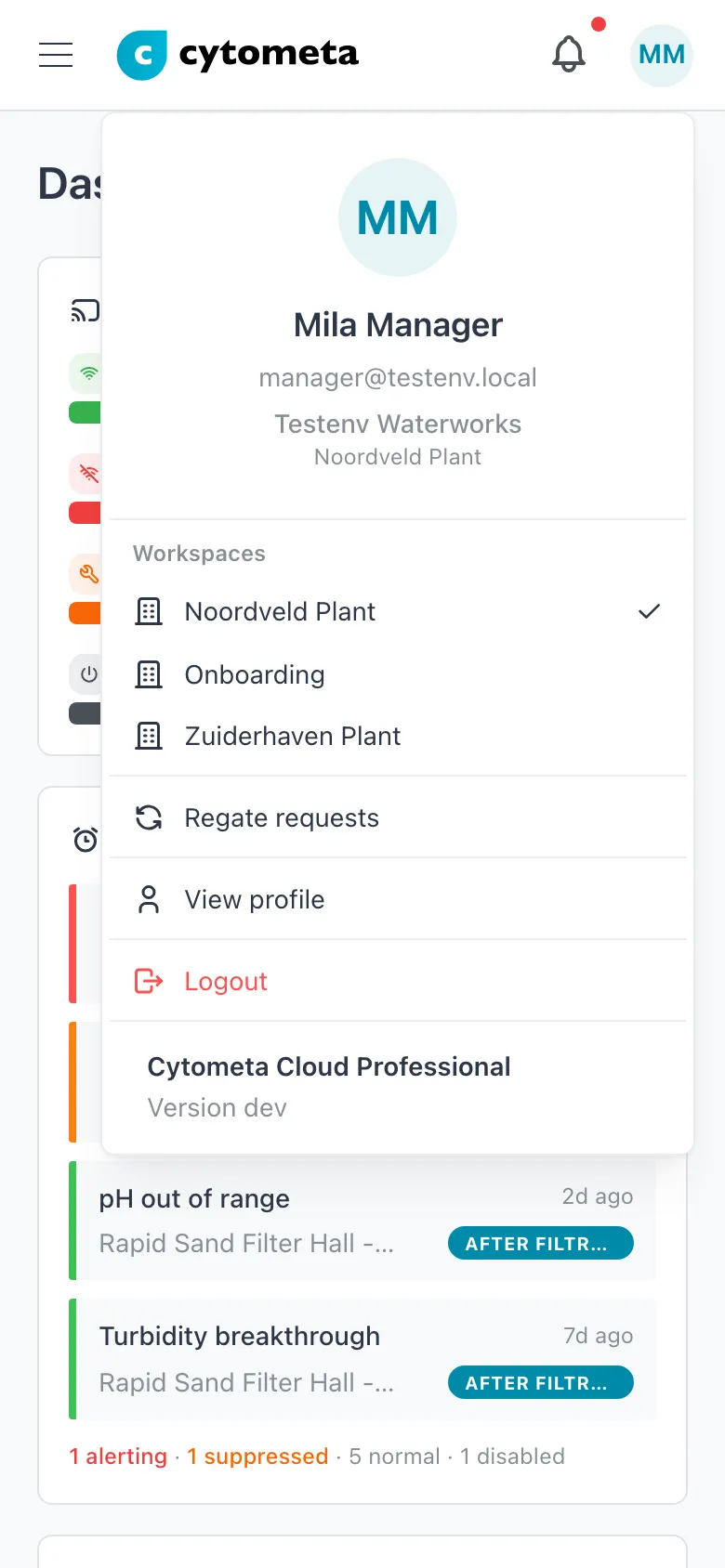 On a phone the workspaces and Regate requests are in this menu. The check mark shows the current workspace.
Switch workspace
Section titled “Switch workspace”-
Select the workspace name in the header. On a phone, select your initials instead.
-
Select the workspace you want. The current one has a check mark.
Result: the Dashboard of the selected workspace opens. Your role — and so what you can do — is the one you have in that workspace.
If there is no workspace name in the header, you have access to only one workspace in this organization. Your organization administrator adds workspaces to your account.
Switch organization
Section titled “Switch organization”-
Select your initials at the top right.
-
Select Switch organization.
-
In Organizations, choose the organization. You can type to search.
-
Select Switch organization.
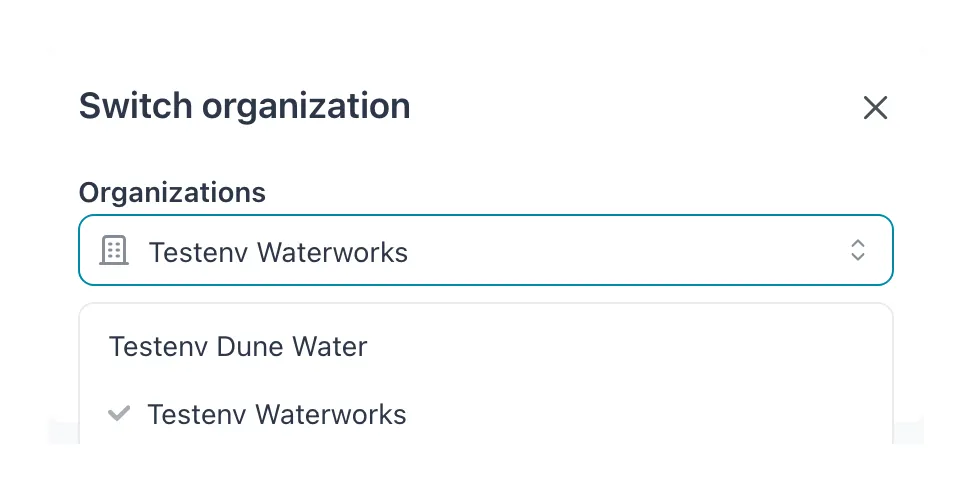 The list holds every organization you belong to. Switch organization stays disabled until you choose another one.
Result: the Dashboard of the first workspace in that organization opens. Use the workspace switcher to go to another workspace there.
Switch organization appears only when you belong to more than one organization. Service providers see their customers’ organizations here when those customers have allowed service provider access.
The two-factor authentication banner
Section titled “The two-factor authentication banner”When two-factor authentication is off for your account and your organization does not require it, the Dashboard shows a banner, Protect your account.
- Enable 2FA opens your Profile at Two-factor authentication. See Set up your account.
- The close button (Remind me later) hides the banner for 7 days in this browser.
Related
Section titled “Related”- Sign in
- Set up your account
- Where things live — every task and where to find it in the app