

Save and share a view
Save the series on the screen, their chart order and a time range as a view, so you can open the same charts again in one click. A view is either yours alone or shared with everyone in the workspace.
Every role can save views for themselves. Sharing a view with the workspace needs the Manager or Admin role.
Before you start, plot the series you want and put the charts in the order you want. Create view stays disabled until at least one series is selected.
Create a view
Section titled “Create a view”-
On Metrics, select Views.
-
Select Create view.
-
Fill in the fields (see the table below).
-
Select Create.
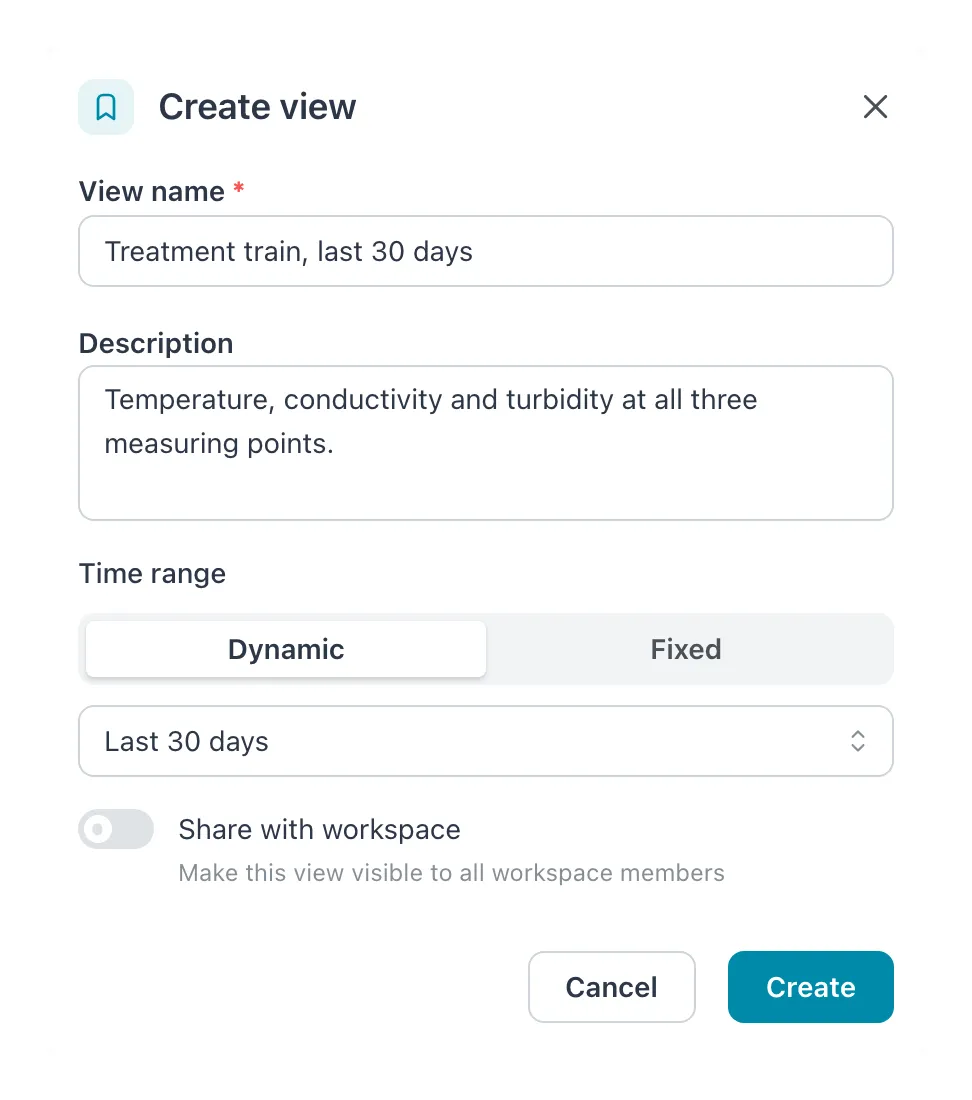 With Dynamic the view keeps a period that moves with today, here the last 30 days. Share with workspace is off, so only you see the view.
| Field | What to enter |
|---|---|
| View name | Required, up to 100 characters. Say what the view is for, for example Filter hall daily. |
| Description | Optional, up to 500 characters. Shown when you hover over the view in the list. |
| Time range | Dynamic: a period that always ends now. Choose Last 6 hours, Last day, Last 7 days, Last 30 days or Last 90 days. The dialog preselects the one closest to the period on screen. Fixed: a set period. Pick the start under From and the end under To; both are required. |
| Share with workspace | Make this view visible to all workspace members. Only shown to Managers and Admins. Off by default. |
Use Dynamic for a view you check every day: it always opens on current data. Use Fixed to keep a period, such as the week of an incident.
A view saves the selected series, the chart order, the scale and whether min/max bands are on, plus the time range. It does not save the grouping or the chart size. Those stay as you last set them in your browser.
Result: the view opens and its name appears on the Views button. Your views are listed under My Views; views shared with the workspace are listed under Shared Views. Each entry shows the number of series and the time range, for example 3 series · Last 7 days.
Open a view
Section titled “Open a view”Select Views, then the view. The charts, scale, bands and time range change to what the view saved. Views with Last 6 hours open with live updates running.
To close a view, select it again in the list (it has a check mark). The charts stay on screen.
Update a view
Section titled “Update a view”When a view is open and you add or remove series or move a chart, the Update view button next to Views lights up.
-
Change the series or the chart order.
-
Select Update view.
Result: the message View saved appears with the view’s name.
To go back to the view as it was saved, select Discard changes.
Update view saves only the series and the chart order. Changing the period, scale or bands does not count as a change, and Update view does not save them. To change the time range, name or description, edit the view.
Edit or delete a view
Section titled “Edit or delete a view”-
Select Views.
-
Select the menu (⋮) next to the view.
-
Select Edit to change the name, description or time range, then select Save. Or select Delete, then Delete again to confirm.
The ⋮ menu is only there for views you may change: your own views, and, for Managers and Admins, every shared view.
- Share with workspace can only be set when you create the view. You cannot share a personal view later, or make a shared view personal. To do either, create a new view and delete the old one.
- Names must be unique among your own views, and among the workspace’s shared views. A personal view may have the same name as a shared one.
- A name cannot contain angle brackets (
<>). - Other people never see your personal views.
- Only Managers and Admins can change or delete a shared view, including one another Manager created.
If it does not work
Section titled “If it does not work”| What you see | What to do |
|---|---|
| Create view is disabled | Select at least one series first. |
| Share with workspace is missing | Your role is Viewer or Operator. Ask a Manager or Admin to create the shared view. |
| A view with this name already exists. | Another view in the same list has this name. Choose another name. |
| Update view stays gray | You changed only the period, scale or bands. Update view saves only series and chart order. Use Edit to change the time range. |
| View not found | The view was deleted, or it is someone else’s personal view. |