

Manage tags
A tag says what is measured at a location — inlet, outlet, treated — so that data from different sites can be compared and filtered. Every location has one tag, and every series carries the tag of its location (or, on a FlowControl, of its flow). Create the tags a workspace needs before you create its locations.
Viewers and Operators have no Settings gear. They see a location’s tag on the location itself; if they open this page by its web address, it is read-only.
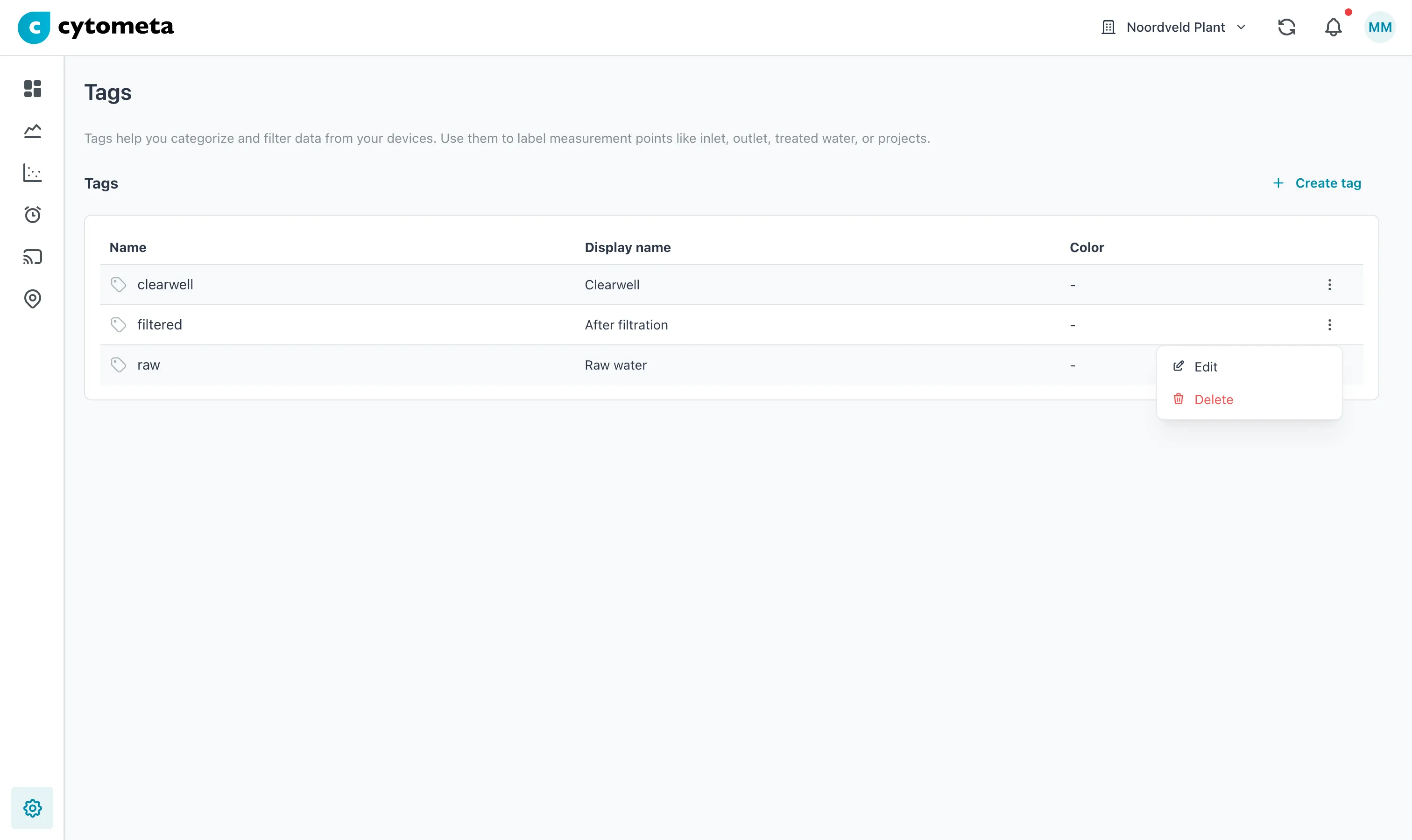 Each tag’s ⋮ menu holds Edit and Delete. Create tag is above the table.
Create a tag
Section titled “Create a tag”-
Select the gear () at the bottom of the left navigation, then select Tags.
-
Select Create tag.
-
Fill in the fields (see the table below).
-
Select Create. The button stays disabled until Tag name is filled in.
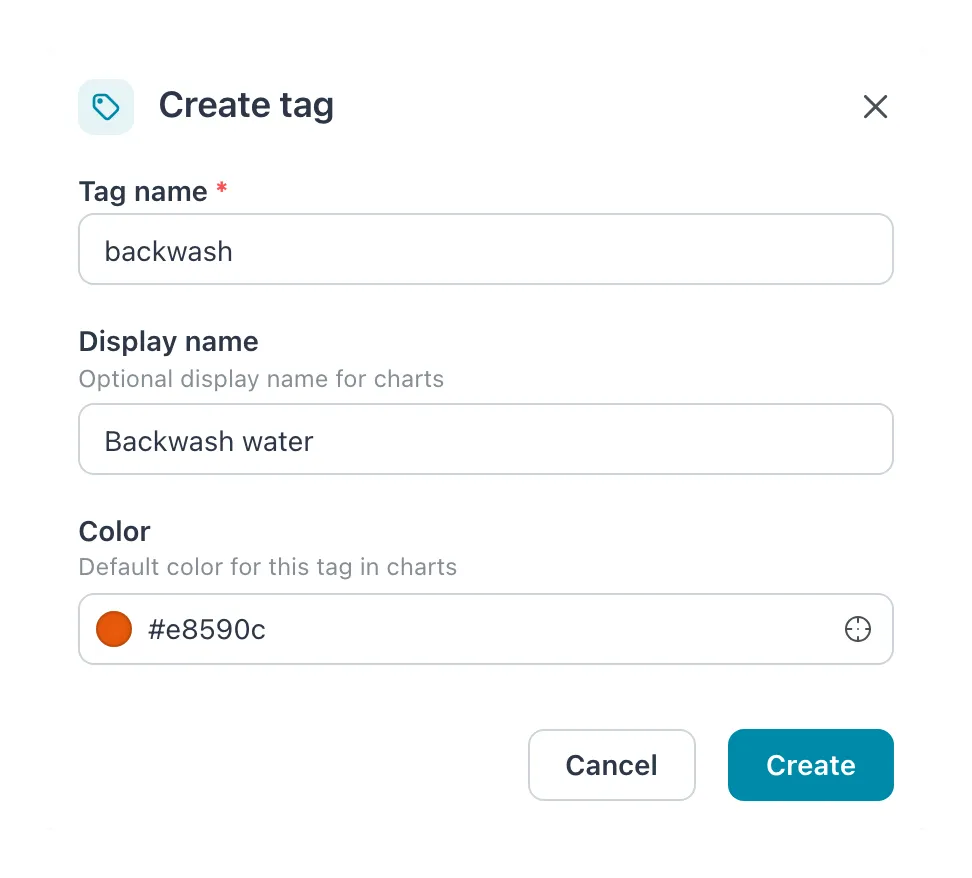 Tag name is the lowercase system name; Display name is what lists and charts show.
| Field | What to enter |
|---|---|
| Tag name | A short identifier, for example inlet. 1 to 16 characters, lowercase, no spaces. Capitals are turned into lowercase and spaces are removed as you type. Cannot be changed later. |
| Display name | Optional. The name shown in charts, for example Raw water inlet. Up to 50 characters. |
| Color | Optional. The default color for this tag in charts. Pick a swatch or enter a hex code such as #228be6. |
Result: the message Tag created successfully appears and the tag is added to the table.
Edit a tag
Section titled “Edit a tag”-
On the Tags page, open the menu (⋮) at the end of the tag’s row and select Edit.
-
Change Display name or Color. Tag name is shown but cannot be changed.
-
Select Save.
Result: the message Tag updated successfully appears. Charts pick up the new display name and color the next time they load.
Delete a tag
Section titled “Delete a tag”-
On the Tags page, open the menu (⋮) at the end of the tag’s row and select Delete.
-
In Delete tag, select Delete.
Result: the message Tag deleted successfully appears and the tag is removed.
A tag can only be deleted while nothing uses it: no location, and no metric or flow-cytometry series. Deleting cannot be undone.
The Tags table
Section titled “The Tags table”| Column | Shows |
|---|---|
| Name | The tag name, with a swatch of its color (or a gray tag icon when it has none). |
| Display name | The display name, or - when there is none. |
| Color | The hex code, or -. |
If it does not work
Section titled “If it does not work”| Message | What to do |
|---|---|
| A tag with this name already exists. | Tag names are unique within the workspace. Use the existing tag, or choose another name. |
| Failed to create tag. Please try again. | The name breaks the rule: 1 to 16 characters, no capitals, no spaces. Letters with accents, such as é, count as two characters. Any other character is accepted. If the name is fine, check your connection and try again. |
| Cannot delete tag because it is in use by locations or metrics. | Something still carries the tag. Change the tag of the locations that use it, or delete them; series keep their tag, so a tag that has ever collected data stays. |
Related
Section titled “Related”- Settings — the other workspace settings
- Create a location — every location needs a tag
- Cytometa FlowControl — flows are tagged too
- Limits and rules