

Manage workspaces
A workspace holds everything about one part of your operation: its locations, devices, tags, metrics, gates, alarms and data. Create one workspace per plant, region or project — not per device. People get a role per workspace, so a workspace is also the unit of access.
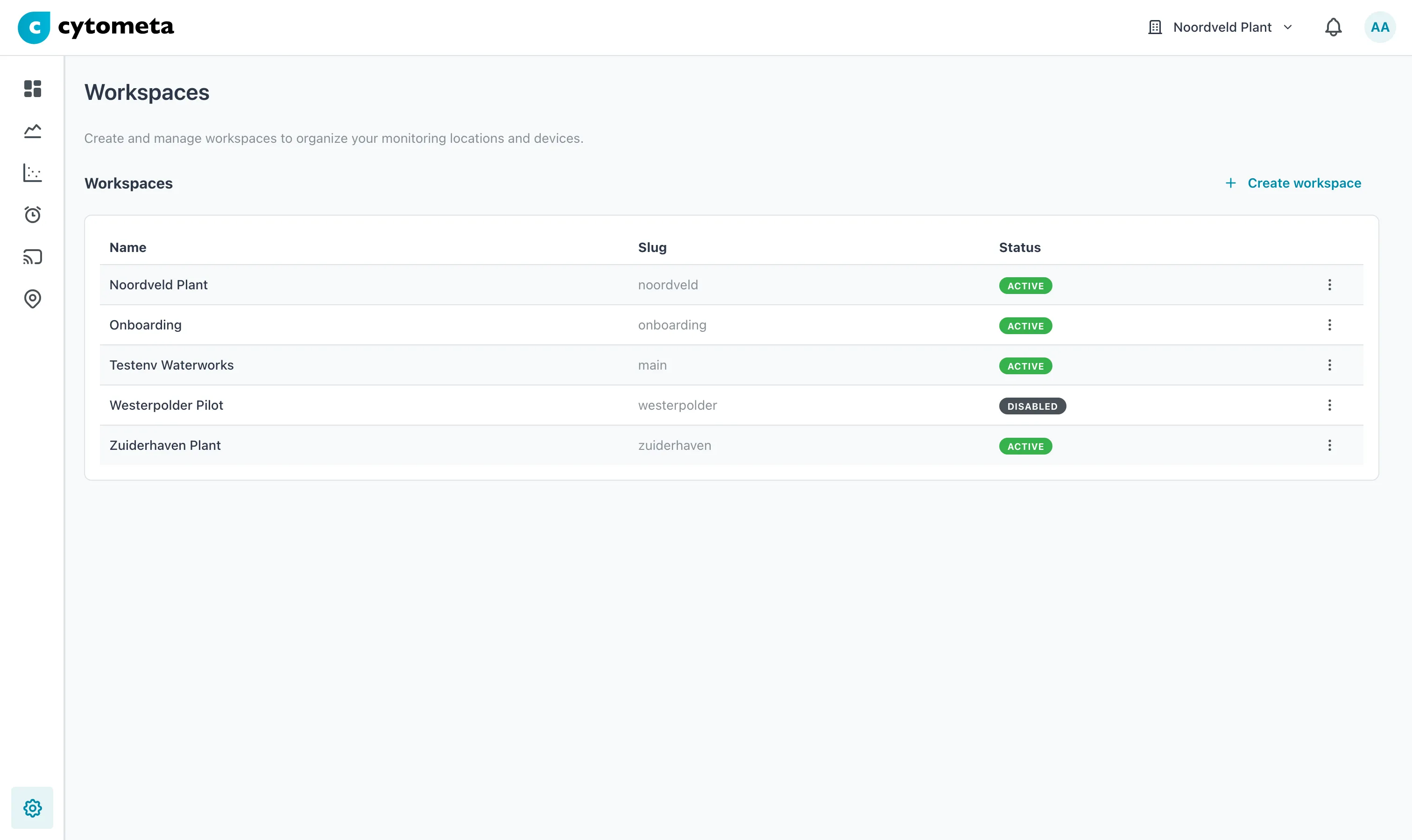 Each workspace with its slug and status. Westerpolder Pilot is disabled.
The Workspaces table shows each workspace’s Name, Slug and Status: Active or Disabled.
Create a workspace
Section titled “Create a workspace”-
Select the gear () at the bottom of the left navigation, then select Workspaces.
-
Select Create workspace.
-
Enter a Name. The Slug is filled in from the name as you type.
-
Check the slug, and change it if you want a shorter one.
-
Select Create.
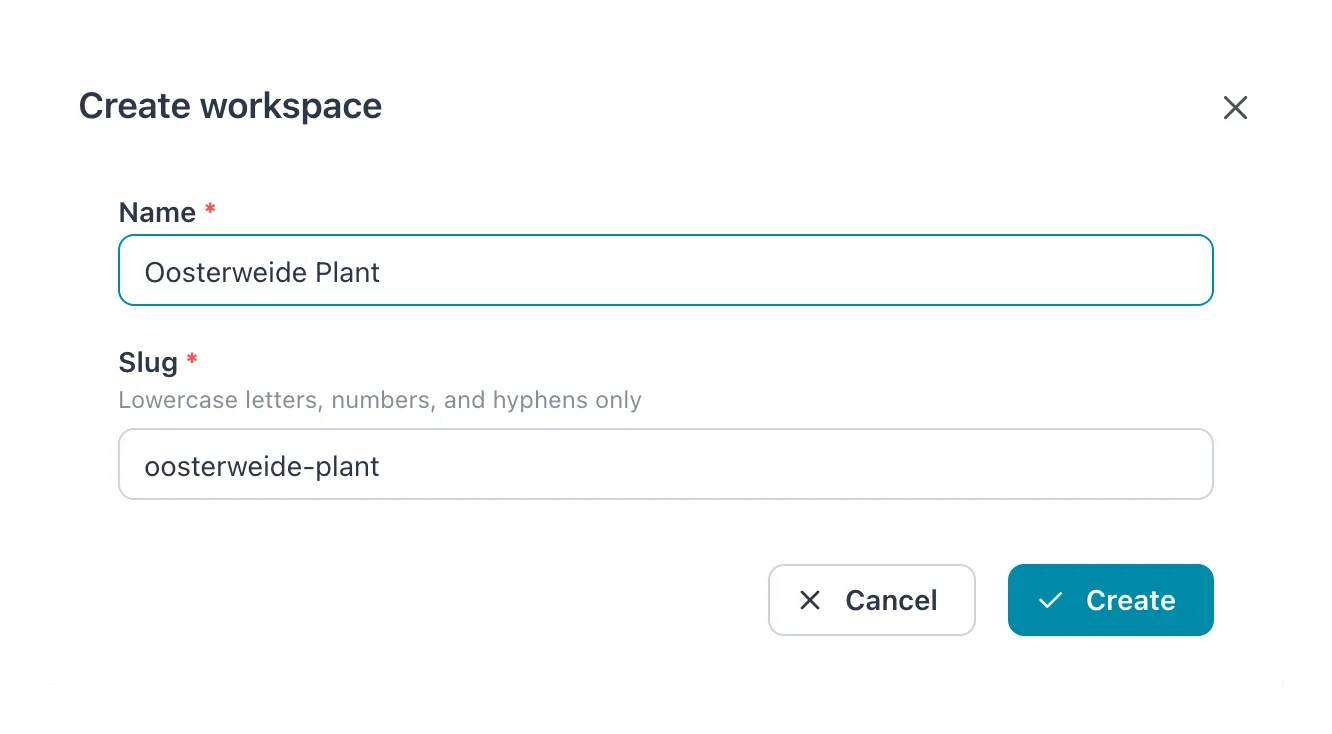 The slug was filled in from the name while typing. Change it before you select Create if you want it shorter.
| Field | What to enter |
|---|---|
| Name | The name people see in the workspace switcher, for example Noordveld Plant. Required. |
| Slug | The workspace’s short name in web addresses (…/w/noordveld/…). Lowercase letters, numbers and hyphens only, unique within the organization. Generated from the name: Noordveld Plant becomes noordveld-plant. Cannot be changed afterwards. |
Result: the message Workspace created successfully appears and the workspace is listed as Active. Next, invite people and give them a role in it, and assign a router to it. Opened for the first time, the empty workspace offers a setup wizard — see Use the setup wizard.
Rename a workspace
Section titled “Rename a workspace”-
Open the menu (⋮) at the end of the workspace’s row and select Edit.
-
Change Name. The slug is shown but cannot be changed.
-
Select Save.
Result: the message Workspace updated successfully appears.
Set a workspace’s time zone
Section titled “Set a workspace’s time zone”A workspace uses the organization’s time zone for its dates and times, unless you give it its own. Do that for a workspace whose sites are in another time zone.
-
Open the menu (⋮) at the end of the workspace’s row and select Edit.
-
In Time zone, choose a zone. Type part of its name to search. Choose Same as organization to use the organization’s time zone again.
-
Select Save.
Result: the message Workspace updated successfully appears. The workspace’s charts, lists, exports and notifications show dates in the chosen zone. See Set the time zone for what the time zone applies to.
A new workspace starts with Same as organization.
Disable or enable a workspace
Section titled “Disable or enable a workspace”Disable a workspace to take it out of use without losing anything — for example when a project is paused. Disabling is also the required step before deleting.
-
Open the menu (⋮) on the workspace’s row.
-
Select Disable (or, for a disabled workspace, Enable).
Result: the message Workspace disabled successfully (or enabled) appears and the status changes. There is no confirmation step.
Delete a workspace
Section titled “Delete a workspace”-
Disable the workspace. Delete only appears in the menu of a disabled workspace.
-
Open the menu (⋮) on the workspace’s row and select Delete.
-
In Delete workspace, select Delete.
Result: the message Workspace deleted successfully appears and the workspace is gone.
If it does not work
Section titled “If it does not work”| Message | What to do |
|---|---|
| A workspace with this slug already exists. | Change the slug. Slugs are unique within the organization, including disabled workspaces. |
| Lowercase letters, numbers, and hyphens only (under Slug) | Remove capitals, spaces and other characters from the slug. |
| There is no Delete in the menu | The workspace is still active. Disable it first. |
Related
Section titled “Related”- Invite and manage users — give people a role in the workspace
- Manage routers — connect a router to it
- Use the setup wizard
- Set the time zone - the organization’s time zone