

Dashboard
The dashboard is the first screen you see in a workspace. It shows at a glance whether instruments are connected, whether an alarm is going off and what has happened recently. From each widget you can go straight to the screen with the details.
Open it with Dashboard at the top of the left navigation. The widgets show the same data to every role; what you can do after following a link depends on your role on that screen. The arrangement of the widgets is yours: see Customize the dashboard.
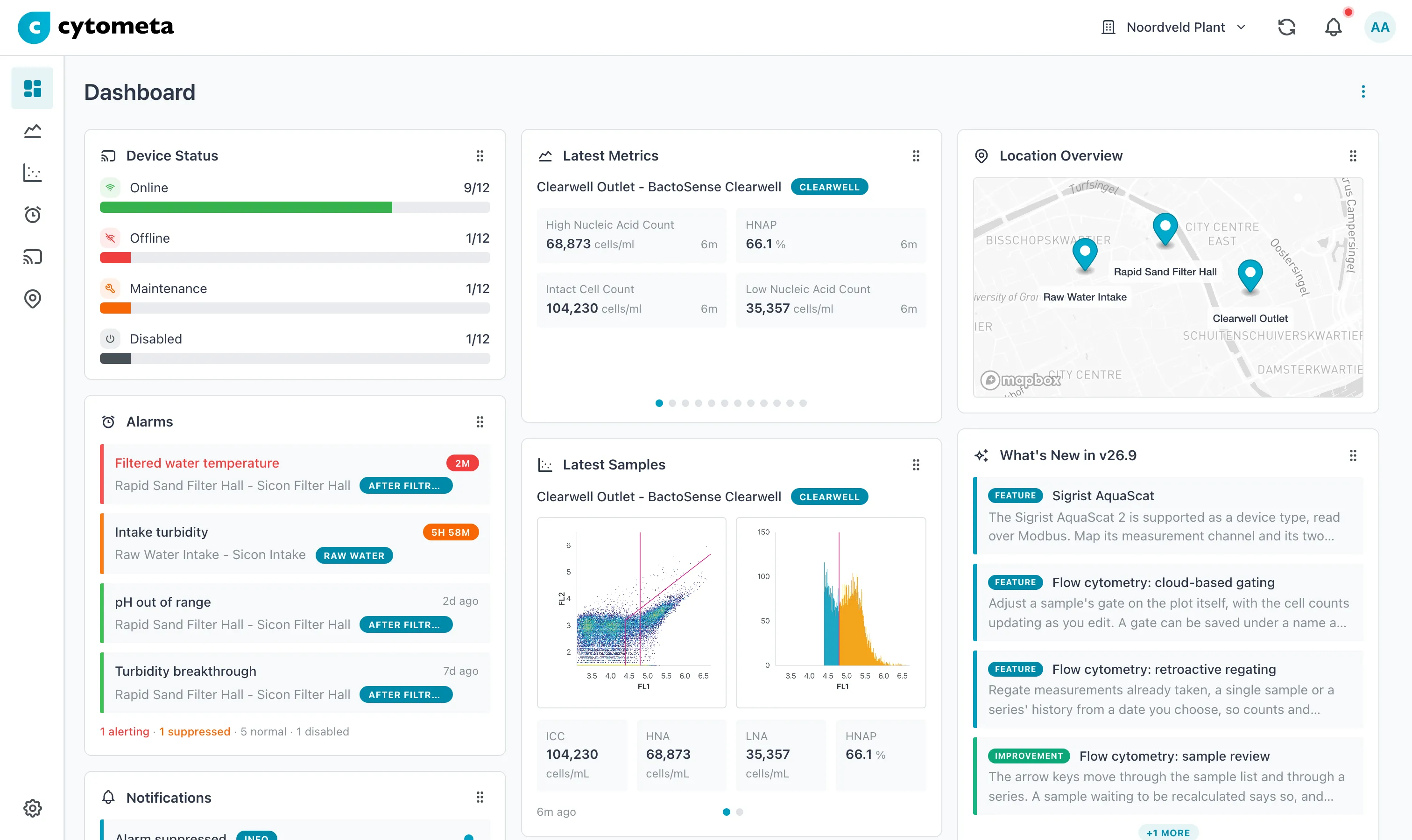 Device Status, Alarms and Notifications on the left; Latest Metrics and Latest Samples in the middle; Location Overview and What’s New on the right.
At the top
Section titled “At the top”- The menu (⋮) beside the title holds two items. Refresh reloads every widget straight away, instead of waiting for the automatic refresh. Customize opens Dashboard Settings, where you arrange or hide widgets (see Customize the dashboard).
- Protect your account appears when two-factor authentication is off on your account and your organization does not require it. Enable 2FA takes you to your profile, where you set up an authenticator app (see Set up your account). Remind me later hides the banner for 7 days in this browser.
- Complete your workspace setup takes the place of the 2FA banner in a workspace that has no locations yet, if you skipped the setup wizard. See Use the setup wizard.
- New devices found on your network appears for Managers and Admins when the workspace’s routers found devices that no device record matches. Review devices opens the list; the close button (×) hides the banner until the number changes. See Add discovered devices.
The widgets
Section titled “The widgets”By default the widgets are laid out in three columns: Device Status, Alarms and Notifications on the left; Latest Metrics and Latest Samples in the middle; Location Overview and What’s New on the right. On a narrower screen the dashboard switches to two columns or one, and each column count has its own layout.
| Widget | What it shows | Select it to open |
|---|---|---|
| Device Status | One bar per state, with the count out of all devices: Online, Offline, Maintenance and Disabled. States with no devices are left out. Devices in maintenance or disabled are not counted as online or offline. | Devices, filtered on that state |
| Alarms | Up to four enabled alarms, alerting ones first. Each row shows the location and device of the alarm’s anchor condition, its tag and a status. The footer counts the alarms by state, for example 1 alerting · 3 normal · 0 disabled. | Alarms, with that alarm selected |
| Notifications | Your three most recent unread notifications. The dot on the right marks one as read. Show device and Show alarm go to what the notification is about. | — |
| Latest Metrics | The latest value of each metric that reported in the last 24 hours, grouped by location, device and tag, up to eight metrics per group. The widget moves to the next group every 6 seconds. Select a dot under the values to pick a group yourself; rotation then pauses for 30 seconds. | Metrics, with that group’s series over the last 7 days |
| Latest Samples | The most recent flow-cytometry sample of each series that measured in the last 24 hours: its plots, the total count, HNA, LNA and HNAP (%). Rotates through series like Latest Metrics. | Flow Cytometry, with that series |
| Location Overview | Every location with an address on a map. | Select a marker to open that location |
| What’s New in version | Up to four changes in the current release of Cytometa Cloud, each labeled Feature, Improvement or Fix. +n more appears when there are more. Read the release notes opens the release’s page under What’s new in a new tab. | Changelog, the full list of changes per release, each with a Read the release notes link |
The status on an alarm row
Section titled “The status on an alarm row”| You see | It means |
|---|---|
| 2h 15m | The alarm is alerting, and has been for this long. The name is red as well. |
| 45m | Someone suppressed the alarm. This is how long the suppression still runs. |
| 1d ago | The alarm is normal. It last went off this long ago. |
| Never triggered | The alarm is normal and has never gone off. |
A green edge on a row means normal, red means alerting and orange means suppressed. All alarms disabled means the workspace has alarms, but none of them is enabled.
Severity on a notification
Section titled “Severity on a notification”The badge beside a notification’s title shows how serious it is: INFO (for example a device back online), WARNING (a device offline, a cartridge running low) or ERROR (a device error, an empty cartridge, an alarm going off). On screen, WARNING is yellow.
What to act on
Section titled “What to act on”- Device Status shows any Offline device: select the bar and check the device. An offline instrument sends no data, so its alarms cannot fire either.
- Alarms shows a red duration: open the alarm and investigate it.
- Notifications shows unread cartridge or service messages: these tell you to contact your service provider in time, before a cartridge runs out or a service date passes.
- Latest Metrics or Latest Samples reads No recent metrics or No recent samples when you expect data: nothing has reported in the last 24 hours. Check the devices.
For a full morning routine, see Check your sites daily.
Updates
Section titled “Updates”The widgets refresh on their own while the dashboard is open. ⋮ › Refresh reloads them straight away.