

Edit a device
Edit a device to correct its details — a renamed site, an instrument moved to another location, a replaced network card — or to change how Cytometa Cloud reads the instrument.
-
In the left navigation, open Devices and select the device.
-
Open the menu (⋮) at the top right and select Edit.
-
On the Details tab, change the fields you need (see the table below).
-
Select Save. The button stays disabled until you change something and every field is valid.
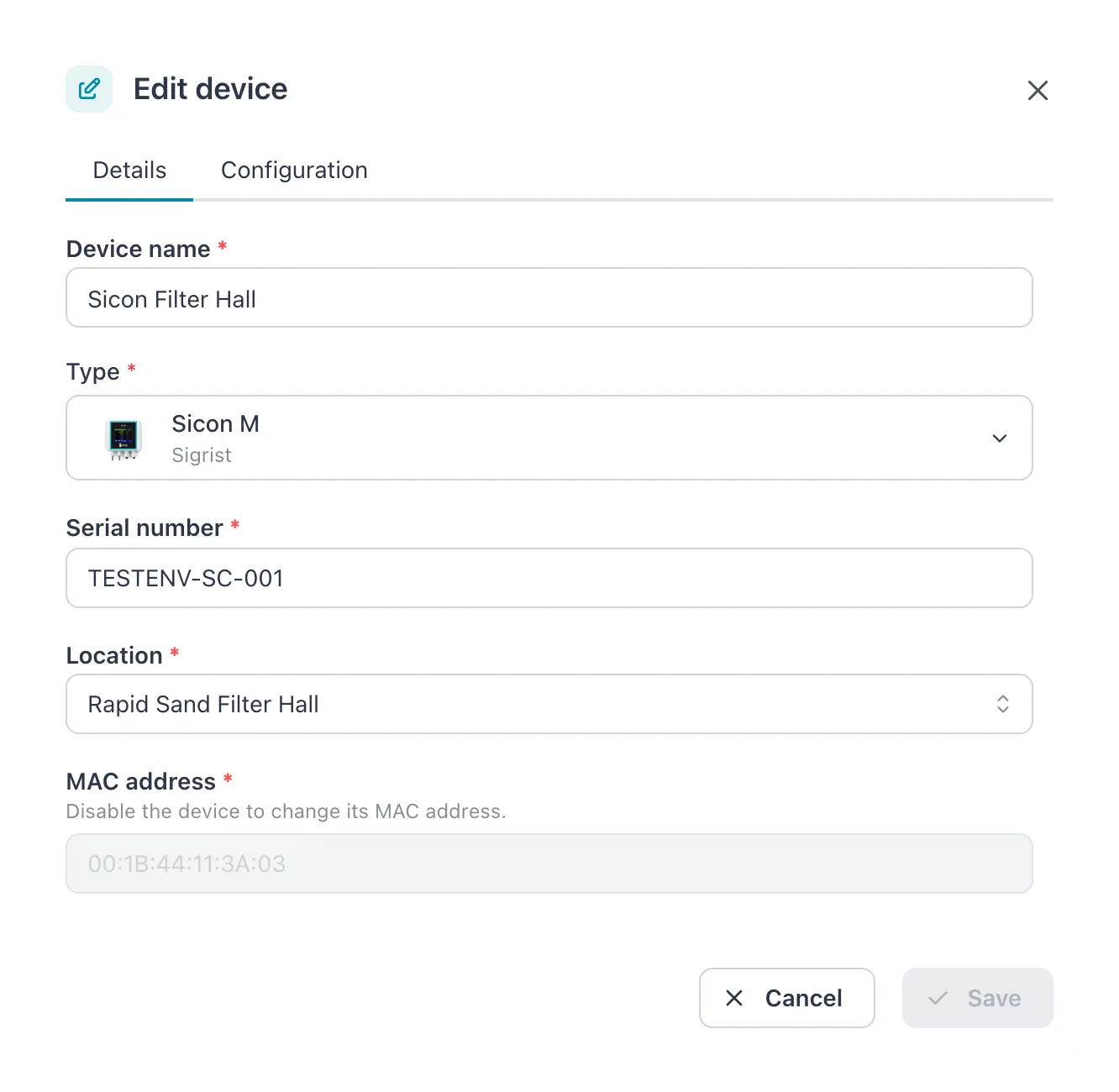 The Details tab. What the Configuration tab holds depends on the device type.
| Field | What it is |
|---|---|
| Device name | The name shown in lists, charts and notifications. Unique within the workspace. |
| Type | The instrument model. Correct it only if it was chosen wrongly: the type decides which Configuration tab and status cards appear. |
| Serial number | From the instrument’s label. |
| Location | Where the instrument stands. Search by name. |
| MAC address | Six pairs of hexadecimal digits separated by colons, AA:BB:CC:DD:EE:FF. Locked while the device is online; set it to Disabled first. |
All five fields are required, as when you create a device.
Result: the message Device updated successfully appears, the dialog closes and the page shows the new details.
The Configuration tab
Section titled “The Configuration tab”The Configuration tab holds the settings for this type of instrument. It has its own Save button: saving one tab does not save the other. The fields differ per type:
- Bactosense
- Sigrist AquaScat 2
- Sigrist Sicon / AquaMaster - also Sicon XX 40
- Cytometa FlowControl
The ATi Metrinet and the s::can con::line have no settings and no Configuration tab.
A saved configuration shows Settings updated successfully.
Unsaved changes
Section titled “Unsaved changes”If you switch tabs or close the dialog while a tab has unsaved changes, the app asks You have unsaved changes. Do you want to discard them? Select Discard to drop them, or Cancel to stay.
The Cancel button on a tab closes the dialog and drops unsaved changes without asking.
What changing location or MAC address does
Section titled “What changing location or MAC address does”If it does not work
Section titled “If it does not work”| Message | What to do |
|---|---|
| A device with this name already exists. | Choose another name. |
| A device with this serial number already exists. | Another device of the same type already has this serial number. Check both labels. |
| A device with this MAC address already exists. | Another device record uses this MAC address. Correct the other record first if it was entered wrongly. |
| Disable the device before you change its MAC address. | The device came online while the dialog was open. Set it to Disabled, then try again. |
| Invalid MAC address format (use XX:XX:XX:XX:XX:XX) | Use six pairs of hexadecimal digits separated by colons. |
| Failed to update device. Please try again. | Something else went wrong. Try again; if it keeps failing, reload the page. |
| Edit is not in the menu | You are a Viewer or Operator. Ask a Manager or Admin. |
Related
Section titled “Related”- Devices — the device page
- Create a device
- Change a device’s state