

Customize the dashboard
Change which widgets the dashboard shows and in which column, for example to put Alarms at the top or to hide Latest Samples in a workspace without flow cytometry.
-
In the left navigation, open Dashboard.
-
Open the menu (⋮) beside the title and select Customize. The Dashboard Settings dialog opens.
-
At the top, select the layout to change: 1 Column, 2 Columns or 3 Columns. The dialog opens on the layout your screen is using now.
-
Drag a widget by its handle into Column 1, Column 2, Column 3 or Hidden. Drag it up or down within a column to change the order.
-
Select Done.
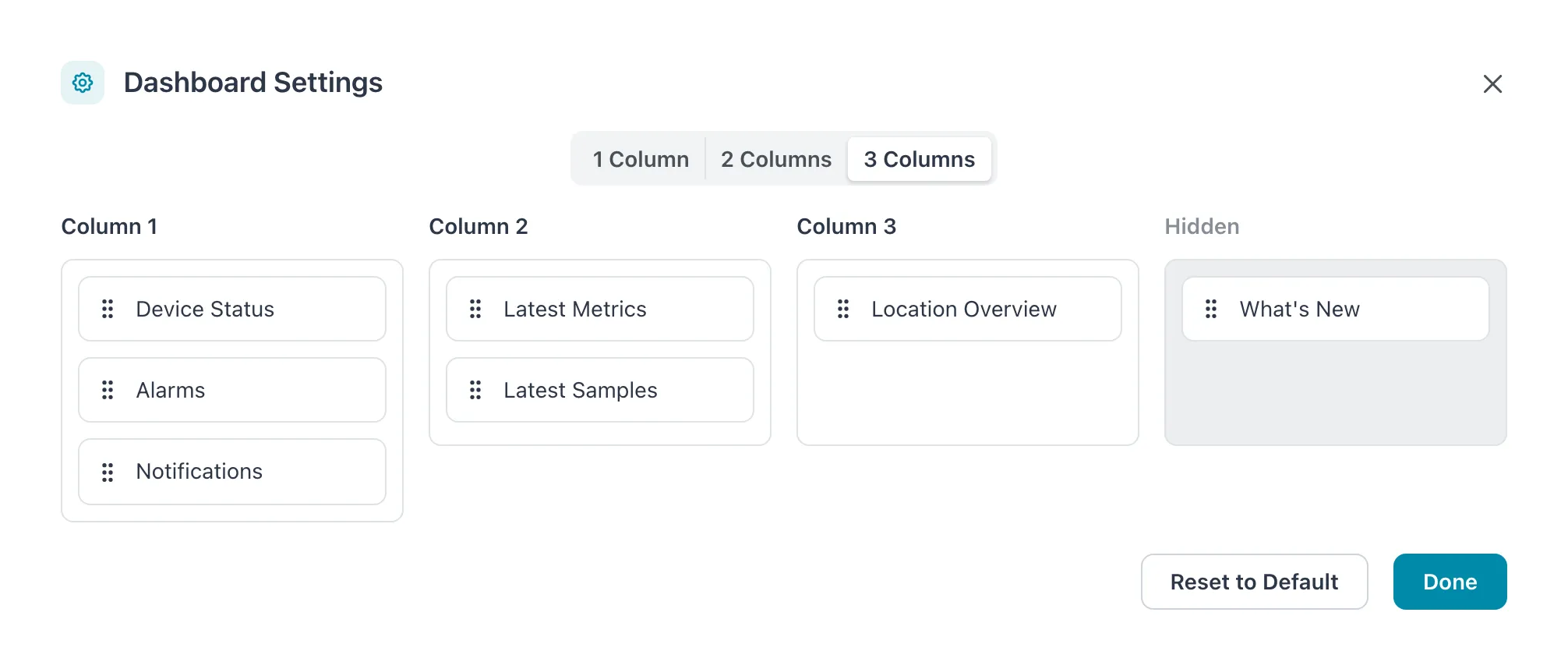 What’s New has been dragged to Hidden; the other six widgets are spread over three columns.
Result: the dashboard shows the widgets in the columns and order you chose. Each change is saved as you make it; Done only closes the dialog.
To go back to the original layout, open Customize and select Reset to Default. This resets all three layouts and brings back hidden widgets.
- Three layouts. The dashboard uses three columns when its content area (the window minus the left navigation) is at least 1200 pixels wide, two columns from 768 pixels and one column below that. Each column count has its own arrangement. What you change under 2 Columns does not affect 3 Columns.
- Per browser and per workspace. The layout is stored in your browser, not in your account. A different browser or computer shows the default layout, and so does another workspace. Clearing the browser’s site data resets it.
- Only for you. Nobody else sees your layout, and changing it needs no special role.
- New widgets appear once. When a new widget is added to Cytometa Cloud, it is placed at the bottom of the last column of your layout. If you hide it, it stays hidden.
- Empty columns disappear. A column with no widgets is not shown. The other columns share the width.
Related
Section titled “Related”- Dashboard — what each widget shows
- Find your way around