

Manage routers
A router (gateway) is the small box on site that connects your instruments to Cytometa Cloud. It finds the instruments on the site network, reads their data and sends it to the cloud, and carries remote-access sessions. It only makes outgoing connections; nothing on the internet can connect to it. Your service provider installs it. Tell Cytometa which workspace its data should go to: Cytometa enrolls the router into that workspace, and it arrives Approved there.
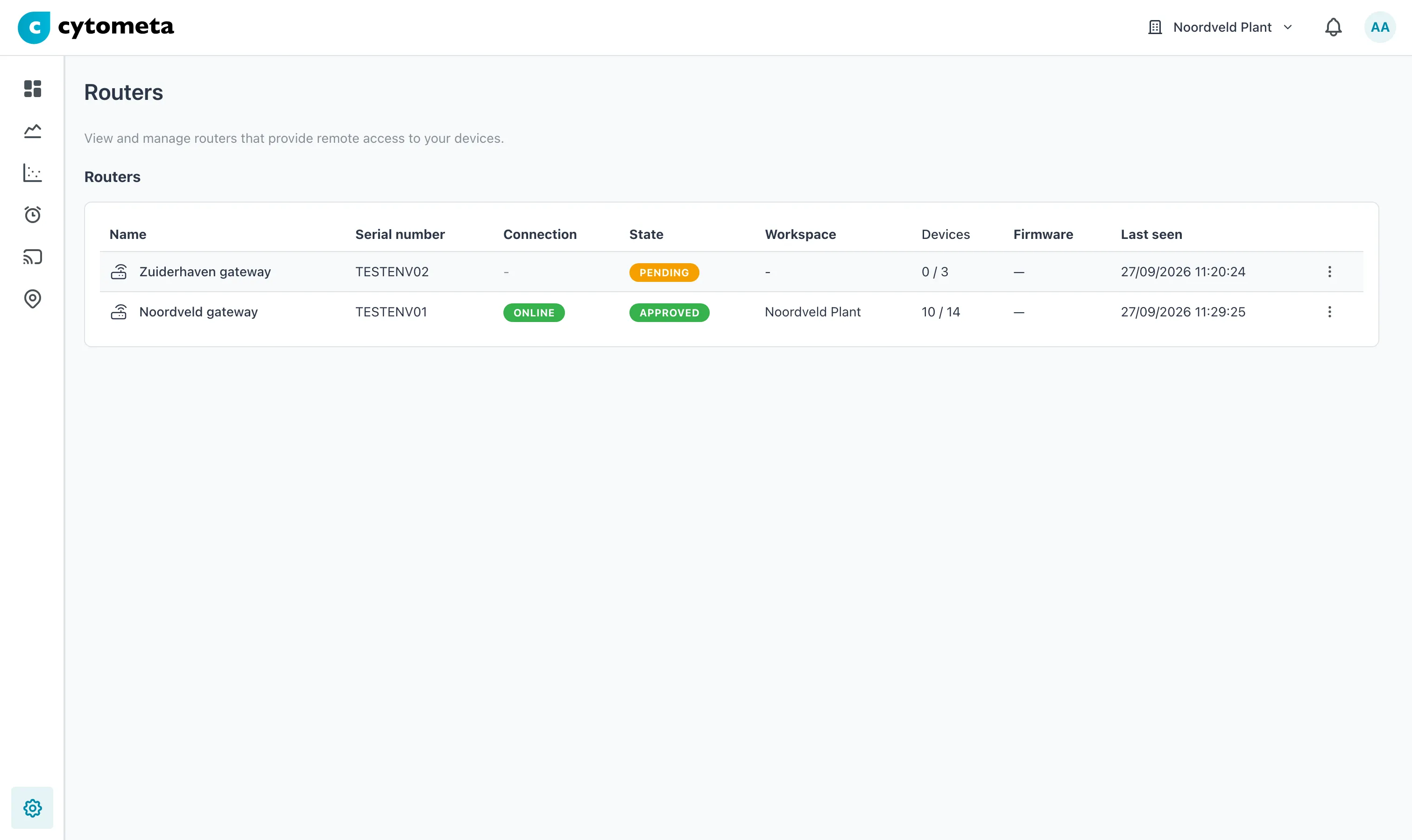 A pending router has no connection state and no workspace yet. The approved one is online and sends its data to Noordveld Plant.
The Routers table
Section titled “The Routers table”| Column | Shows |
|---|---|
| Name | The router’s name, set by Cytometa. |
| Serial number | From the router’s label. Use it to tell routers apart. |
| Connection | Online or Offline. Shown for approved routers only; others show -. |
| State | Approved - sends data to its workspace. Disabled - blocked; sends no data. Pending - registered before v26.10 and not approved yet; may not send data. |
| Workspace | Where the router’s data goes, or -. |
| Devices | Linked devices / discovered devices, for example 5 / 5. A discovered instrument is linked once a device record with its MAC address exists in the workspace. |
| Firmware | The router’s firmware version, or —. |
| Last seen | When the router last sent data, or Never. |
You cannot rename or delete a router here; ask Cytometa if one needs to change or go.
Check a new router
Section titled “Check a new router”A new router appears as Approved in its workspace as soon as it first connects. Check its Serial number against the router that was installed, and its Workspace. If the workspace is wrong, reassign it.
Approve a pending router
Section titled “Approve a pending router”Only a router that registered before v26.10 can still be Pending.
-
Select the gear () at the bottom of the left navigation, then select Routers.
-
Check the Serial number against the router that was installed.
-
Open the menu (⋮) at the end of its row and, under Set state, select Approved.
-
In Approve router, choose the Workspace its data should go to. The workspace is required.
-
Select Approve.
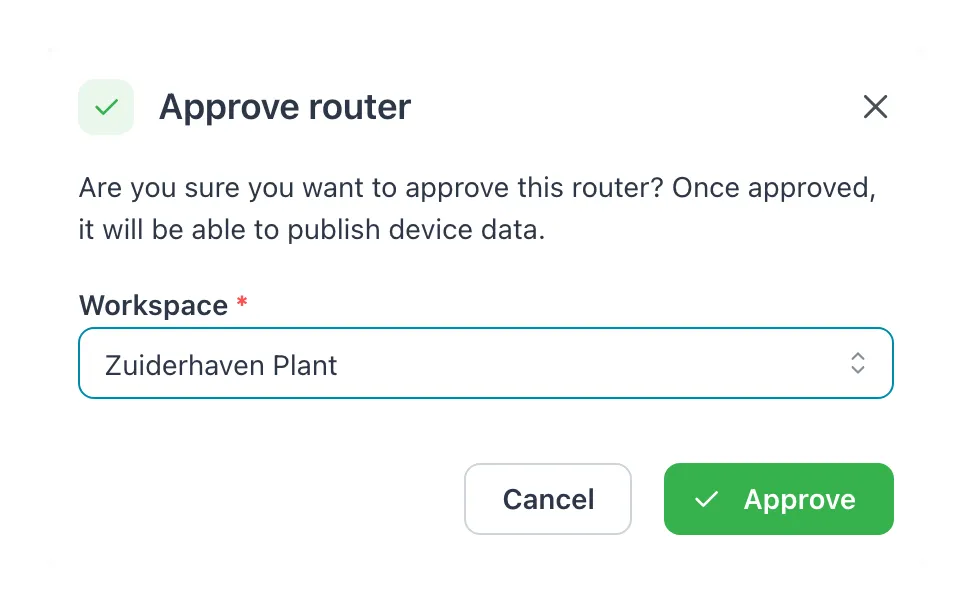 The workspace is required: the router’s data goes there once it is approved.
Result: the message Router approved successfully appears, the state changes to Approved and Connection shows whether it is online. The router starts linking the instruments it finds to device records in that workspace — see Create a device.
When a router is enrolled again
Section titled “When a router is enrolled again”A router that is reset or reinstalled is enrolled again by Cytometa. It keeps its name, linked devices and history.
See the instruments a router has found
Section titled “See the instruments a router has found”Open the menu (⋮) on the router’s row and select Discovered devices. The dialog lists every instrument the router has found on the site network, and refreshes every 10 seconds while it is open:
| Column | Shows |
|---|---|
| MAC address | The instrument’s network address — compare it with the MAC address of the device record. |
| IP address | Its address on the site network. |
| Host name | The name it reports on the site network, or - when it reports none. |
| Protocols | What the router can talk to it with, for example the protocol used for data or for remote access. |
| Linked device | Linked when a device record with this MAC address exists in the workspace. Not an instrument when someone hid it in the new devices window. Otherwise Not linked. |
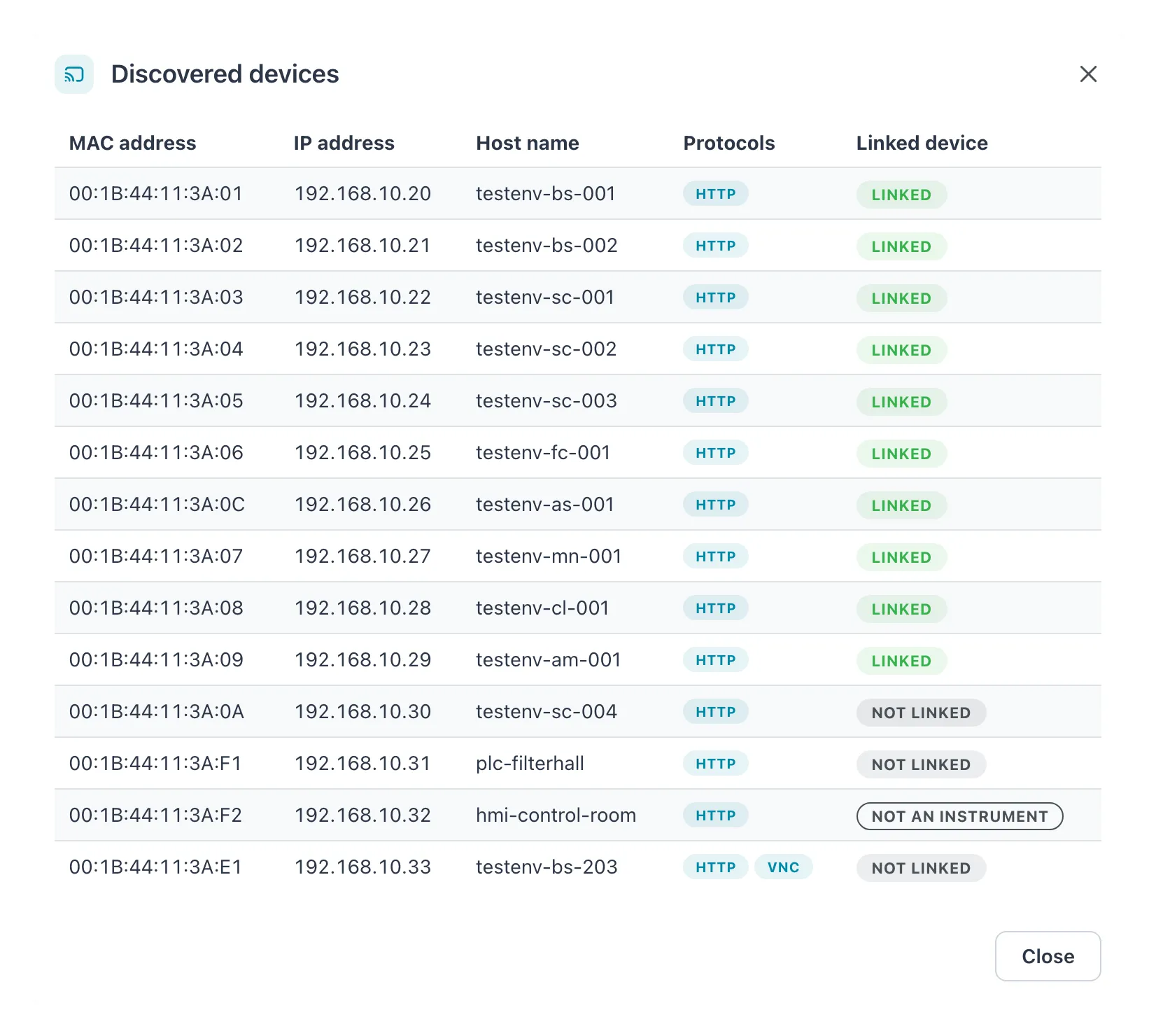 The list is read-only. Hide or link a device in the workspace.
A Not linked instrument usually means there is no device record yet, or its MAC address was entered differently. To create or link the record from the list of devices the router found, see Add discovered devices. You can also create the device or correct its MAC address.
Assign or reassign a workspace
Section titled “Assign or reassign a workspace”-
Open the menu (⋮) on the router’s row and select Assign workspace (or Reassign workspace if it already has one).
-
Choose the Workspace.
-
Select Save.
Result: the message Router updated successfully appears.
Disable or enable a router
Section titled “Disable or enable a router”Disable a router to stop it sending data immediately — for example when it has been removed from site or you suspect it is misused.
-
Open the menu (⋮) on the router’s row and, under Set state, select Disabled (or Enabled for a disabled router).
-
Confirm with Disable (or Enable).
Result: a disabled router no longer publishes data, and remote access through it stops. Enabling it lets it publish again, to the same workspace.
Related
Section titled “Related”- Create a device — how a device is linked by its MAC address
- Add discovered devices
- Open remote access — needs an approved, online router
- Manage workspaces
- Troubleshooting