

Set the security policy
The security policy applies to everyone in your organization: whether they must confirm their identity with a second factor when they sign in, which methods they may use for that, and how long they stay signed in.
The page has a card for each part. Each card has its own Save and Discard; saving one card does not save the other.
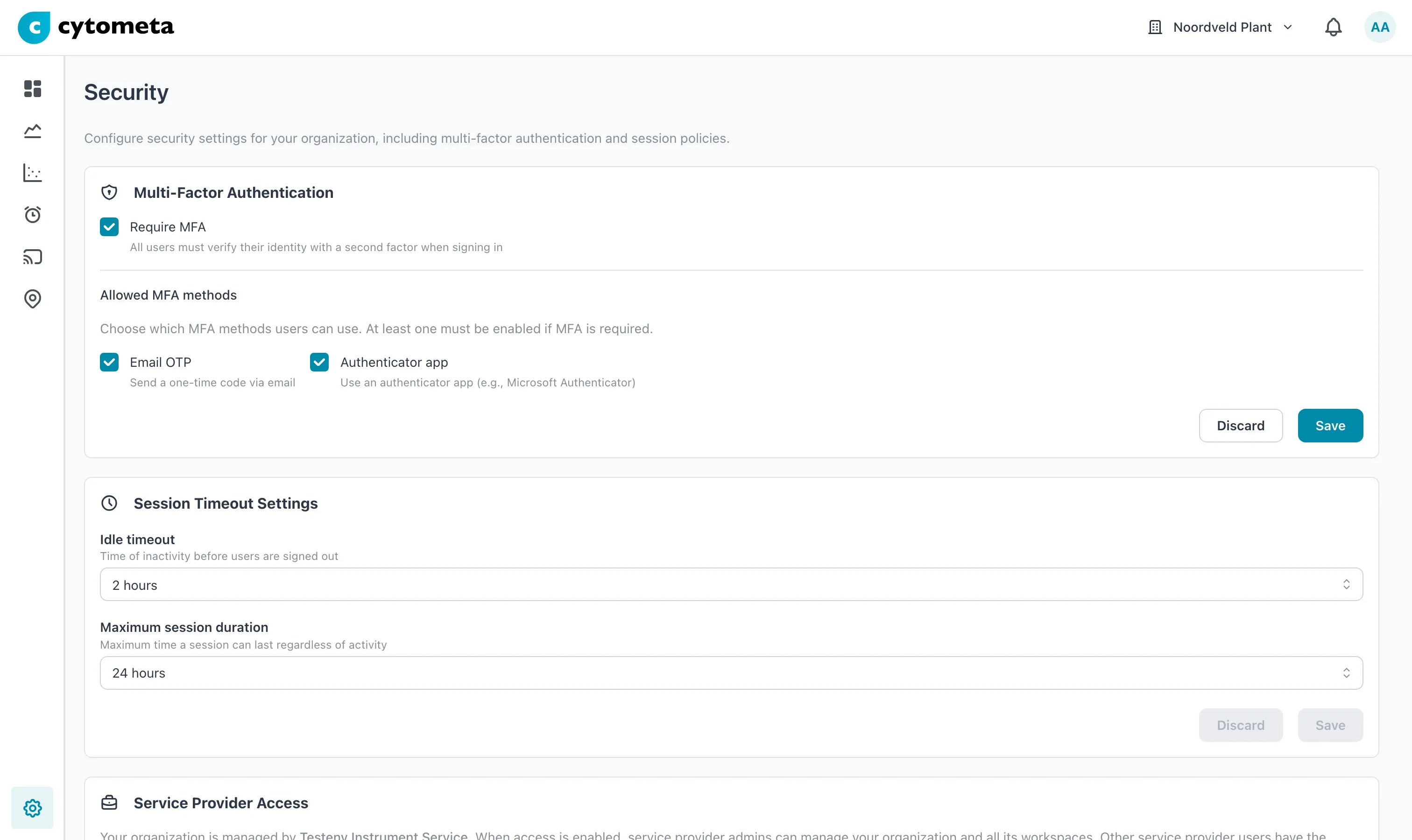 Ticking Require MFA makes the card’s Save available. The session card below keeps its own Save and Discard.
Require multi-factor authentication
Section titled “Require multi-factor authentication”-
Select the gear () at the bottom of the left navigation, then select Security.
-
In Multi-Factor Authentication, check Require MFA. Allowed MFA methods appears.
-
Check the methods users may use: Email OTP, Authenticator app, or both.
-
Select Save in the same card.
Result: the message Security settings updated successfully appears. From their next sign-in, every user must enter a verification code after their password.
| Method | How it works | Trade-off |
|---|---|---|
| Email OTP | A one-time code is sent to the user’s email address. | Nothing to install, but only as strong as the mailbox: anyone who can read the user’s email can sign in with their password. |
| Authenticator app | The user reads a code from an app on their phone, such as Microsoft Authenticator. | Stronger and works without email, but each user has to set up the app once, and needs their phone (or a recovery code) to sign in. |
Allowing both lets each user choose. At least one method must stay checked while MFA is required.
When Require MFA is off, users are not forced to use a second factor, but can set up an authenticator app on their Profile. Every sign-in then asks them for its code. See Set up your account.
Set session timeouts
Section titled “Set session timeouts”-
In Session Timeout Settings, choose the Idle timeout and the Maximum session duration (see the table below).
-
Select Save in the same card.
| Field | What it does | Options |
|---|---|---|
| Idle timeout | A user who does nothing for this long is signed out. | 1 hour, 2 hours, 4 hours, 8 hours or 24 hours. A new organization starts at 2 hours. |
| Maximum session duration | A user is signed out after this long, however active they are. | 4 hours, 8 hours, 24 hours, 3 days or 7 days. A new organization starts at 24 hours. |
The idle timeout cannot be longer than the maximum session duration.
Result: the message Security settings updated successfully appears.
Service provider access
Section titled “Service provider access”If Cytometa has assigned your organization a service provider, a third card, Service Provider Access, appears on this page. See Allow service provider access.
If it does not work
Section titled “If it does not work”| Message | What to do |
|---|---|
| At least one MFA method must be allowed when MFA is required | Check Email OTP, Authenticator app, or both. |
| Idle timeout cannot exceed maximum session duration | Choose a shorter idle timeout or a longer maximum. |
| Save stays disabled | Nothing has changed in that card, or a message above it needs fixing first. |
Related
Section titled “Related”- Sign in — what users see when MFA is on
- Set up your account — two-step verification and recovery codes
- Invite and manage users
- Limits and rules