

Use the setup wizard
A new workspace starts empty. The setup wizard walks you through creating its first location, the first device at that location and the tag for the data, and then creates all three at once. For the order of the whole setup, from router to alarms, see Set up a workspace.
The wizard opens when a Manager or Admin opens the dashboard of a workspace that has no locations. Creating tags, locations and devices needs the Manager role, so a Viewer or Operator gets neither the wizard nor the Complete your workspace setup banner: the dashboard stays empty until a Manager or Admin sets the workspace up.
Before you start, have ready:
- the site’s name and address;
- the instrument’s type, serial number and MAC address, both from its label;
- a short name for the tag, such as inlet or treated.
-
On Welcome to Cytometa Cloud, select Get started.
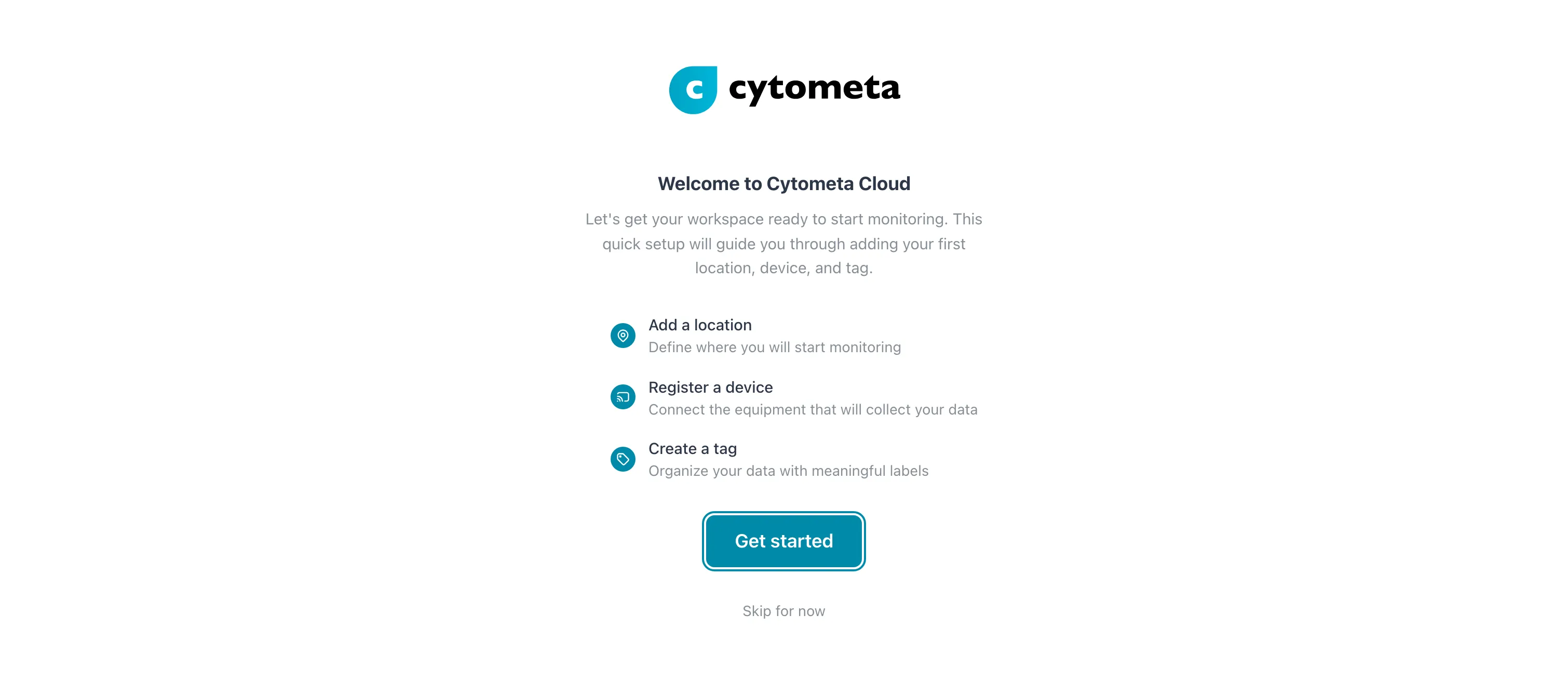 The wizard’s first step: Get started, or Skip for now to go to the empty dashboard.
 -
Location — fill in Name, Address line 1, City and Country, and optionally Address line 2 (optional). The map under Location preview shows where the address is. Select Next.
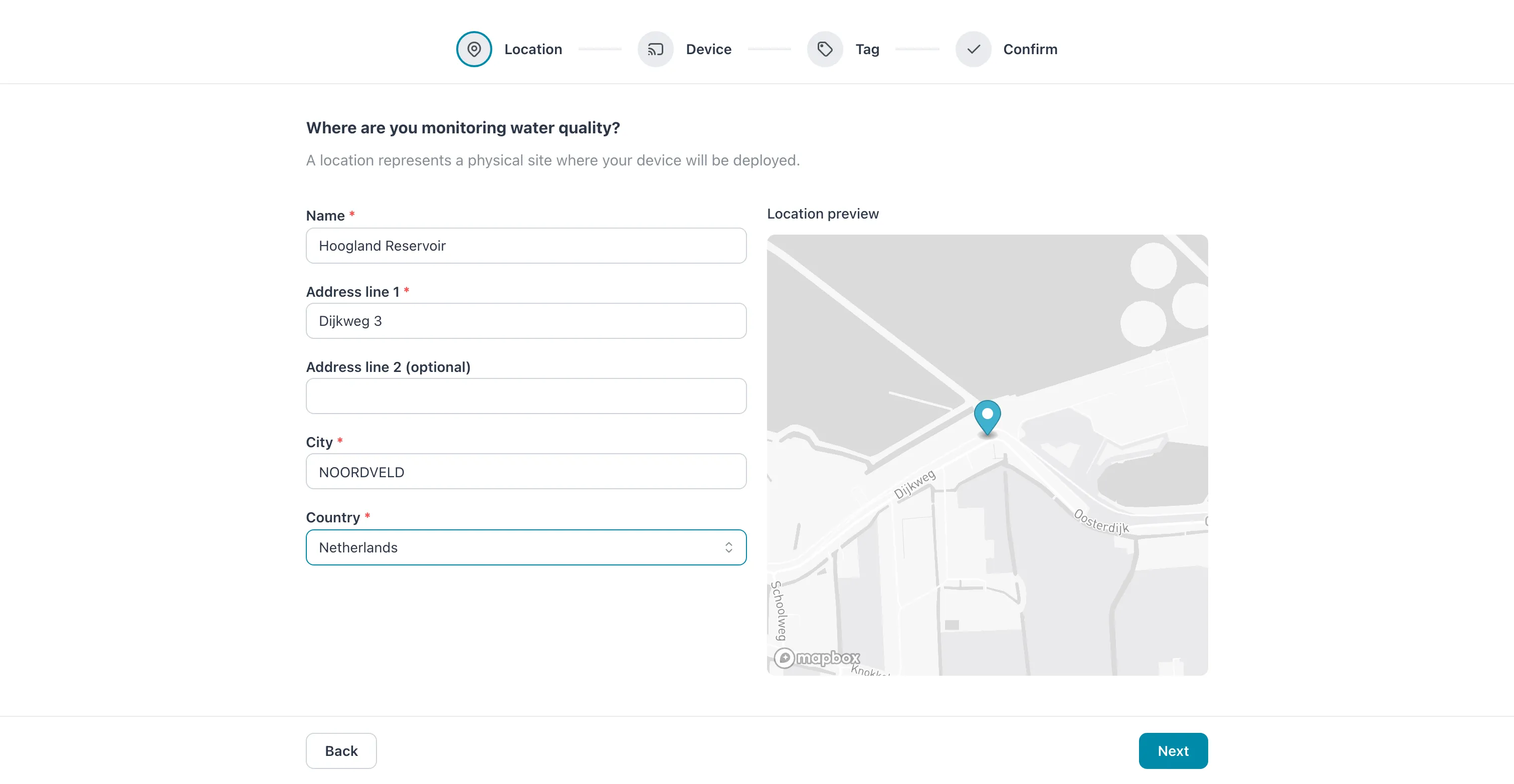 The steps across the top show where you are. The pin moves as you complete the address.
 -
Device — select the device type, then fill in Device name, Serial number and MAC address. Select Next.
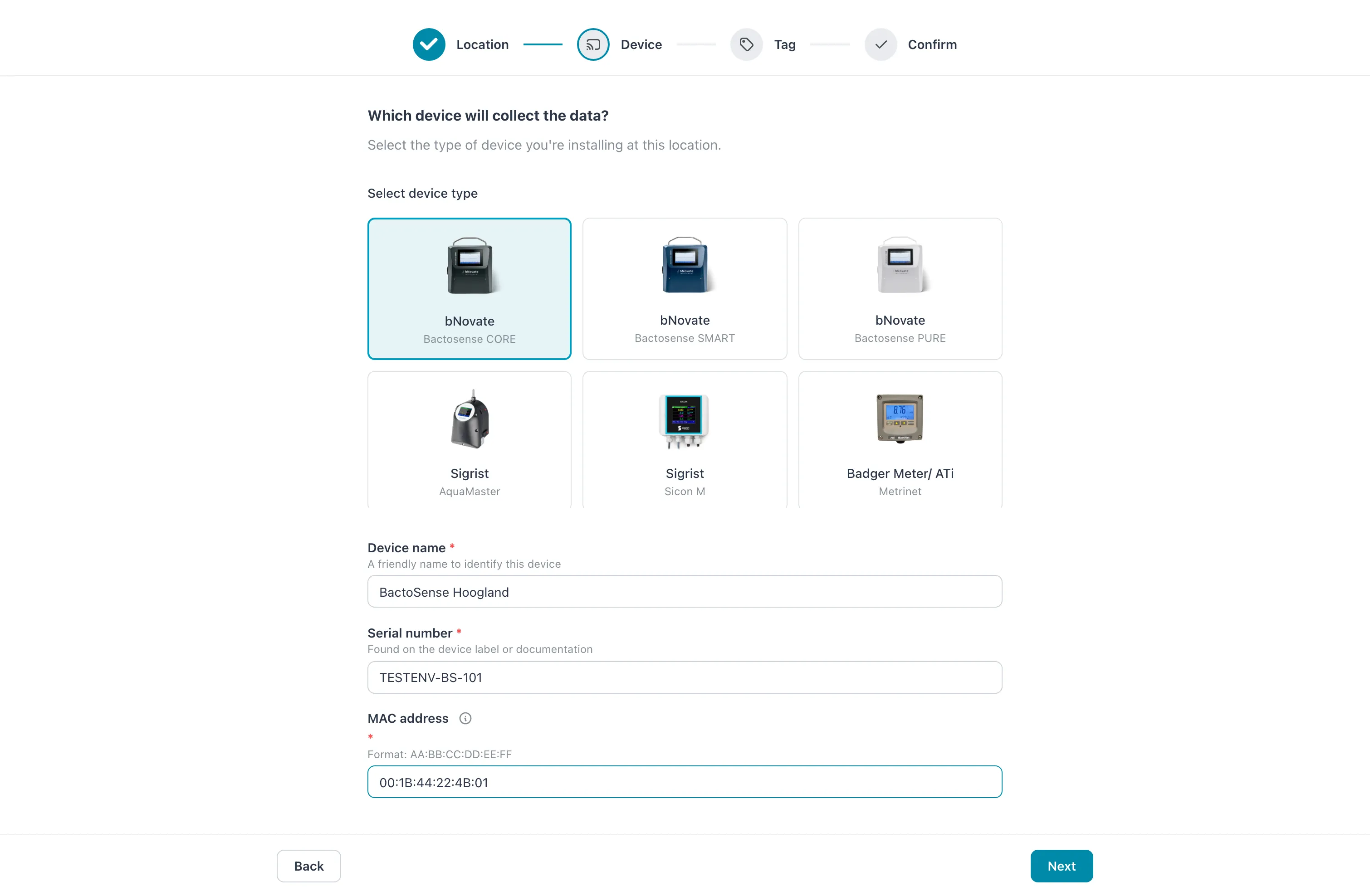 Select the card with your instrument’s picture; the selected type is outlined.
 -
Tag — fill in Name, and optionally Display name and Color. Select one of the Common examples to fill in the fields for you. Select Next.
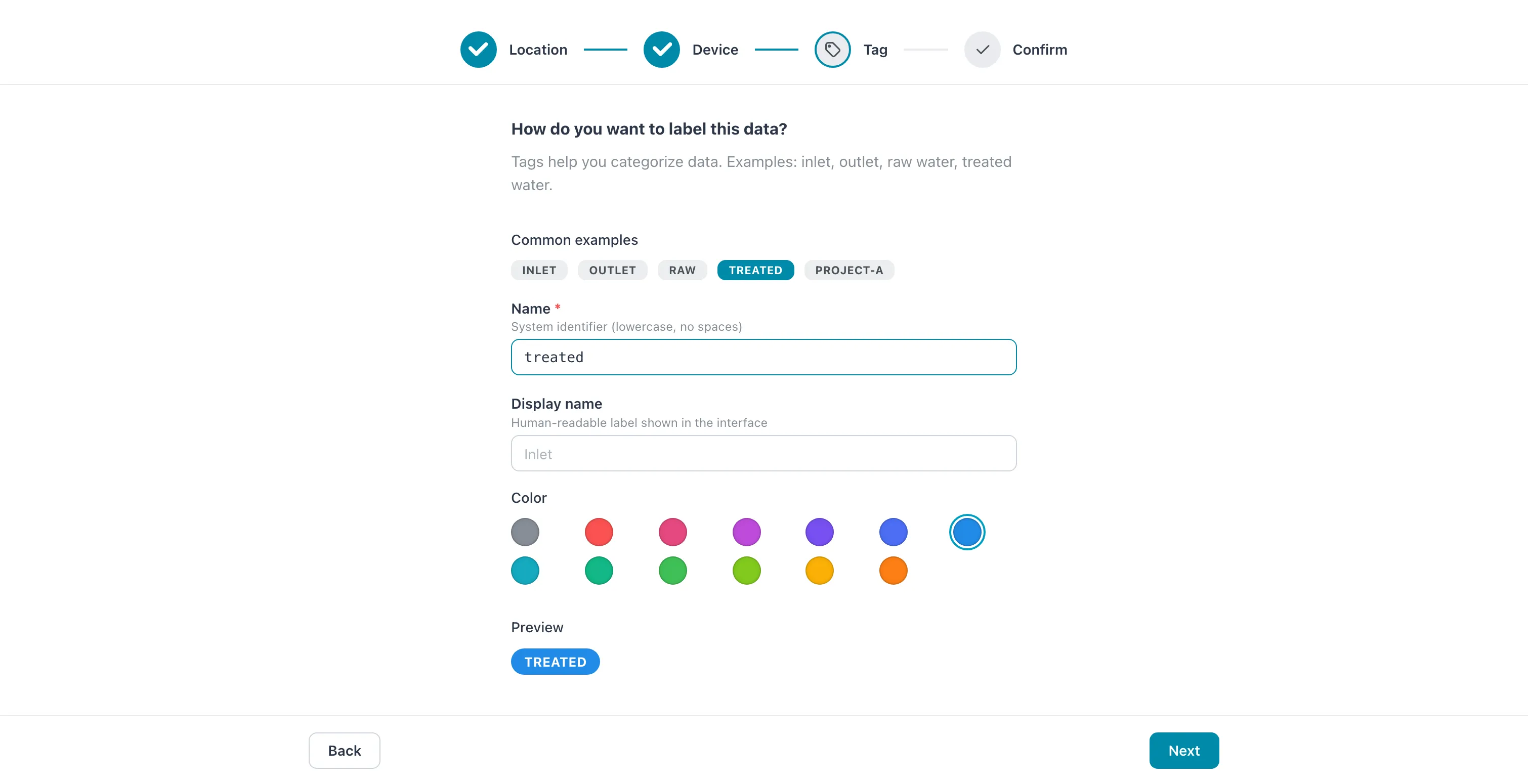 Selecting the example treated filled in Name; Preview shows the tag as it will appear.
 -
Confirm — check the summary under Review your setup. Select Back to correct something, or select Confirm & create.
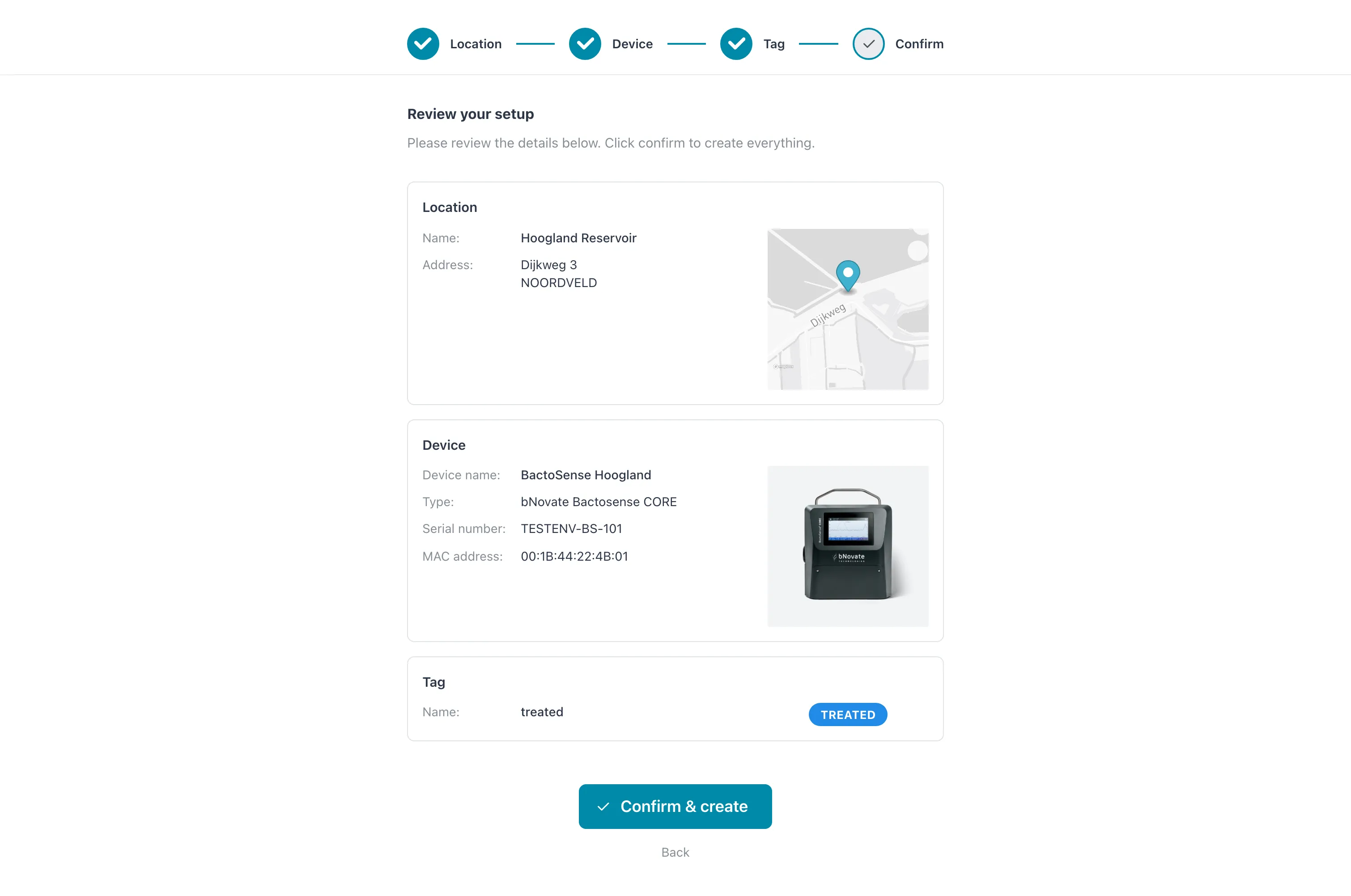 Nothing has been created yet: that happens when you select Confirm & create.
| Step | Field | What to enter |
|---|---|---|
| Location | Name | The site as people know it, for example Water Treatment Plant – Main Intake. Required. |
| Address line 1, City, Country | The street address. Required. | |
| Address line 2 (optional) | A second address line. | |
| Device | Device type | The instrument model. Required. |
| Device name | The name shown in charts, lists and notifications. Required. | |
| Serial number | From the instrument’s label. Required. | |
| MAC address | Six pairs of hexadecimal digits separated by colons, AA:BB:CC:DD:EE:FF. Required. The router uses it to find the instrument on the site network. |
|
| Tag | Name | The system name: lowercase, no spaces, at most 16 characters. Required. |
| Display name | The label shown in the app, at most 50 characters. | |
| Color | The tag’s color in lists and charts. |
Result: the wizard shows Creating…, then closes. The dashboard now shows your new location and device. As soon as the router finds an instrument with this MAC address, the device starts sending data.
Skip the wizard
Section titled “Skip the wizard”Select Skip for now on the first step to go straight to the dashboard. While the workspace still has no locations, the dashboard shows Complete your workspace setup:
- Resume setup opens the wizard again.
- The close button (×) removes the banner. The wizard does not come back in this browser.
The wizard and the banner disappear for good as soon as the workspace has a location, however it was created. You can always set up a workspace by hand instead: create a location, then create a device.
If it does not work
Section titled “If it does not work”Next stays on the same step and marks the fields that need attention: Required, Invalid MAC address format or Tag name must be 16 characters or less.
If Confirm & create fails, a red Error box shows the reason on the Confirm step. The tag, the location and the device are created together, so a failure creates none of them and the workspace is left as it was. Select Back to correct what the message points at, then select Confirm & create again.
| Cause | What to do |
|---|---|
| The wizard never opens on an empty workspace | You are a Viewer or Operator, who cannot create locations. Ask a Manager or Admin of the workspace to run the setup. |
| A device with this serial number or MAC address already exists | The instrument is registered elsewhere in this workspace. Check the labels. |
| The tag name contains capitals or spaces | Use lowercase letters without spaces, for example raw_water. |
Related
Section titled “Related”- Set up a workspace — the order of all the work
- Create a location
- Create a device
- Manage tags
- Manage routers — the router must be assigned to this workspace before its devices can send data