

Invite and manage users
Add everyone who needs Cytometa Cloud here. You decide per person whether they help run the organization, which workspaces they can open and what they may do in each. They receive an email invitation to set a password.
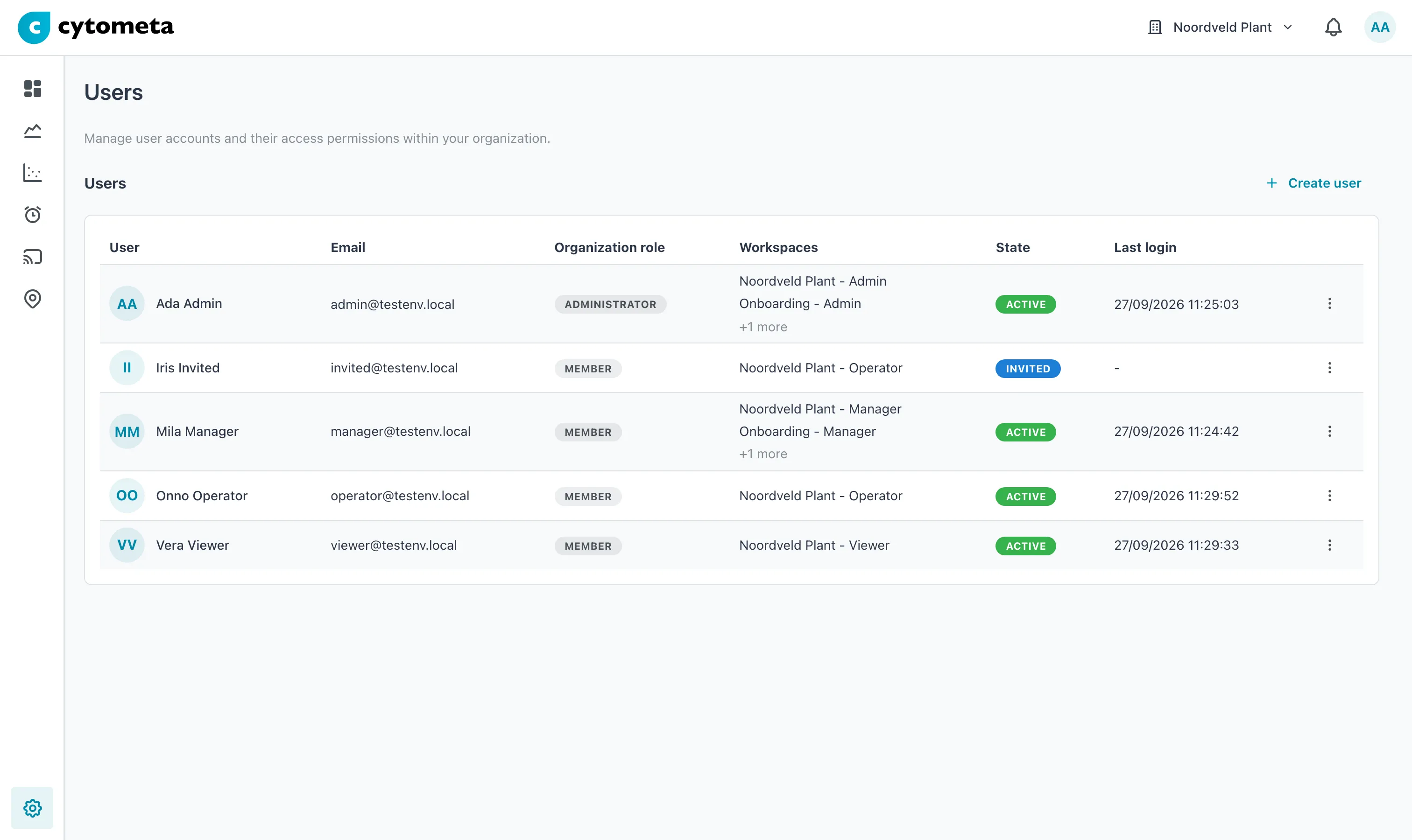 Iris Invited has not set a password yet: she is Invited and has no last login.
The Users table
Section titled “The Users table”| Column | Shows |
|---|---|
| User | Name, with initials. |
| The address they sign in with. | |
| Organization role | A badge: Administrator or Member. |
| Workspaces | Each workspace they belong to, with their role in it, for example Noordveld Plant - Manager. |
| State | Invited — has not accepted the invitation yet. Active — has set a password and can sign in. |
| Last login | When they last signed in. |
Invite a user
Section titled “Invite a user”-
Select the gear () at the bottom of the left navigation, then select Users.
-
Select Create user.
-
Fill in First name, Last name and Email.
-
Choose the Organization role.
-
Under Workspaces, select Add workspace, then choose a workspace and the user’s role in it. Repeat for each workspace the user needs.
-
Select Create. The button stays disabled until the names, a valid email address and at least one workspace with a role are filled in.
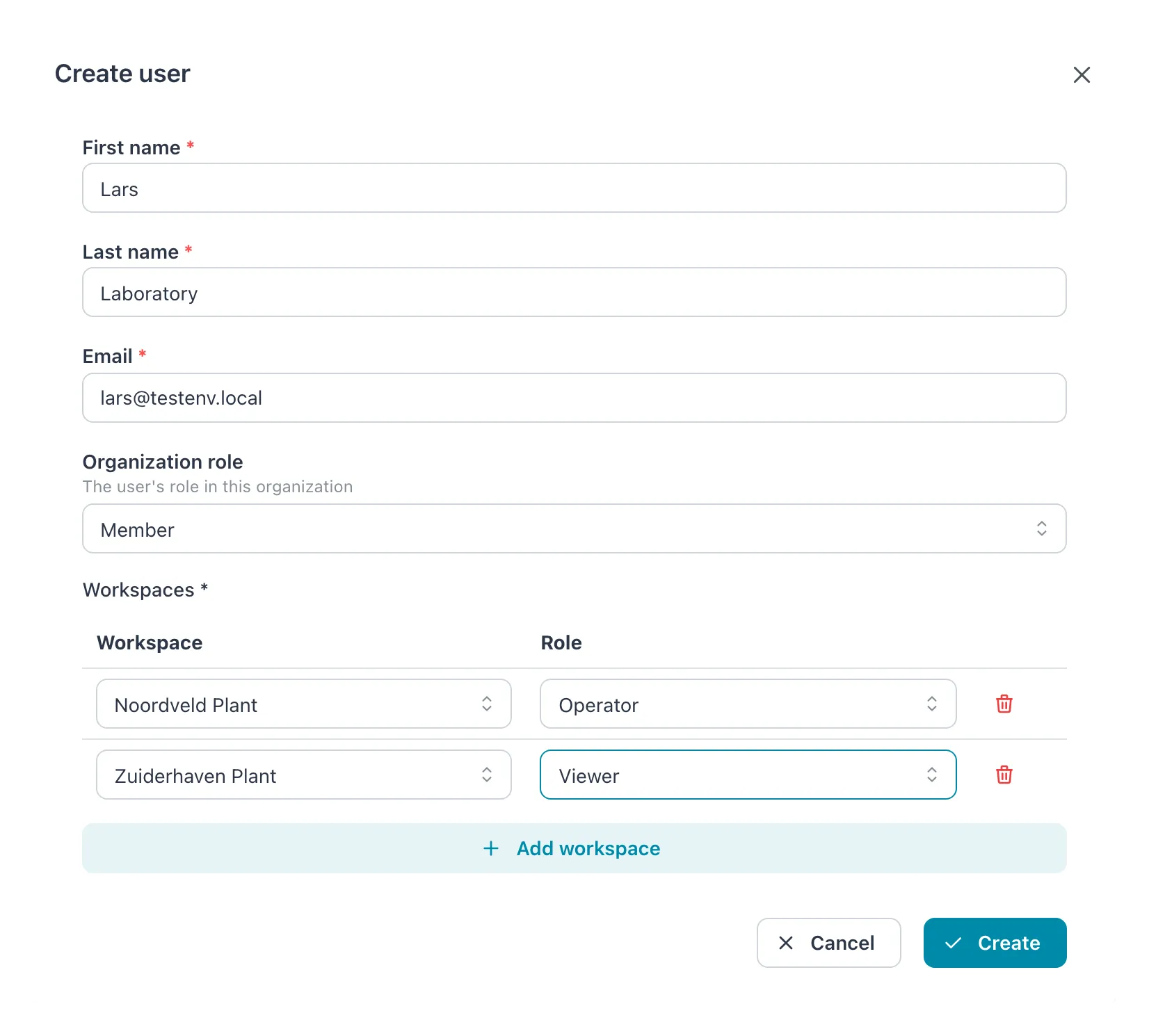 One row per workspace: this user becomes an Operator in Noordveld Plant and a Viewer in Zuiderhaven Plant.
| Field | What to enter |
|---|---|
| First name, Last name | Both required. |
| The address the invitation goes to and that the user signs in with. Cannot be changed later. | |
| Organization role | Member (the default) for most people. Administrator only for people who manage users, workspaces, routers, security or API clients — it also gives full rights in every workspace. |
| Workspaces | One row per workspace: Workspace and Role — Viewer, Operator, Manager or Admin. At least one row is required, and each workspace can appear only once. Add workspace is disabled once every workspace has a row. |
Not sure which role to give? See Roles and permissions.
Result: the message User created successfully appears and the user is listed as Invited. They receive an email with a link to set their password. The link is valid for 7 days. Once they have set a password, their state changes to Active.
If the email address already belongs to an active Cytometa Cloud user — someone who works in another organization — no invitation is sent. They are added immediately, get an email that they now have access to your organization, and sign in with their existing password.
Resend an invitation
Section titled “Resend an invitation”If the invitation got lost or the link has expired:
-
Open the menu (⋮) at the end of the user’s row.
-
Select Resend invite. It is only there while the user is Invited.
Result: the message Invitation email sent successfully appears. The new email has a fresh link, valid for 7 days.
Edit a user
Section titled “Edit a user”-
Open the menu (⋮) on the user’s row and select Edit.
-
Change the names, the Organization role, or the Workspaces rows — add a workspace, change a role, or remove a row. Email cannot be changed.
-
Select Save.
Result: the message User updated successfully appears. The new rights apply from the user’s next click — they do not have to sign in again.
Remove a user
Section titled “Remove a user”-
Open the menu (⋮) on the user’s row and select Delete.
-
In Delete user, select Delete.
Result: the message User deleted successfully appears. The user loses all access to your organization immediately. If they also work in another organization, their account stays there.
There is no way to suspend a user temporarily: to take away access, remove them, and invite them again later if needed. You cannot remove yourself.
Reset a user’s two-factor authentication
Section titled “Reset a user’s two-factor authentication”When a user has lost both the phone with their authenticator app and their recovery codes, remove the app from their account so they can sign in again. A user who still has a recovery code does not need you: they sign in with it and disable the app themselves.
-
Open the menu (⋮) on the user’s row and select Reset two-factor authentication. It is only there when the user has set up an authenticator app.
-
In Reset two-factor authentication, select Reset.
Result: the message Two-factor authentication reset appears. The user’s authenticator app and recovery codes are removed and they are signed out. They get an email and sign in again with their password. If your organization requires an authenticator app, they set up a new one at that sign-in - see Sign in.
For a user who also belongs to another organization or works for a service provider, the dialog has no Reset. Cytometa support can reset it.
When a user cannot sign in
Section titled “When a user cannot sign in”Cytometa Cloud does not lock accounts. Wrong passwords make the next try wait, up to 15 minutes. The wait ends by itself; there is no unlock button. A user who has forgotten their password can use Forgot password? on the sign-in page. See After wrong passwords.
If it does not work
Section titled “If it does not work”| Message | What to do |
|---|---|
| Please enter a valid email address | Check the address for typos and spaces. |
| Failed to create user. Please try again. | Check whether the email address is already in the table; if so, edit that user instead. |
| Failed to reset two-factor authentication. Please try again. | Reload the page. The user may no longer have an authenticator app, or may now also belong to another organization. |
| Failed to delete user. Please try again. | The user may already have been removed by someone else: reload the page. Otherwise check your connection and try again. (Your own row has no Delete; another organization administrator must remove you.) |
| The user did not receive the invitation | Check the address, ask them to look in their spam folder, then use Resend invite. |
Related
Section titled “Related”- Roles and permissions
- Set the security policy — require MFA for all users
- Set up your account — what the invited user does