

Edit a gate
Edit a gate when it no longer fits the population of a series — events of interest fall outside it, or noise falls inside. You draw on one sample, check the result on the six most recent samples of the series, and then decide what the save applies to. This page covers saving for new samples of the series; to recount older samples too, see Apply a gate to history.
Before you start, read How gating works if a gate change is new to you. Use a desktop or a wide window: the editor is not available on narrow screens.
-
In Flow Cytometry, select the series and a sample that shows the population well.
-
Select Analyze sample beside the sample’s heading.
-
Under Working from, check the gate you start from. The editor opens on the gate that counted this sample. To start from another, pick Device gate or a library gate (shown with its live version, for example Intake TCC (v2)). Switching changes the drawing only; nothing is saved.
-
Choose which region to edit with the switch under Working from: Total Cell Count (or Intact Cell Count for ICC-A samples) or Additional Cell Count (see the table below).
-
Shape the gate on the FL1 × FL2 density plot, or type coordinates in Vertices.
-
Set HNA split if the boundary between HNA and LNA needs to move.
-
Check the result tiles above the plots. Each shows the new value and, below it, the change against the numbers the sample has now. The editor estimates these counts from the sample’s density plot, so they can differ slightly from the stored result — typically by a few tens of cells per mL. The saved result is counted from every event in the FCS file.
-
Select Save gate. The scope step opens.
-
Check the preview, This gate on the 6 most recent samples of this series: each plot shows the new gate on a recent sample, with its count and the change.
-
Under What does this apply to?, choose This series, new samples only.
-
Under Where does the geometry go?, choose New version of gate or A new gate for this series (see the table below).
-
If asked, fill in Gate name, and optionally Note.
-
Read the gray box that states the consequence, then select Save gate.
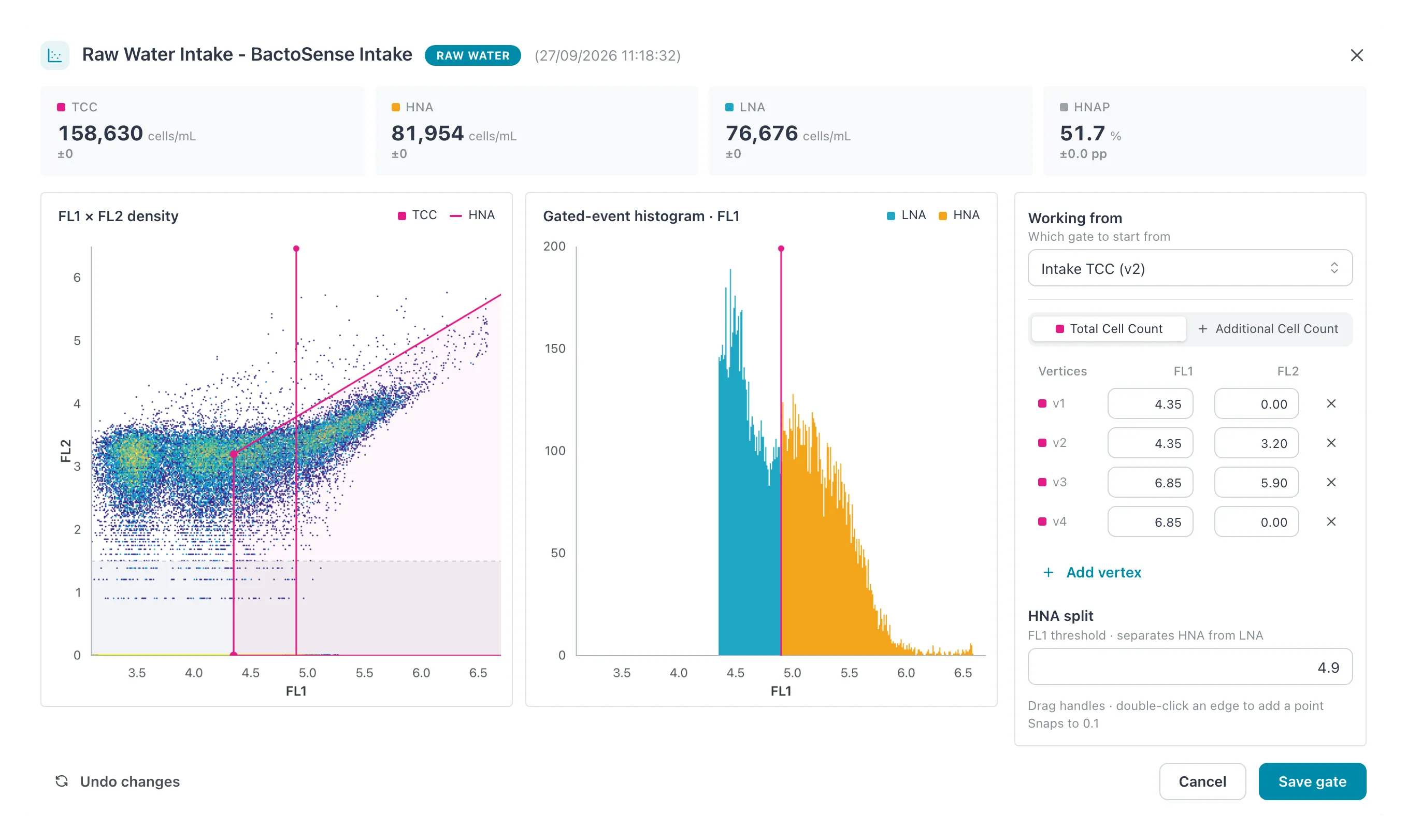 The gate editor on a TCC-D sample, working from Intake TCC v2. The tiles at the top show the
change against the current numbers; the rail on the right holds the source, the vertices and
the HNA split.
The gate editor on a TCC-D sample, working from Intake TCC v2. The tiles at the top show the
change against the current numbers; the rail on the right holds the source, the vertices and
the HNA split.
Drawing the gate
Section titled “Drawing the gate”| Control | What it does |
|---|---|
| Handles on the plot | Drag a point to move it. Positions snap to 0.1. |
| Double-click an edge | Adds a point there. |
| Vertices | The points as FL1 and FL2 coordinates. Type a value to place a point exactly (to 0.01); × removes a point. |
| Add vertex | Adds a point. |
| Additional Cell Count | Carries a + until the region exists. Selecting it creates an ACC region; Remove ACC gate removes it again. |
| HNA split | The FL1 threshold between LNA and HNA, in steps of 0.1. |
| Undo changes | Returns the drawing to the gate under Working from. |
| Dashed outline | The gate that counted this sample, shown once you move away from it. |
A gate needs at least 3 points and holds at most 1000; points cannot be removed below 3. The Gated-event histogram · FL1 beside the plot updates as you draw.
Where the geometry goes
Section titled “Where the geometry goes”This question appears when you work from a library gate:
| Choice | Effect |
|---|---|
| New version of gate | Adds a version to that gate. It becomes the live version for every series that follows the gate; the option says Used by this series only or Used by N series - all of them move. |
| Follow gate as it is | Shown instead of New version when you picked a library gate and changed nothing: the series starts following that gate, at its live version. |
| A new gate for this series | Saves the drawing as a new library gate and points this series at it. The gate you started from, and every other series on it, stay as they are. Needs Gate name. |
When you work from Device gate and have changed the drawing, the save always creates a new gate and asks for Gate name.
| Field | Rules |
|---|---|
| Gate name | Required. Unique within the workspace, across both measurement types. Filled in with a free name such as Raw Water Intake TCC 2; change it to something operators will recognize in the library. |
| Note | Optional. Why this version exists. It is kept with the version and shown in the gate library. |
Result: the message Gate saved appears and the editor closes. New samples of the series are counted with the saved gate. Samples already measured keep their numbers — including the one you drew on.
Clear a series’ gate
Section titled “Clear a series’ gate”To stop a series from following a library gate, open the editor, pick Device gate under Working from and change nothing. Select Save gate, choose This series, new samples only and select Clear gate. New samples are then counted with the gate their instrument sends.
If it does not work
Section titled “If it does not work”| Message or symptom | What to do |
|---|---|
| Analyze sample is missing | You need the Manager or Admin role, and a wide screen. On a narrow screen the sample menu shows Analyze sample (desktop), grayed out. |
| Live analysis isn’t available for this sample yet. | The sample has not been processed or has no stored density plot. Pick another sample. |
| A gate needs a name | Fill in Gate name. |
| A gate with this name already exists | Names are unique within the workspace. Choose another. |
| Could not save the gate | Nothing was saved. Try again; if it persists, reload the page. |
Related
Section titled “Related”- How gating works
- Apply a gate to history — recount samples already measured
- Hand-gate a sample — a gate for one sample only
- Manage the gate library — rename, inspect versions, archive