

Create a device
Create a device record for each instrument at a site. The record says what the instrument is and where it stands; its MAC address is how the router recognizes the physical instrument and links its data to this record.
If the router has already found the instrument, add it from discovered devices instead. The MAC address is filled in for you.
Before you start, make sure the location where the instrument stands exists. Have the instrument’s serial number and MAC address at hand - both are on its label.
-
In the left navigation, open Devices.
-
Select Create device.
-
Fill in the fields (see the table below).
-
Select Create device. The button stays disabled until every field is filled in and the MAC address has the right format.
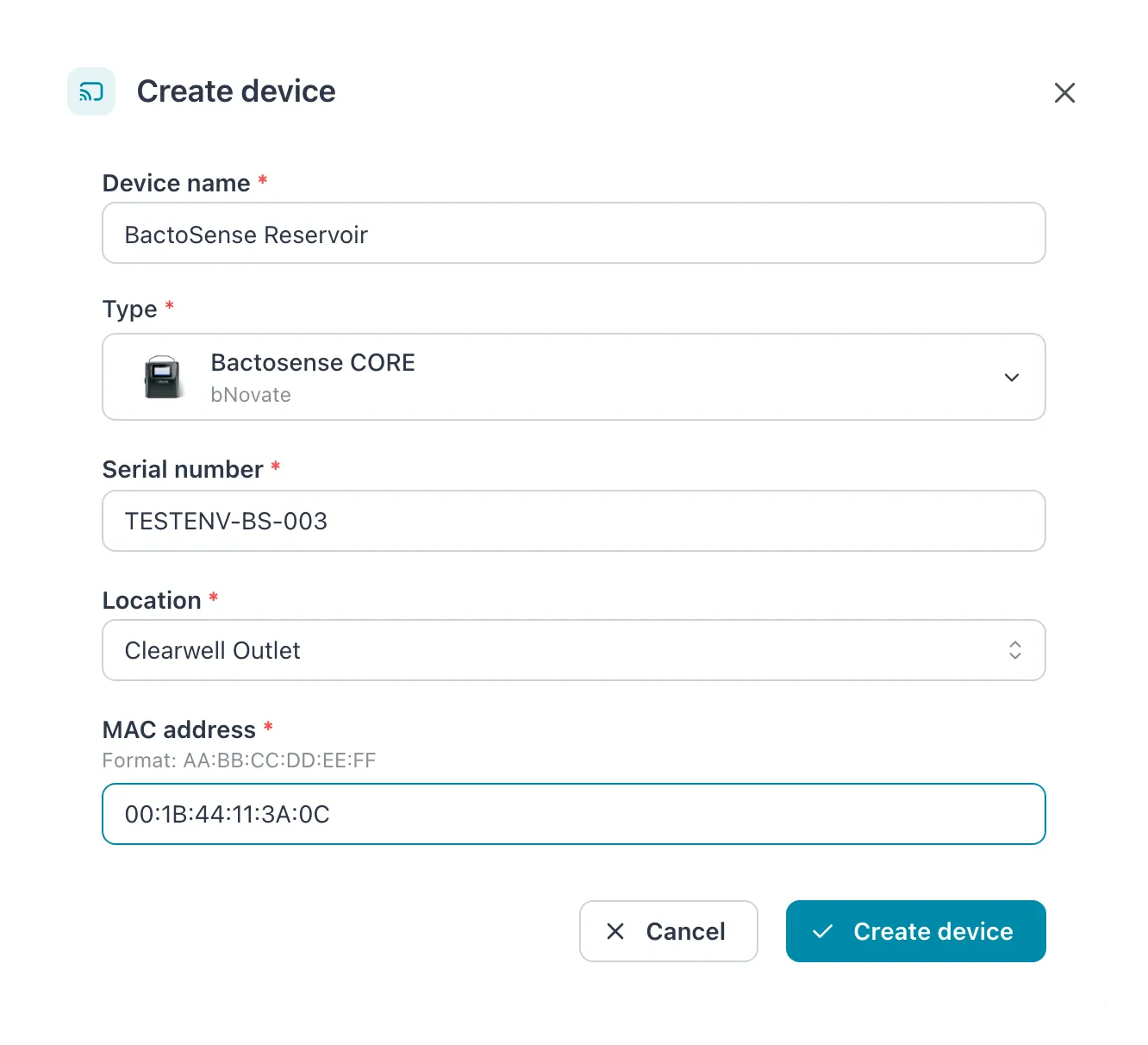 Every field is required, and the MAC address needs the format shown under it.
| Field | What to enter |
|---|---|
| Device name | The name people will see in charts, lists and notifications. Include the site or flow, for example BactoSense Intake. |
| Type | The instrument model: Bactosense CORE, SMART or PURE; Sigrist Sicon M, Sicon XX 40 or AquaMaster; Sigrist AquaScat 2; ATi Metrinet; s::can con::line; or Cytometa FlowControl. The type decides which settings and status information the device page shows. |
| Serial number | From the instrument’s label. |
| Location | Where the instrument stands. Search by name. |
| MAC address | Six pairs of hexadecimal digits separated by colons, AA:BB:CC:DD:EE:FF. |
All five fields are required. The name and the MAC address must each be unique within the workspace; the serial number must be unique among devices of the same type.
Result: the message Device created successfully appears and the device is added to the list. As soon as the router finds an instrument with this MAC address on the site network, it links the two and the device starts showing data.
If it does not work
Section titled “If it does not work”| Message | What to do |
|---|---|
| A device with this name already exists. | Choose another name. Names are unique within the workspace. |
| A device with this serial number already exists. | The instrument is already registered in this workspace. Look for it in the list, including under Disabled. |
| A device with this MAC address already exists. | Another device record already uses this MAC address. Check both labels; correct the other record if it was entered wrongly. |
| The device stays without data | The router has not matched the MAC address. Check the address against the instrument’s label, and check the router’s Discovered devices - see Manage routers. |
Related
Section titled “Related”- Devices - the list, the device page and what its states mean
- Edit a device - change the name, location or MAC address later
- Create a location