

Investigate an alarm
When an alarm goes off, look at the values that set it off and at the chart around that moment. Then decide whether it is a real change in water quality, a sensor problem or expected work.
-
Open the alarm in one of these ways:
- select Show alarm on the notification, in the bell panel or on Notifications;
- select the alarm in the dashboard’s Alarms widget;
- in the left navigation, open Alarms, select Alerting, and select the alarm.
-
On the right, under name – Triggered, find the entry. The newest entry is at the top and already expanded. Select another entry to expand it.
-
Read the values under Anchor condition and, for an alarm with more conditions, under Other conditions (see the table below).
-
Select View metrics. Metrics opens with the alarm’s series, from one hour before the alarm went off to one hour after it resolved. For an alarm still going off, the chart runs to now.
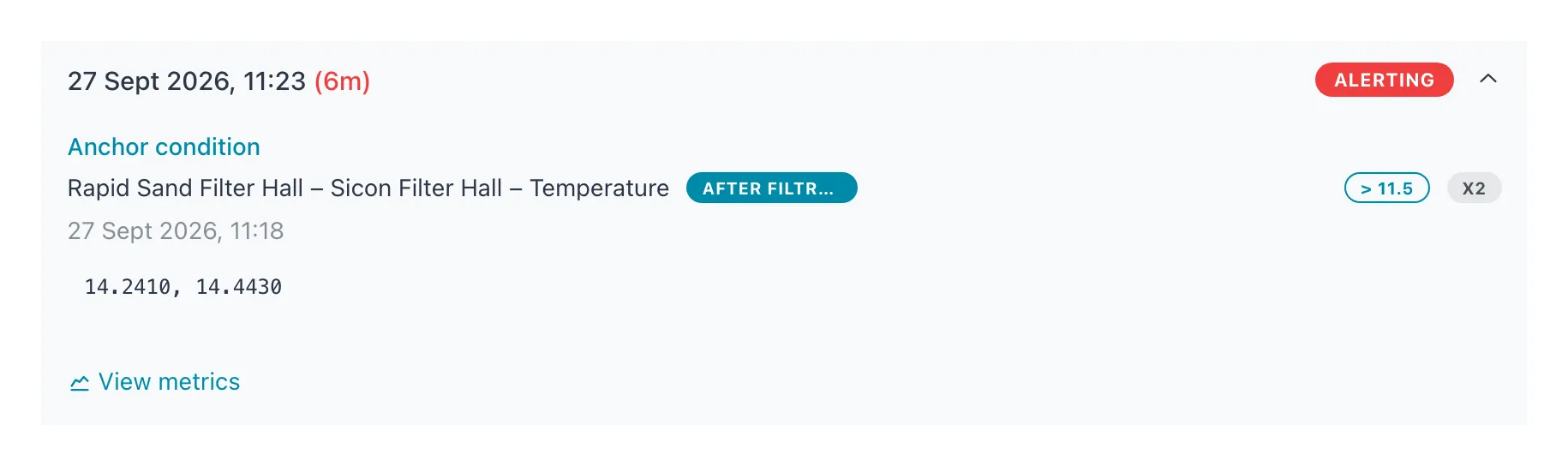 > 12 is the threshold and x2 the number of consecutive values; the two values below crossed it.
| In the entry | What it tells you |
|---|---|
| Date and time in the header | When the alarm went off. For Alerting, the red time in brackets is how long it has been going off. For Resolved and Stale, the time after the arrow (→) is when it ended. |
| Series name and tag | Location – device – metric and the tag of the series the condition watches. |
| A badge such as > 12 | The condition’s operator and threshold. |
| A badge such as x2 | The number of consecutive values the condition needs. Not shown when it is 1. |
| Date and time under the series | The time of the anchor’s latest value. Conditions after the anchor were checked within their correlation window around this moment. |
| The row of numbers | The values that met the condition, newest first, with four decimals. |
Result: you know which values set the alarm off and how the series behaved before and after.
Decide what to do
Section titled “Decide what to do”| What you see | Likely cause | Next step |
|---|---|---|
| The values rise steadily and other series move with them | A real change in the water | Follow your site’s procedure. Keep the alarm running. |
| A single spike, the rest of the chart is flat | One stray reading | Consider raising Consecutive values. See Edit, disable or delete an alarm. |
| Values jump to zero or to a fixed number | Sensor fault or cartridge problem | Check the device. Suppress the alarm while it is being fixed. |
| Work on site explains it (cleaning, flushing, calibration) | Expected | Suppress the alarm for the duration of the work. |
| The entry is Stale | No data for 24 hours (why) | Look at the device on Devices: is it offline? |
Related
Section titled “Related”- Alarms — states and badges
- Suppress an alarm
- Plot metrics
- Notifications