

Cytometa Cloud v26.9
Released September 7, 2026.
With this release, you set the gate of your flow-cytometry samples in Cytometa Cloud instead of on the instrument. You can keep gates in a workspace gate library and recount samples that were already measured. Sample review got quicker, sign-in and permissions got stricter, and the app now works on a phone.
NewGating in the cloud
Section titled “Gating in the cloud”What changed. A sample’s gate — the region of the FL1 × FL2 plot whose events count as cells — can now be adjusted in Cytometa Cloud. Select Analyze sample beside a sample’s heading to open the gate editor. You drag the points of the gate, set the HNA split, and the result tiles show the new counts and how much each would change as you draw.
When you select Save gate, you choose what the gate applies to: This sample, This series, new samples only or This series, including history. A preview first shows the gate on the six most recent samples of the series.
Gates saved for a series are kept by name in the workspace’s gate library, under Settings › Workspace Settings › Gates. The library shows each gate’s shape and its versions; each save of changed geometry adds a version. Every sample records which gate counted it: its Gate field reads Hand-gated, a library gate with its version (for example Intake TCC v2), Device gate or Default gate.
To put a series back on the gating its instrument sends, pick Device gate in the editor and select Clear gate when you save.
A gate can also hold a second, optional region: the Additional Cell Count (ACC). It counts a population you want to follow separately from the main count.
Why it matters. Counts are only comparable when they come from the same gate. When one named gate counts a whole series, a change in TCC or HNAP comes from the water, not from a different gate. Because every sample names its gate and version, you can always tell which numbers you can compare.
Who it is for. Managers and Admins draw and save gates. Viewers and Operators see which gate counted each sample.
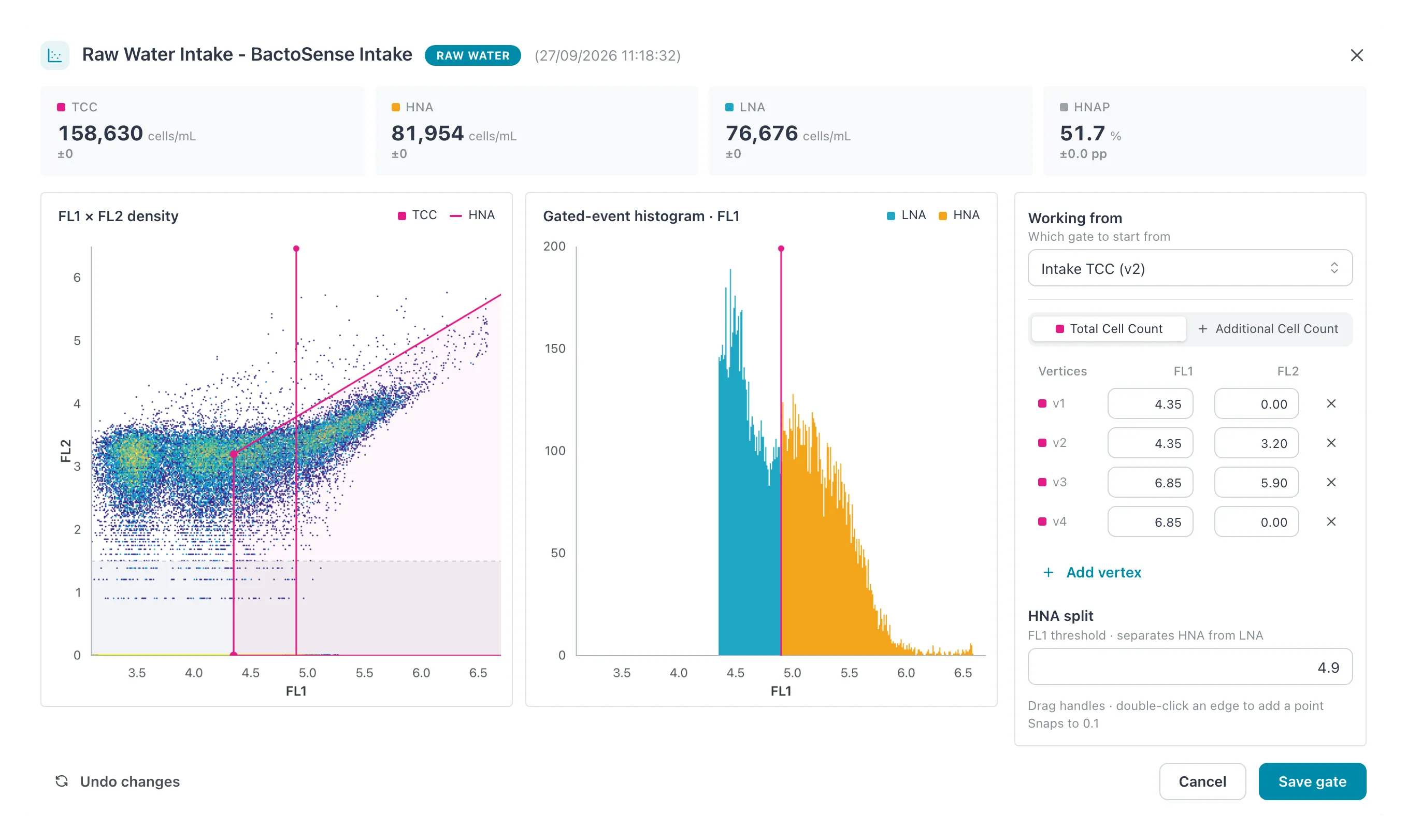 The gate editor on a TCC-D sample. The tiles at the top show the change against the sample’s
current numbers.
The gate editor on a TCC-D sample. The tiles at the top show the change against the sample’s
current numbers.
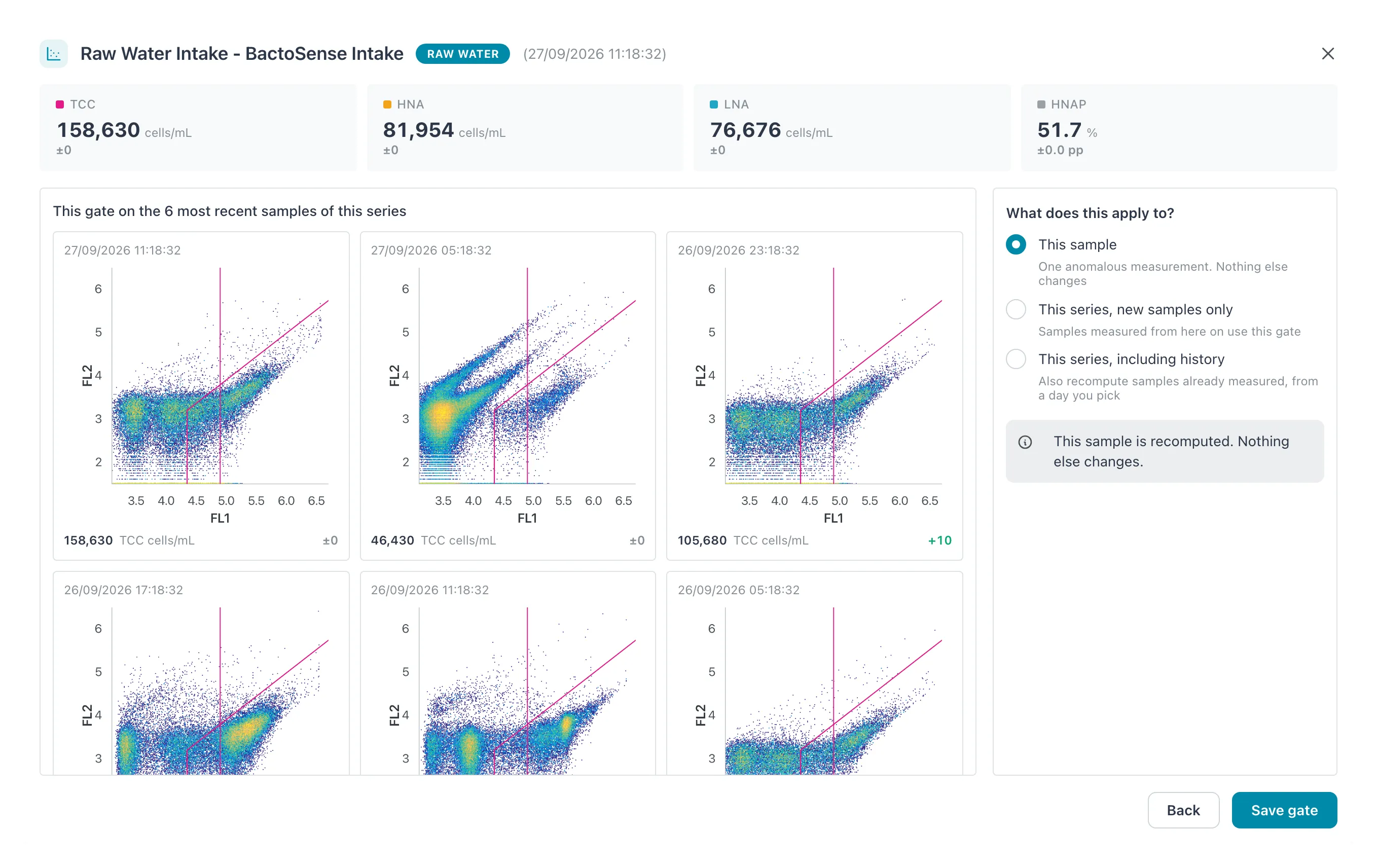 After Save gate: the new gate on the six most recent samples of the series, and the choice
of what it applies to.
After Save gate: the new gate on the six most recent samples of the series, and the choice
of what it applies to.
Read more:
NewRegating samples already measured
Section titled “Regating samples already measured”What changed. A new gate no longer applies only to samples still to come. Choose This series, including history when you save a gate, and pick in From the first day to recount. Every sample of the series since that day is recomputed in the background, up to one year back. To recount a single sample with its own gate, choose This sample. That sample is then marked Hand-gated, and later history recounts leave it alone.
Recounting changes the numbers, not the measurements: the FCS files and the density plots stay as they are. Each recomputed sample keeps its earlier results in its Calculation history, under its plots. There you see every calculation it has had, the gate each one used, and how the results changed.
Why it matters. When you find out that a gate has been wrong since a certain day, you can correct the counts, and the trends built from them, without repeating the measurements. The calculation history shows what a sample reported before, so a corrected number can be explained.
Who it is for. Managers and Admins start a recount. Everyone sees the calculation history.
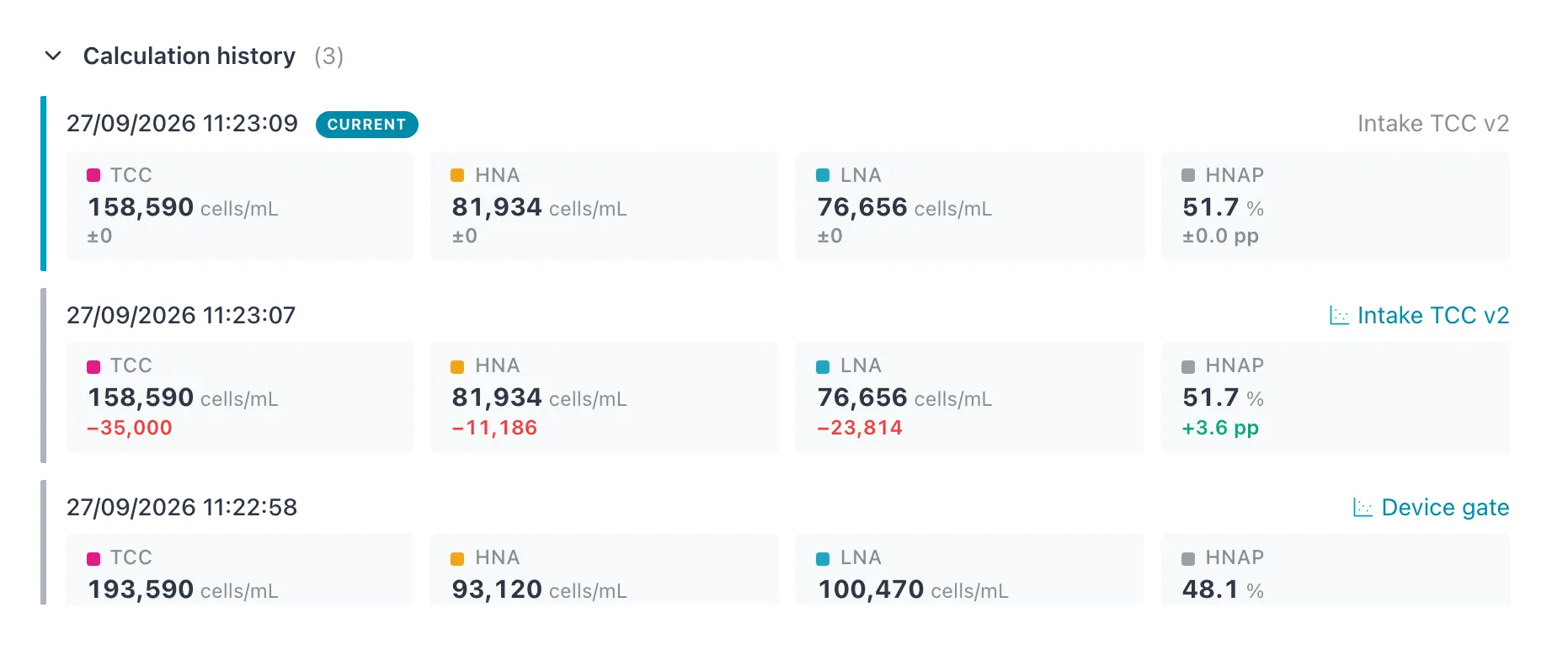 A sample calculated three times: first with the device gate, then twice with a library gate.
Read more:
ImprovedSample review
Section titled “Sample review”What changed. On Flow Cytometry, press ↓ and ↑ to move down and up the sample list, and ← and → to go to the previous and next sample of the same series.
A sample that is waiting to be recomputed with a newer gate shows a gray mark, Queued to be recomputed with a newer gate, and an orange mark when recomputing failed. Recomputes in progress show in the header: the Regate requests icon turns while samples are recomputed, carries a red dot when some failed, and opens a list of the requests of the last 90 days with their progress. A Manager or Admin can stop a running request there.
The selected sample is now part of the page address, so the browser’s Back button and a link you share open the same sample.
Why it matters. Stepping through a series with the keyboard makes a daily check of the plots faster. The marks tell you when a number on screen is not final yet, so you do not report a value that is about to change.
Who it is for. Everyone who reviews samples: Viewers, Operators, Managers and Admins.
Read more:
ImprovedSeparate series for TCC-D and ICC-A
Section titled “Separate series for TCC-D and ICC-A”What changed. TCC-D and ICC-A samples from the same device, location and tag are now two separate series. Before, they shared one series, and a sample could overwrite another one taken at the same moment. For ICC-A samples, the main count is labeled ICC (intact cell count) instead of TCC.
Why it matters. Total and intact cell counts measure different things. Kept apart, each has its own trend and its own gate, and no sample is lost.
Who it is for. Everyone who works with Bactosense samples of both types.
Read more:
ImprovedPhones and tablets
Section titled “Phones and tablets”What changed. The app now fits a phone screen. Pages lay out in one column. The navigation opens from a menu button as a drawer with the name next to each icon. The workspace switcher and Regate requests move into the user menu. On Flow Cytometry, the sample list and a sample take turns: tap a sample to open it full screen, with Previous sample and Next sample, and the back arrow to return to the list.
Editing a gate still needs a wider screen. On a phone, the sample menu shows Analyze sample (desktop), grayed out.
Why it matters. You can check alarms, device status and the latest samples when you are away from a desk — on site, or on call.
Who it is for. Everyone. Managers and Admins need a desktop or a wide window to change gates.
Read more:
ImprovedSign-in and permissions
Section titled “Sign-in and permissions”What changed.
- When your organization allows only Authenticator app for two-factor authentication, it is now enforced: users who have not set one up are sent to set it up before they can continue.
- Users of a suspended organization can no longer sign in to it.
- When you open a link to a page while signed out, you return to that page after signing in, instead of to the Dashboard.
- Only Managers and Admins can change a metric series’ color, or a device’s unit and number of decimals for a metric. Viewers and Operators could change them before.
- Names can no longer contain
<,>or control characters.
Why it matters. A security policy your organization sets now does what it says, and people with read-only roles can no longer change what everyone in the workspace sees.
Who it is for. Organization administrators, who set the policy; everyone who signs in.
Read more:
Fixed- Security fixes.
Sigrist AquaScat
Section titled “Sigrist AquaScat”What changed. The Sigrist AquaScat 2 is supported as a device type, read over Modbus. It has one measurement channel and two analog inputs, each mapped to a metric under Edit device › Configuration.
Who it is for. Workspaces with an AquaScat 2 WTM, WTM A, HT or P.
Read more: