

Add discovered devices
The router (gateway) reports every device it finds on the local network. Use this when a new instrument is on the network but has no device record yet, or when an instrument’s network card or converter was replaced.
When the workspace’s routers find devices that no device record matches, the dashboard shows a banner: 3 new devices found on your network. Select the close button (×) to hide it until the number changes.
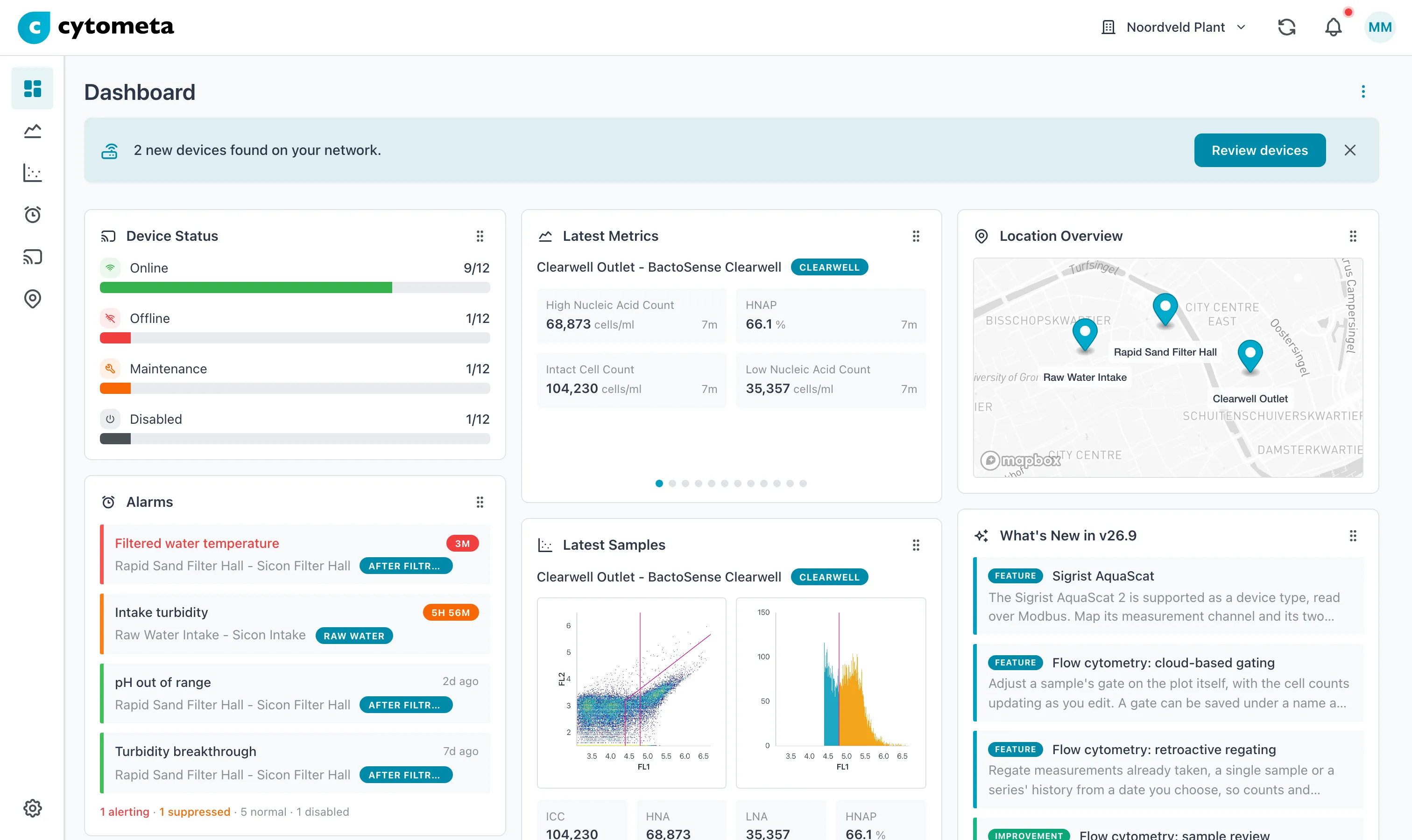 The banner sits above the widgets. It counts only devices you have not dealt with.
-
On the dashboard banner, select Review devices. Or open Devices, open the menu (⋮) and select New devices on your network.
-
Find the device by its MAC address, IP address or host name. Each row also shows the router that found it, what it answers to (such as HTTP or VNC) and when it was first seen.
-
Choose what the device is:
- New device opens the device fields in the row. The name is the host name, and the MAC address comes from the router. Choose the Type, fill in the Serial number and Location, and select Create device.
- Link to existing shows a Device list. Pick the record and select Link.
- Not an instrument hides the device, for example a printer or a switch.
-
Select Close when you are done. Rows you leave alone stay in the banner’s count.
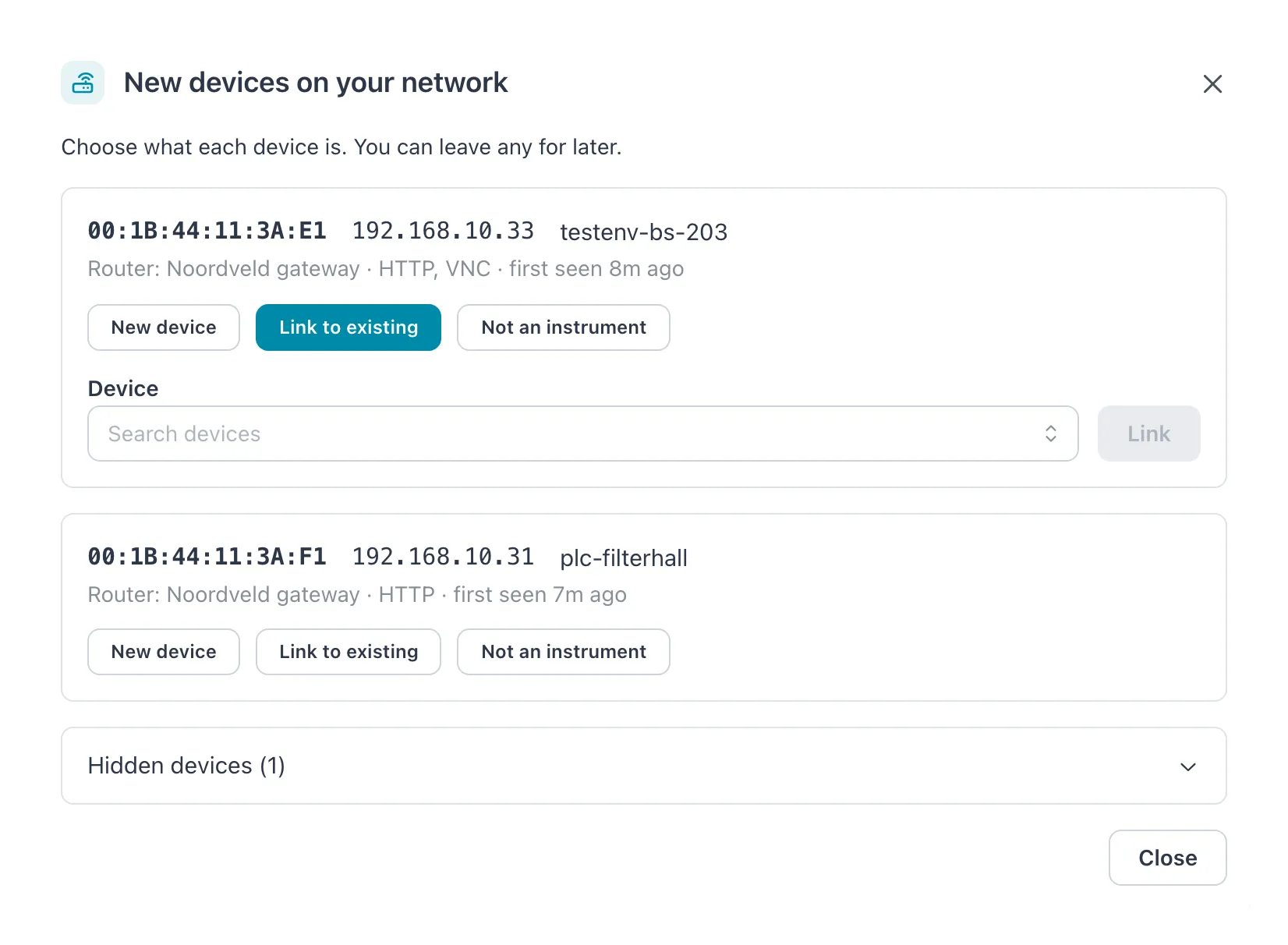 Each row is one device the router found. Hidden devices are at the bottom.
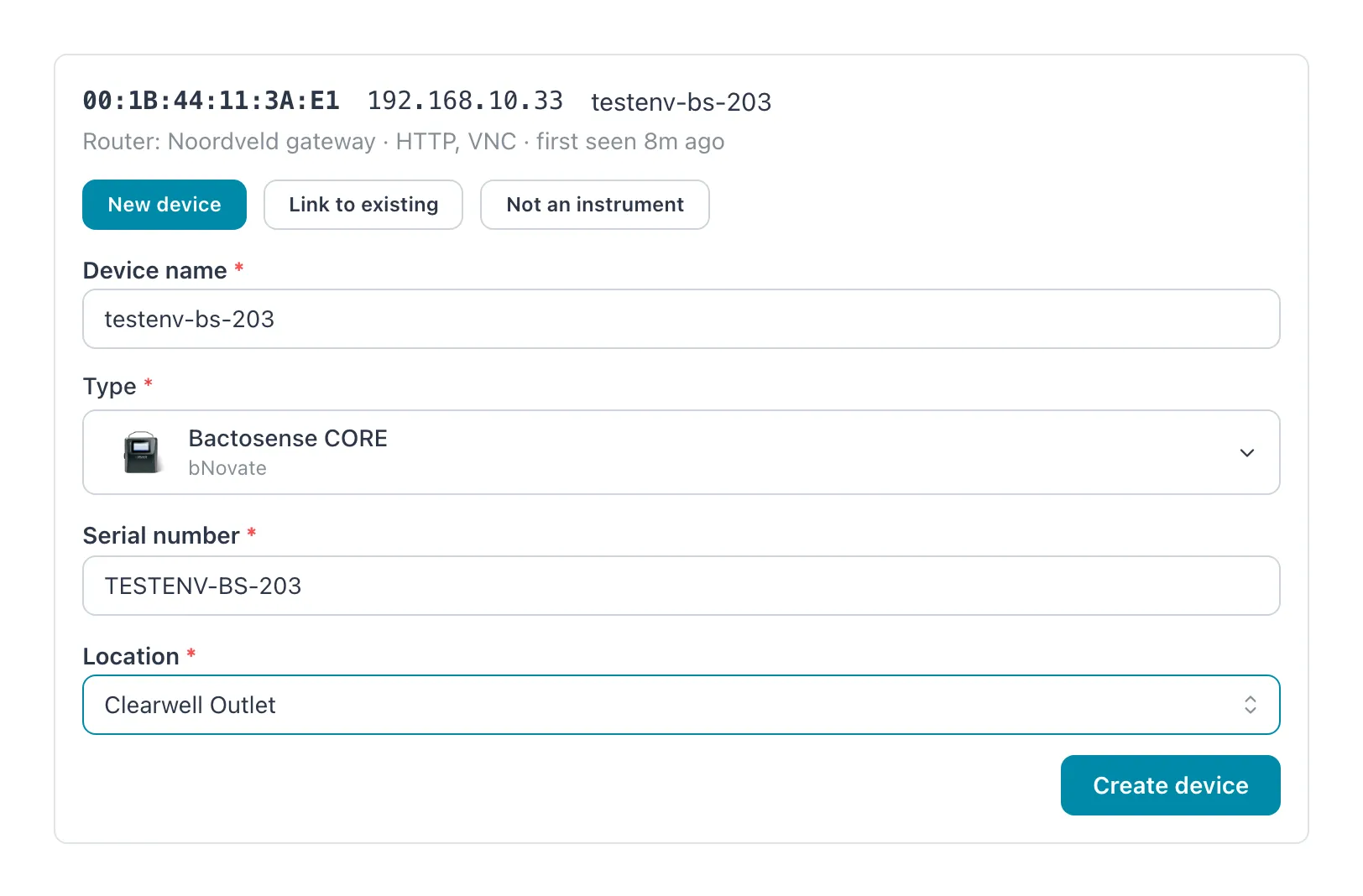 The fields are those of Create device, without the MAC address.
Result: the row shows Linked to (device name). The router picks up the device at its next scan, within a minute, and the device shows as Online.
Which records you can link
Section titled “Which records you can link”Linking gives the record the MAC address of the device the router found. The Device list groups the records by what that does:
| Group | What happens |
|---|---|
| Not linked | The record has never been online. It is linked at once. |
| Offline - link moves here | The app asks first. The record’s old MAC address is replaced. |
| Disabled - link moves here | The app asks first. The record is Active again after the move. |
| Online - disable first to move | Shown but cannot be picked. The record is receiving data now. |
An online record is working. Moving it stops the data from its instrument at the router’s next scan and cuts off a sample in progress. To move it on purpose, first set it to Disabled (see Change a device’s state), then link it.
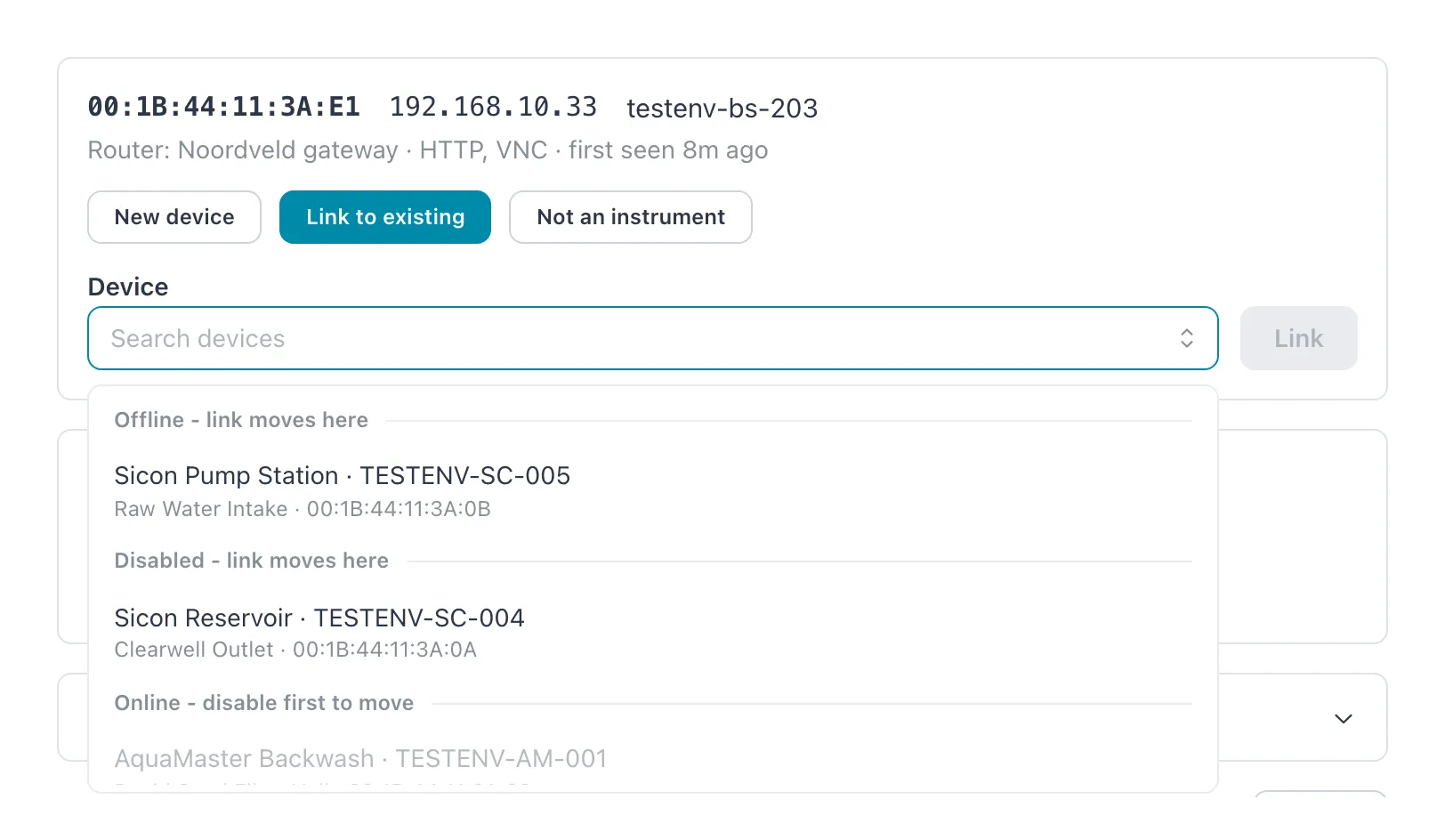 Records under Online are grayed out. Only the groups that have records are shown.
Undo Not an instrument
Section titled “Undo Not an instrument”Hidden devices are listed under Hidden devices at the bottom of the same window. Open it and select Undo on the device.
If it does not work
Section titled “If it does not work”| Message | What to do |
|---|---|
| (name) came online. Disable it first to move it. | The record came online while you were choosing. Set it to Disabled, then link again. |
| A device with this serial number already exists. | Another record of the same type has this serial number. Link to that record instead. |
| (name) is linked, but it is still disabled. Enable it on the device page. | The link moved, but the record could not be set to Active. Open the device and set it to Active. |
| Failed to link the device. Please try again. | Something else went wrong. Try again; if it keeps failing, reload the page. |
| There is no banner and no menu item | You are a Viewer or Operator. Ask a Manager or Admin. |