

Sign in
Sign in with your email address and password. If you have set up an authenticator app, or your organization’s security policy requires it, you then confirm who you are with a 6-digit code.
You need an account first. Accounts are created by your organization administrator, who sends you an invitation email — see First sign-in from an invitation.
-
Open Cytometa Cloud in your browser. The page Sign in to Cytometa Cloud appears.
-
Enter your Email and Password.
-
Select Sign in.
-
If the page Verify your identity appears, enter the 6-digit code — see Enter the verification code.
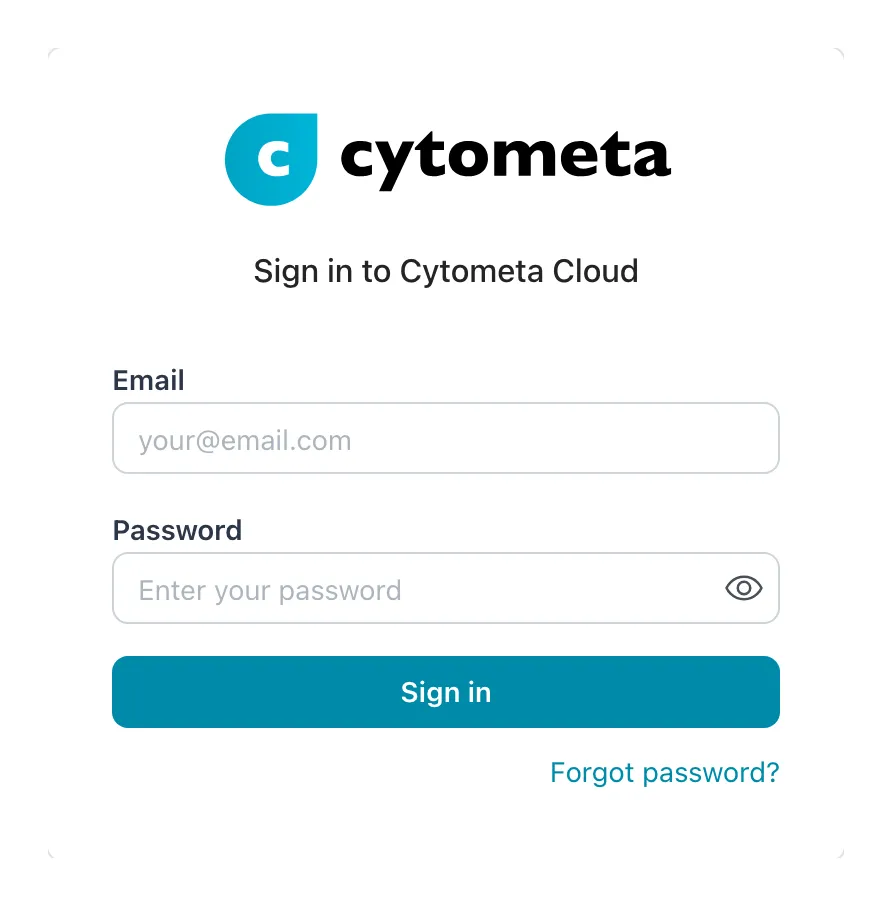 Forgot password? under Sign in starts a password reset.
Result: the Dashboard opens. You land in the organization and workspace you last used in this browser; the first time, in the first workspace you have access to.
Enter the verification code
Section titled “Enter the verification code”Verify your identity appears after the password step when you have set up an authenticator app, or when your organization requires two-factor authentication. What it asks for depends on your account:
- If you have set up an authenticator app, it says Enter the 6-digit code from your authenticator app. Open the app (Microsoft Authenticator, Google Authenticator or similar) and read the code for Cytometa Cloud.
- Otherwise it says We sent a verification code to your email. Check your inbox for the email Your Cytometa Cloud verification code.
-
If this is a computer you use regularly, tick Remember this device for 30 days first. The code is checked as soon as you type the sixth digit.
-
Type the 6 digits in the boxes.
-
If the code is not checked automatically, select Verify.
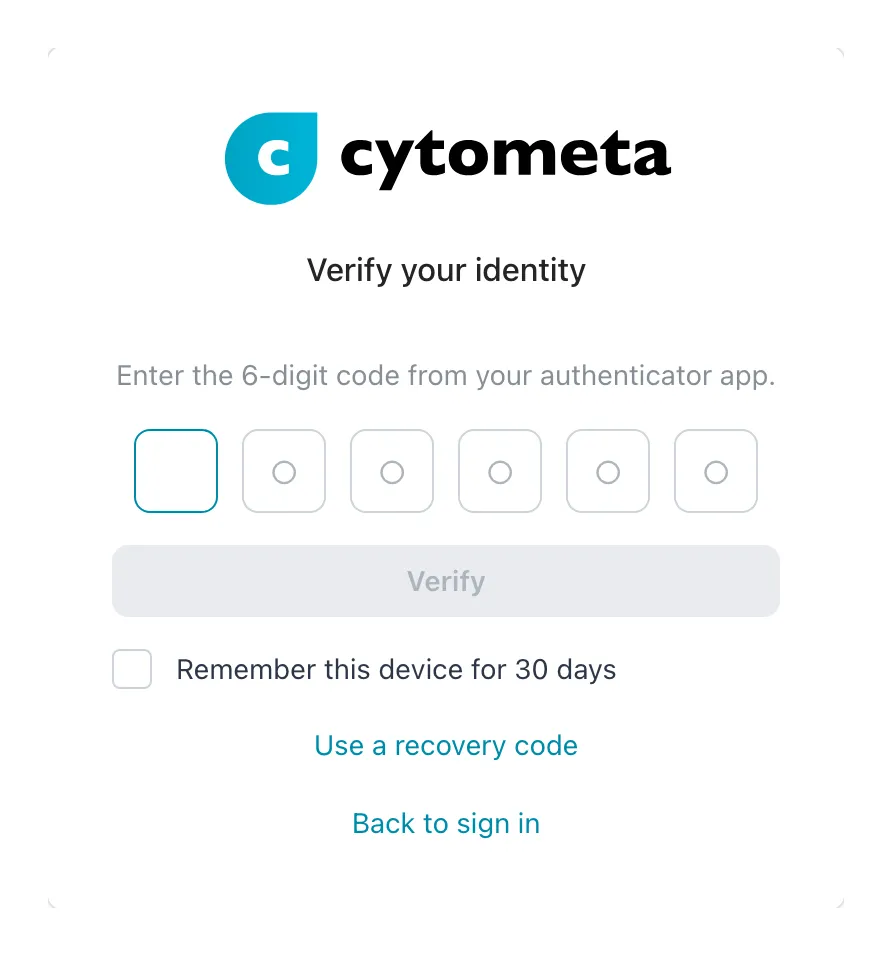 Here the code comes from an authenticator app. Tick Remember this device for 30 days before you type it.
Result: the Dashboard opens. With Remember this device for 30 days ticked, this browser skips the code for 30 days. You can revoke that on your Profile — see Set up your account.
- An email code is valid for 5 minutes.
- Select Resend code for a new email code. You can ask for one per minute, for up to 10 minutes after you entered your password. After that, sign in again.
- After 5 wrong codes you go back to the sign-in page and start again.
- Back to sign in returns to the password step.
If you lost your authenticator
Section titled “If you lost your authenticator”Sign in with one of the ten recovery codes you saved when you set up the app. They look like
xxxx-xxxx.
-
On Verify your identity, select Use a recovery code.
-
Enter the code in Recovery code.
-
Select Verify.
Result: the Dashboard opens. Each recovery code works once. Use your authenticator app takes you back to the 6-digit boxes.
To move to a new phone, disable the authenticator on your Profile with your password and another recovery code, then set it up again on the new phone. Setting it up gives you ten new recovery codes. See Set up your account.
If you have lost both the phone and your recovery codes, ask your organization administrator to reset your two-factor authentication - see Invite and manage users. If they cannot, use Contact support at the bottom of the sign-in page. See Get help for what to include.
First sign-in from an invitation
Section titled “First sign-in from an invitation”When your organization administrator creates your account, you receive an invitation email. The link in it opens Set up your account, where you choose your password.
-
Open the link in the invitation email. The page Set up your account appears.
-
Enter a New password. The requirements list ticks off each rule as you type.
-
Enter the same password in Confirm password.
-
Select Set password.
-
On Account setup complete, select Sign in and sign in with your email and the new password.
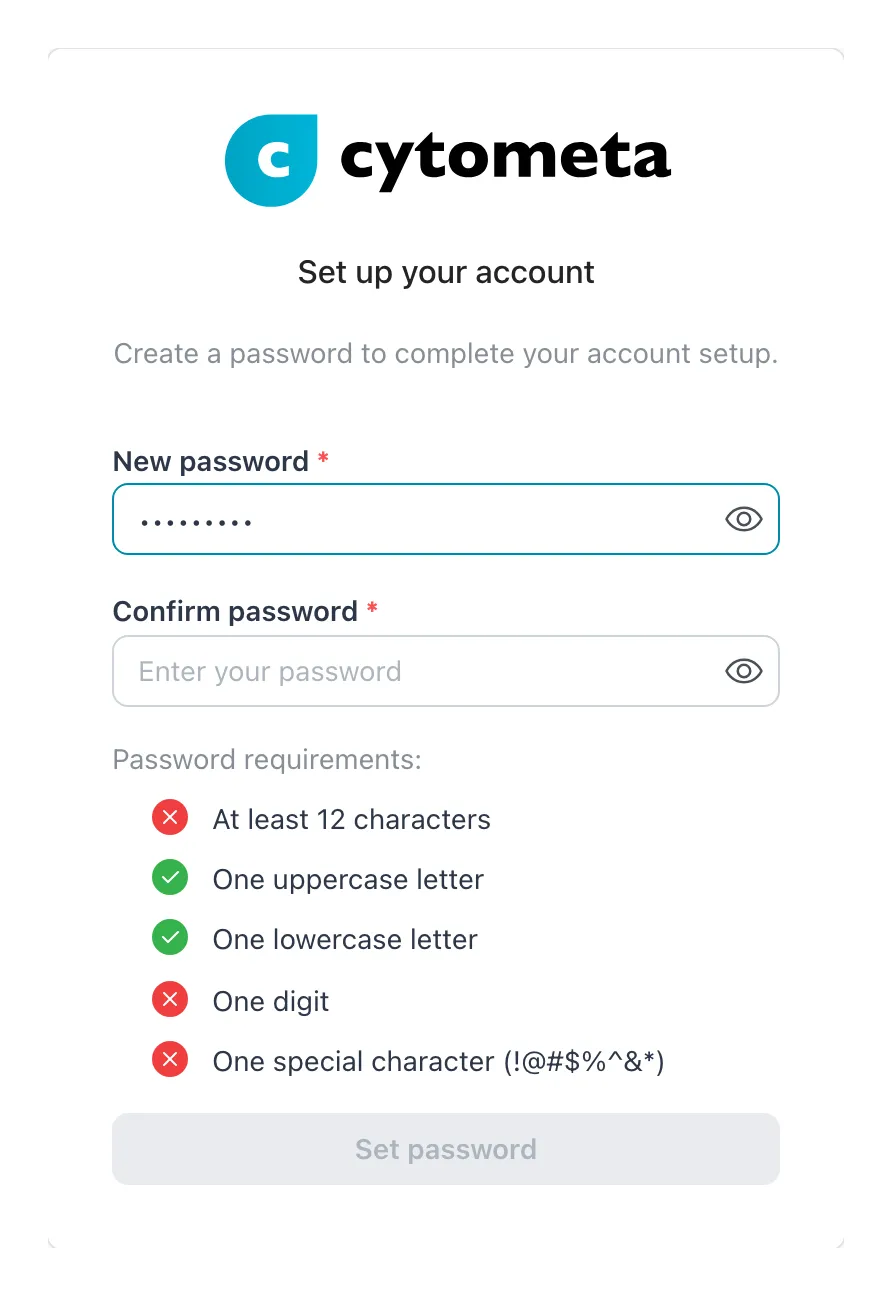 The requirements under New password tick off as you type.
The password must have:
- at least 12 characters
- one uppercase letter
- one lowercase letter
- one digit
- one special character, such as
!@#$%^&*
The invitation link is valid for 7 days and works once. If it has expired, the page says Invalid or expired setup link. Ask your organization administrator to select Resend invite for you — see Invite and manage users.
Set up an authenticator when your organization requires one
Section titled “Set up an authenticator when your organization requires one”If your organization allows only an authenticator app and you have not set one up, you sign in with an email code the first time and then see Set up your authenticator app: Your organization requires an authenticator app for sign-in. Set one up now to continue. You cannot use the app until this is done.
-
Install an authenticator app on your phone if you do not have one.
-
Select Set up authenticator.
-
Scan the QR code with the app, or type the code shown under Or enter this code manually:.
-
Under Verify setup, enter the 6-digit code the app shows and select Verify.
-
In Save recovery codes, select Copy all codes and store them somewhere safe.
-
Tick I have saved these codes in a secure location and select Done.
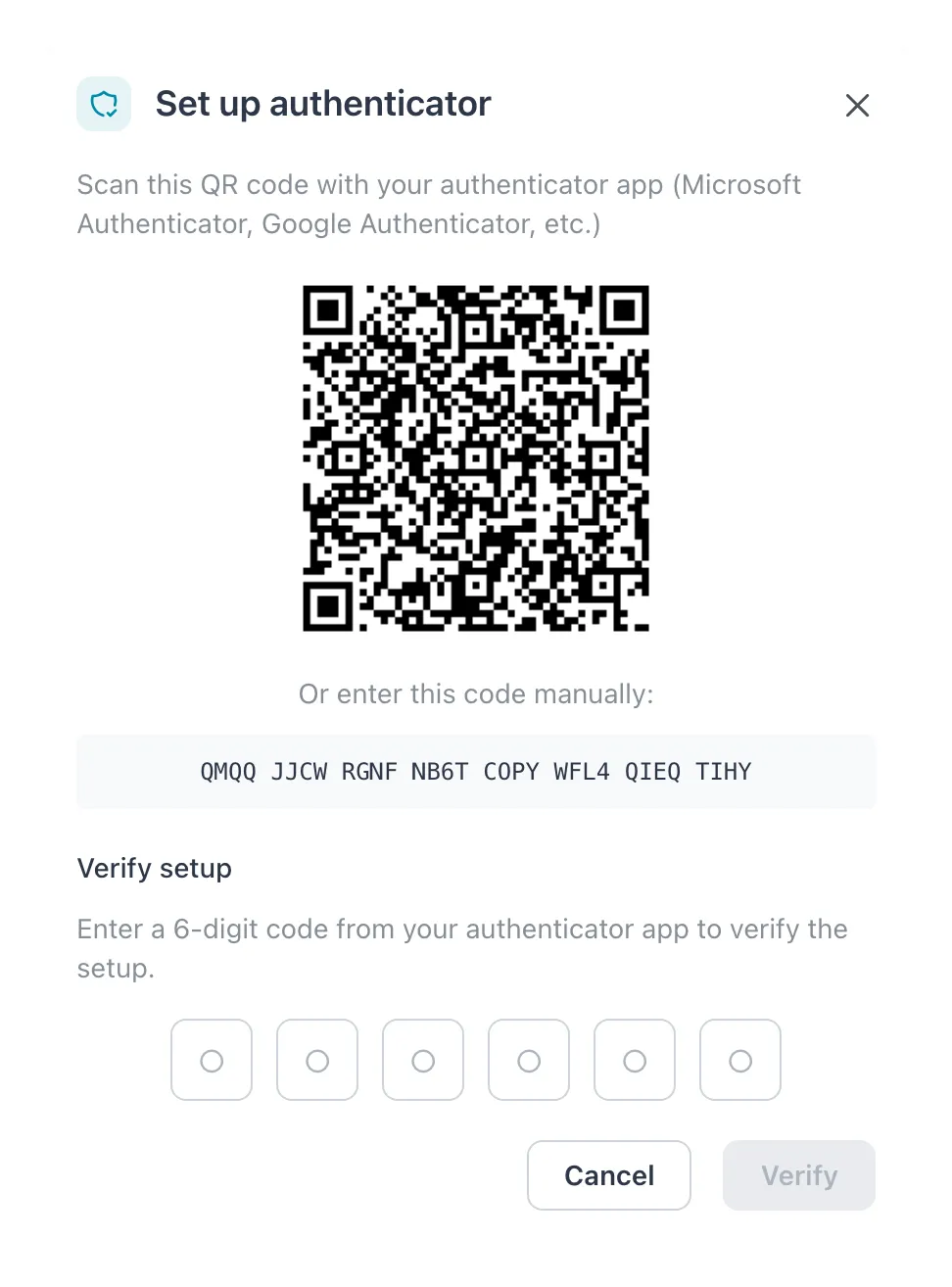 Set up authenticator on the page opens this dialog. Logout under it signs you out without setting up.
Result: the app opens. From now on sign-in asks for the code from your authenticator app. Logout at the bottom of the page signs you out without setting up.
Reset a forgotten password
Section titled “Reset a forgotten password”-
On the sign-in page, select Forgot password?.
-
On Reset your password, enter your Email and select Send reset link.
-
Open the email Reset your Cytometa Cloud password and select the link. The page Create new password appears.
-
Enter a New password that meets the requirements, and the same in Confirm password.
-
Select Reset password.
-
On Password reset successful, select Sign in.
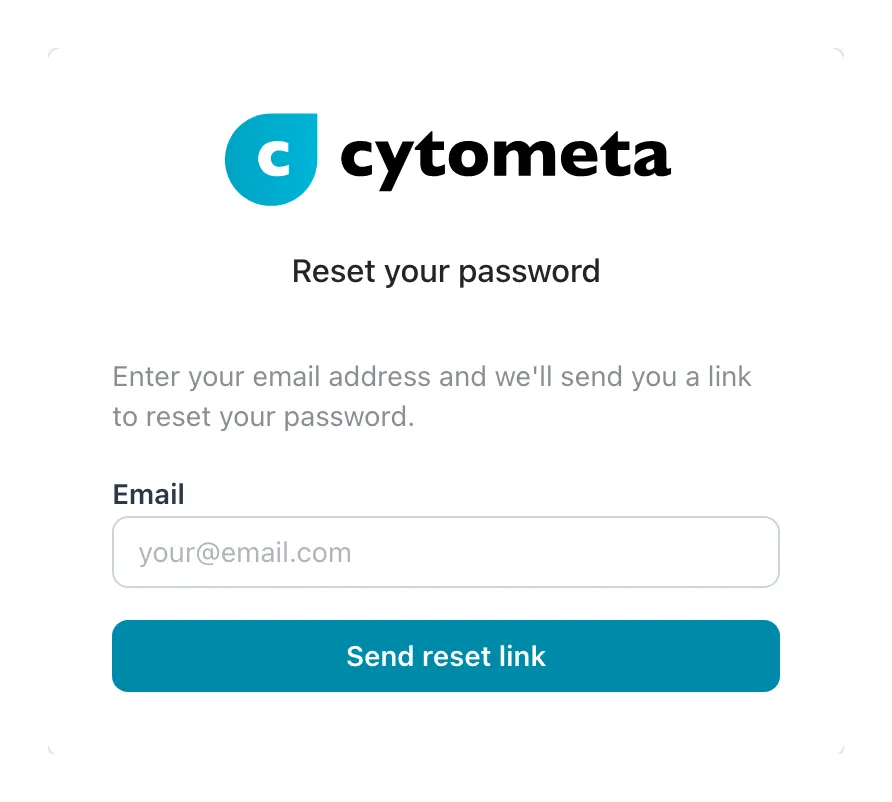 Enter the address you sign in with and select Send reset link.
The page always says If an account with that email exists, we’ve sent you a password reset link., whether or not the address is known. The link is valid for 30 minutes. An expired link shows Invalid or expired link; select Request new link to start again.
A reset signs you out everywhere.
After wrong passwords
Section titled “After wrong passwords”Too many wrong passwords make you wait before the next try, up to 15 minutes. Your account is never locked. If someone else tries, you get the email Someone tried to sign in to your account. If it was not you, reset your password.
When you are already signed in
Section titled “When you are already signed in”If you open the sign-in page while a session is still active, it shows your name and email with two buttons:
- Continue as your first name — go straight into the app.
- Use another account — sign out, so someone else can sign in on this browser.
Sign out
Section titled “Sign out”-
Select your initials at the top right.
-
Select Logout.
Your organization also signs you out automatically after a period without activity, and after a maximum session length, whatever you do. By default that is 2 hours idle and 24 hours in total; your organization administrator sets both in the security policy.
If it does not work
Section titled “If it does not work”| Message | What to do |
|---|---|
| Email or password is incorrect. | Check both and try again. Passwords are case-sensitive. |
| Too many sign-in attempts. Try again in n minutes. | Too many wrong passwords from your network address. Wait, sign in from another network, or reset your password. See After wrong passwords. |
| Account is not active. | Your account has not been set up yet, or has been disabled. Ask your organization administrator. This appears only after a correct password. |
| User has no organization access. | Your account is not a member of any organization. Ask your organization administrator. |
| Invalid verification code. Please try again. | Enter the newest code. Authenticator codes change every 30 seconds. |
| The verification code has expired. Please sign in again. | Email codes are valid for 5 minutes. Sign in again for a new one. |
| Too many failed attempts. Please sign in again. | Five wrong codes end the attempt. Sign in again. |
| Please wait a minute before requesting a new code. | You can ask for one new email code per minute. |
More symptoms are in Troubleshooting.
Related
Section titled “Related”- Find your way around — what you see once you are in
- Set up your account — password, two-factor authentication and trusted devices
- Set the security policy — what your organization requires