

Notifications
Cytometa Cloud sends a notification when something happens that someone may need to act on: a device goes offline or reports an error, a cartridge runs low, a service date approaches, an alarm goes off, a device sends a metric the workspace does not know. Notifications appear in the app for everyone in the workspace. You choose which of them also reach you by email.
Notifications is not in the left navigation. Reach it in two ways:
- from the bell () in the header, then View all notifications;
- from the Notifications widget on the Dashboard, which shows your three most recent unread notifications.
The bell panel
Section titled “The bell panel”A red dot on the bell means you have unread notifications. Select the bell to open a panel on the right:
- All notifications or Unread only — which notifications to list.
- Mark all as read — marks every notification in the workspace as read for you.
- The notifications, newest first, 20 per page. Use the arrows at the bottom to page through them.
- View all notifications — opens the Notifications screen.
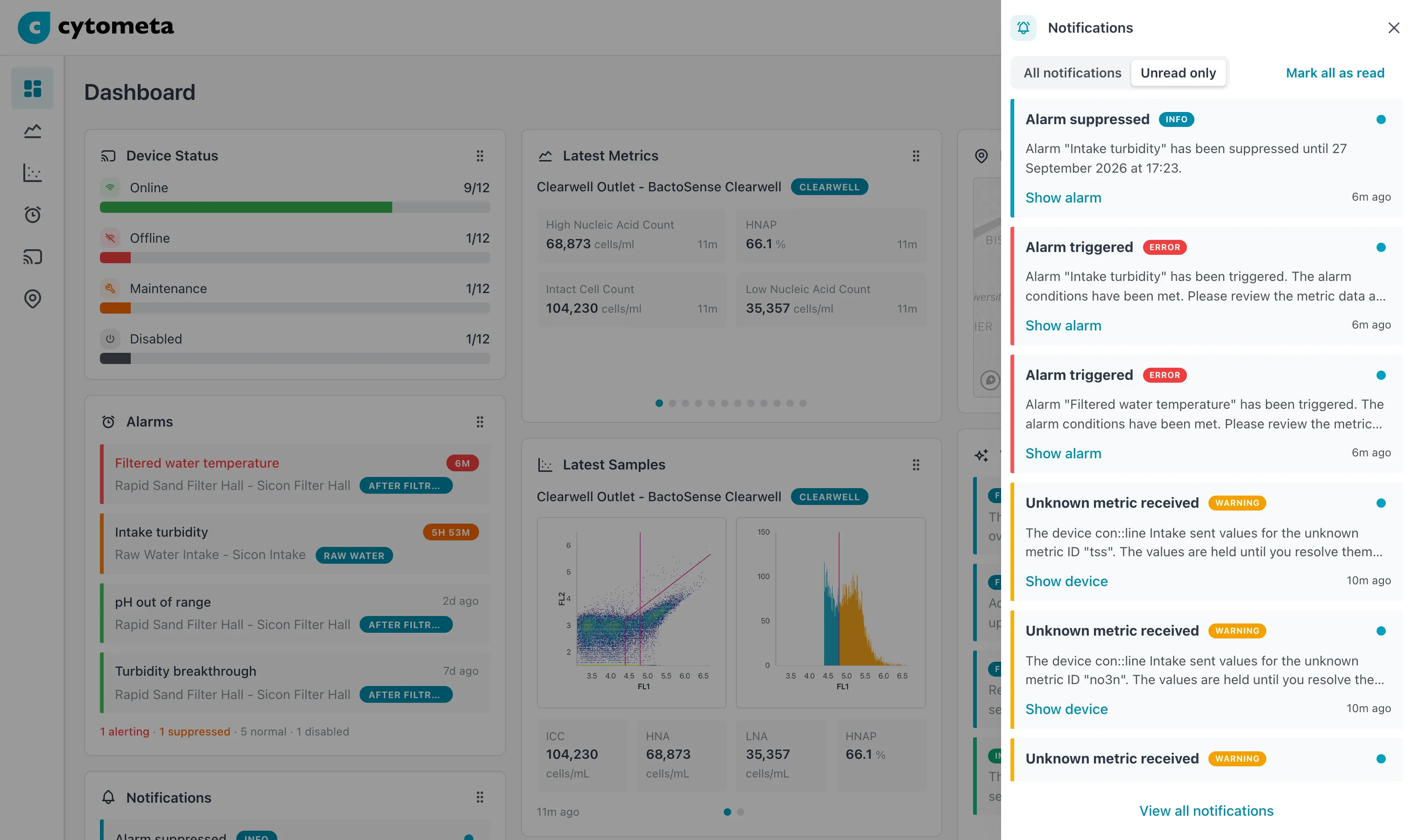 With Unread only, the panel lists what you have not read yet. A blue dot marks each unread notification.
The Notifications screen
Section titled “The Notifications screen”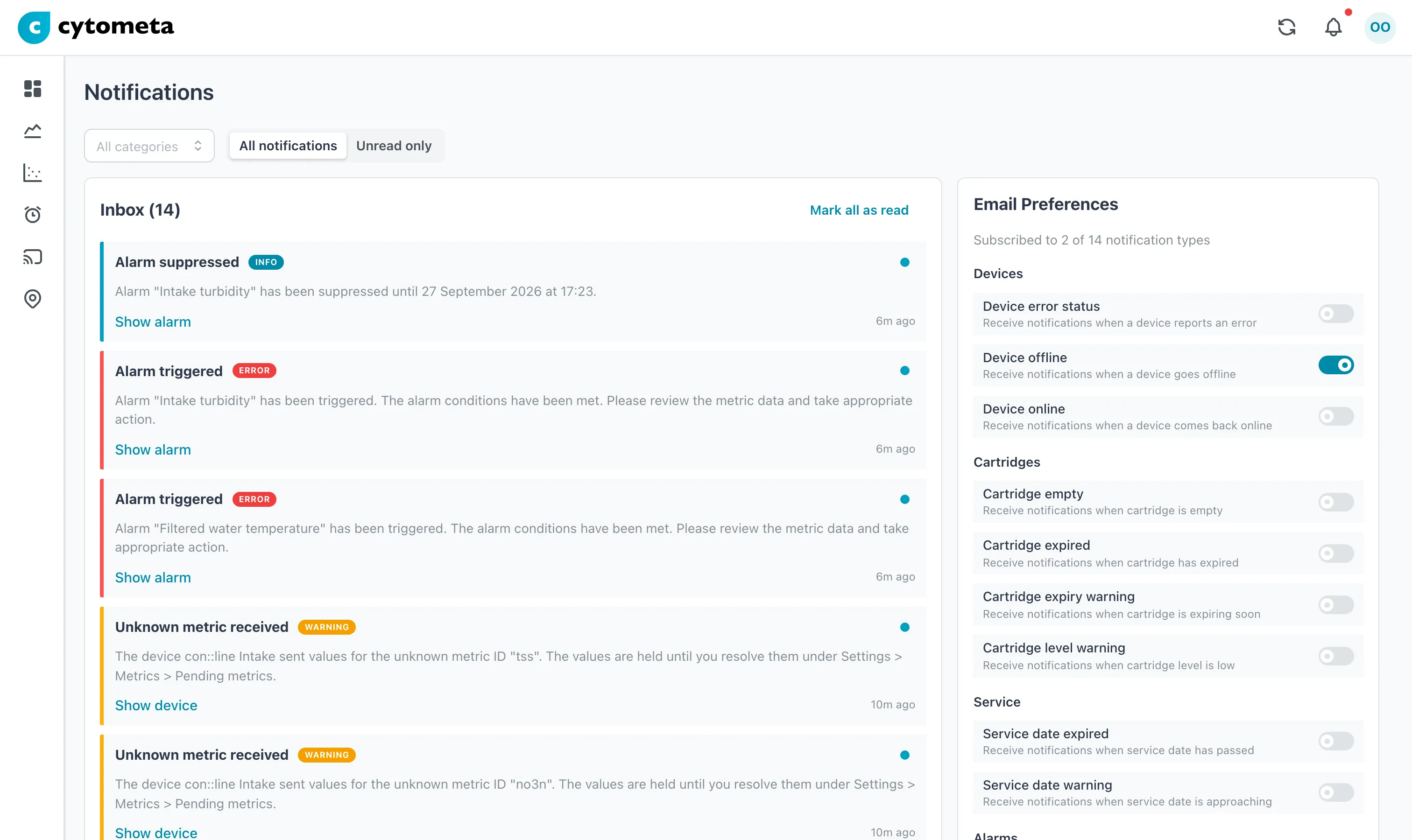 The inbox and your email choices side by side. The count at the top of Email Preferences says how many types you get by email.
From left to right, top to bottom:
- Category filter — All categories, or only Devices, Cartridges, Service, Alarms or Metrics.
- All notifications or Unread only.
- Inbox — the notifications, with the number of unread ones in brackets, for example Inbox (12). Mark all as read is at the top right. The list shows 20 per page, with arrows to page through.
- Email Preferences — beside the inbox, or below it on a narrow screen. See Choose email notifications.
The filters are remembered in this browser, per workspace.
A notification
Section titled “A notification”Each notification shows:
- a title, such as Device offline or Alarm triggered;
- a severity badge: INFO for information, WARNING (yellow on screen) for something to keep an eye on, ERROR for something that needs action;
- the message, cut off after two lines. Hover over it to read the rest;
- Show device, Show alarm or Show pending metrics to open what the notification is about. Show pending metrics appears only for Managers and Admins;
- how long ago it was sent;
- a dot on the right: blue for unread, gray for read. Select it to switch between Mark as read and Mark as unread.
Dates in a message, such as the time an alarm went off, are shown in the workspace’s time zone, the same as in the email. When your browser is in another time zone, the zone’s abbreviation follows the time, for example 14:00 CEST. The email always names the zone. See Set the time zone.
Read and unread are personal. Marking a notification as read does not change it for your colleagues.
What each notification means
Section titled “What each notification means”| Category | Title | Severity | Sent when | What to do |
|---|---|---|---|---|
| Devices | Device online | INFO | A device is back online. | Nothing; it confirms recovery. |
| Device offline | WARNING | A device stopped reporting. | Check the device and its network connection. | |
| Device error status | ERROR | A device reports an error. | Open the device; use remote access to see the error. | |
| Cartridges | Cartridge level warning | WARNING | A cartridge is nearly empty; the message gives the expected empty date. | Order a replacement from your service provider. |
| Cartridge empty | ERROR | A cartridge is empty. | Replace it; the instrument cannot measure. | |
| Cartridge expiry warning | WARNING | A cartridge is close to its expiry date. | Order a replacement; expired cartridges may affect accuracy. | |
| Cartridge expired | ERROR | A cartridge has passed its expiry date. | Replace it. | |
| Service | Service date warning | WARNING | The device’s next service date is approaching. | Schedule maintenance with your service provider. |
| Service date expired | ERROR | The service date has passed. | Schedule maintenance now. | |
| Alarms | Alarm triggered | ERROR | An alarm went off. | Investigate the alarm. |
| Alarm resolved | INFO | An alarm’s conditions are no longer met. | Nothing; check the chart if you want to know how it ended. | |
| Alarm suppressed | INFO | Someone suppressed an alarm; the message says until when. | Nothing, unless you did not expect it. | |
| Alarm stale | WARNING | An alarm had no data for 24 hours while alerting and was closed. See How alarms work. | Check the device behind the alarm. | |
| Metrics | Unknown metric received | WARNING | A device sends values with a metric ID the workspace does not know. The message names the ID and the device. | Resolve pending metrics. |
Cartridge and service notifications are not repeated for the same device within 24 hours. A device that keeps reporting the same cartridge or service condition, or reports it again with another cartridge serial or another date, produces one notification, not one per report. The next one follows once 24 hours have passed.
Device online, Device offline and the alarm notifications are not affected. They follow the state of the device or the alarm, and arrive each time that state changes.
No device, cartridge, service or unknown-metric notification is sent for a device in Maintenance mode or Disabled, and alarms on its series are paused; see What Maintenance mode and Disabled pause.
Cartridge and service notifications are prompts to order supplies and plan maintenance with your service provider. They are not faults of the instrument.
Who sees what
Section titled “Who sees what”Everyone in the workspace, from Viewer to Admin, sees all of the workspace’s notifications and can choose email notifications. Notifications belong to a workspace. Switch workspace to see another workspace’s notifications.
Related
Section titled “Related”- Choose email notifications
- Investigate an alarm
- Dashboard — the Notifications widget
- Devices