

Resolve pending metrics
Every value a router sends carries a metric ID, such as tcc or temp. When the ID matches
no metric in the workspace, the value is not thrown away and not shown either: it is held
as a pending metric until someone decides what it is. Resolve pending metrics so no data is
lost and nothing unknown slips into your charts.
When to look
Section titled “When to look”Pending metrics appear when an instrument starts sending something new or under a new name:
- after an instrument’s firmware is updated,
- after a channel on a Sicon or an analog input on a FlowControl is renamed or added,
- after an instrument is switched to another transport (for example from HTTP to Modbus),
- when a metric the instrument sends was never added to the workspace.
After any of these, open Settings › Workspace Settings › Metrics and check the top of the page.
The first time a device sends an unknown ID, the workspace gets an Unknown metric received notification in the Metrics category. It names the ID and the device. Managers and Admins can open the page from it with Show pending metrics. To get it by email, switch on Unknown metric received under Email Preferences; it is off until you do.
What is on the page
Section titled “What is on the page”When there is something to resolve, a Pending metrics section appears at the top of the Metrics page, with the number of unknown IDs in an orange badge. Only Managers and Admins see it.
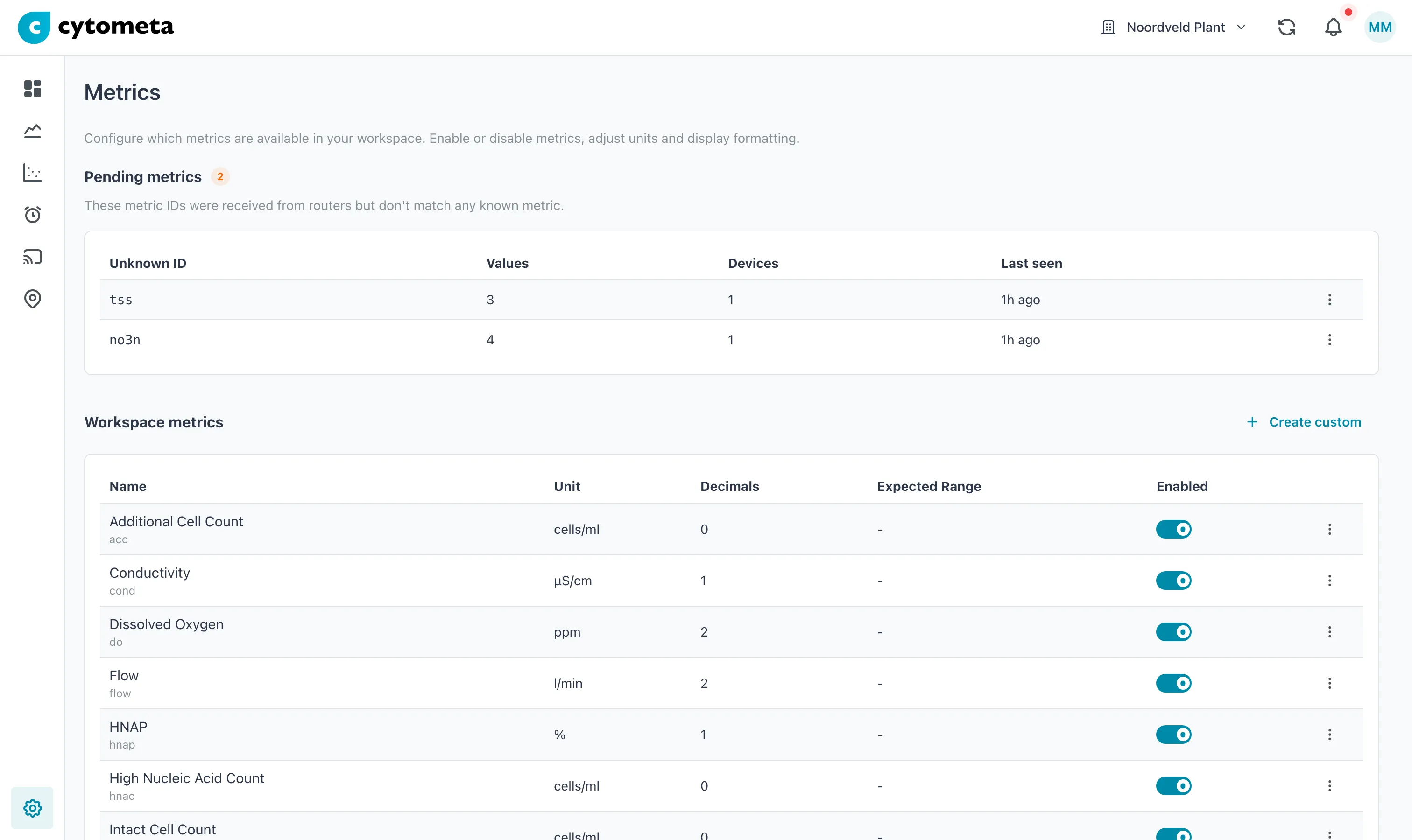 Two unknown IDs from one device, with how many values are held for each and when the last one arrived.
| Column | Shows |
|---|---|
| Unknown ID | The metric ID as the router sent it. |
| Values | How many values with this ID are being held. |
| Devices | How many devices sent them. |
| Last seen | When the most recent one arrived. |
Resolve an unknown ID
Section titled “Resolve an unknown ID”-
Select the gear () at the bottom of the left navigation, then select Metrics.
-
In Pending metrics, open the menu (⋮) at the end of the ID’s row and choose Map to existing, Create new or Dismiss (see below).
-
The Resolve unknown metric dialog opens with that choice selected. It shows the ID and how many values and devices are involved. You can still switch between the three choices at the top.
-
Fill in what the choice asks for.
-
Select Resolve (or Dismiss).
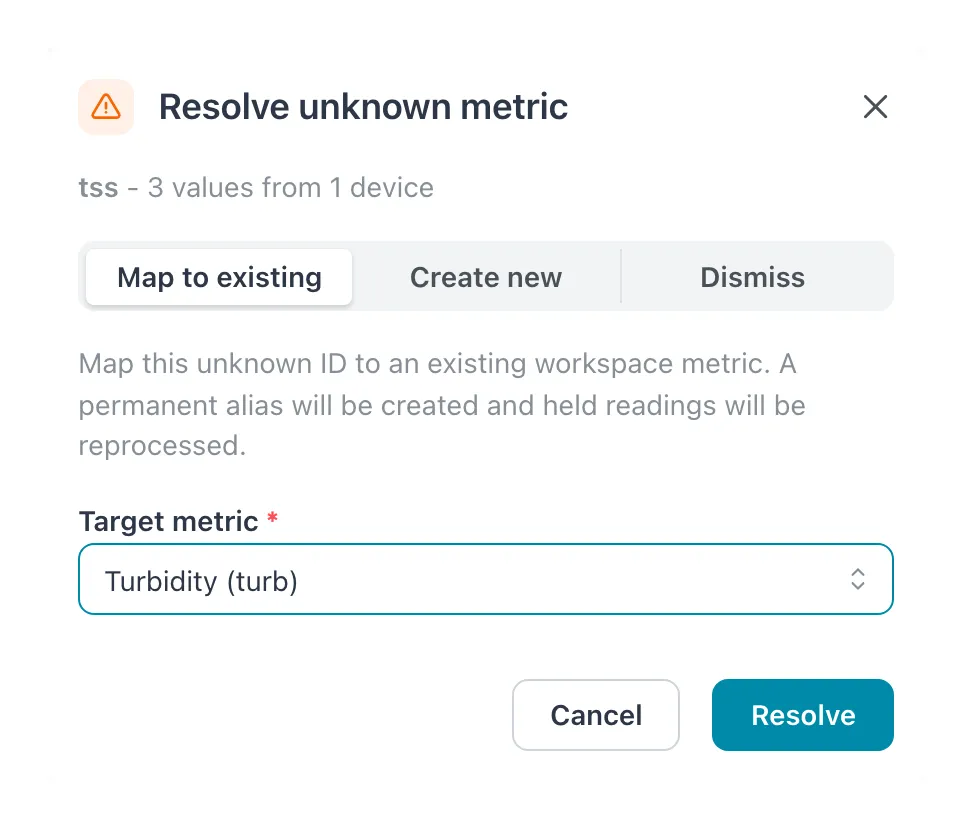 The line under the title says how many values and devices are involved. Map to existing creates a permanent alias and reprocesses the held readings.
| Choice | Use it when | What happens |
|---|---|---|
| Map to existing | The ID is another name for a metric you already have — for example temp1 for Temperature. Choose the Target metric. |
A permanent alias is created from the unknown ID to that metric. The held values are reprocessed into it, and future values with this ID go straight to it. |
| Create new | The ID is a new measurement. Fill in Metric ID, Name, Unit and Decimals, as for a custom metric. | A custom metric is created and the held values are reprocessed into it. |
| Dismiss | The values are of no use — a test channel, a wrong configuration. | All held values for this ID are discarded. Future values with the same ID are held again, until a metric or alias for it exists. |
Result: the message Pending metric resolved successfully appears and the row disappears. For Map to existing and Create new, the values show up in charts once they have been reprocessed.
Aliases
Section titled “Aliases”Once at least one alias exists, an Aliases section appears at the bottom of the Metrics page: every unknown ID that has been mapped to a workspace metric.
| Column | Shows |
|---|---|
| Alias ID | The ID as the router sends it. |
| Maps to | The workspace metric its values go to, with that metric’s ID. |
| Created | When the alias was made. |
To remove an alias, open the menu (⋮) on its row, select Delete, and confirm with Delete. The message Alias deleted successfully appears. Values already stored stay where they are; future values with that ID become unknown again and are held as pending.
Related
Section titled “Related”- Add and edit metrics
- Sigrist Sicon / AquaMaster and Cytometa FlowControl — where channel and input names are set
- Troubleshooting