

Plot metrics
Plot one or more series over a period of time. Do this to follow a process, compare sites or look at what happened around an alarm.
-
In the left navigation, open Metrics.
-
Select Series.
-
Find the series you want. Keep View by location to browse by site. To find the same kind of value everywhere, for example every turbidity sensor, select View by tag or type the metric name in the search box.
-
Select the checkbox of each series. A checkbox on a location, device, metric or tag selects everything under it. A chart appears for each new series as you select it.
-
Close the list by clicking outside it.
-
Select the period (the button showing the start and end dates), then choose a preset. For a custom period, see the table below.
-
Choose how to group the charts with the Location, Device and Metric buttons (see below).
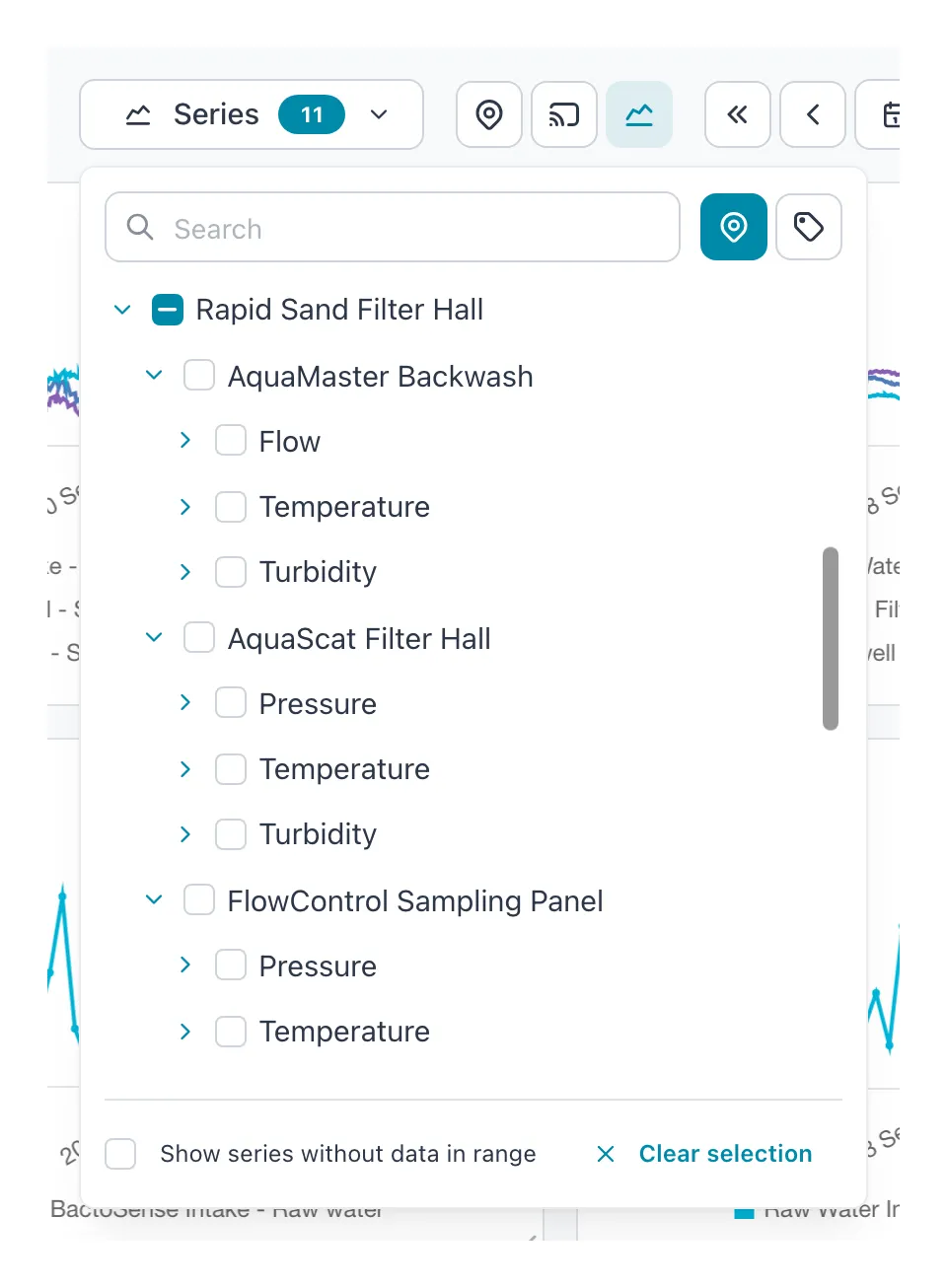 Series are listed by location, then device, then metric. A tick selects a series; the badge on Series counts the ticks.
Result: one chart for each group of series, over the period you chose. The Series button shows how many series are selected.
Set the period
Section titled “Set the period”| Choice | What you get |
|---|---|
| Last hour, Last 6 hours | The period up to now. Live updates start: the charts move forward every 10 seconds. |
| Last day, Last 7 days, Last 30 days, Last 90 days, Last 365 days | The period up to now, without live updates. |
| A custom range | Select the first and the last day in the calendar, set the times under From and To, then select Apply. Future dates cannot be picked. |
To move through time, use Shift back and Shift forward. Each click moves one period length; and move two. To zoom to a stretch that stands out, drag across it on any chart. Zoom in and Zoom out halve or double the period.
Start live updates works for periods up to 6 hours. If you start it on a longer period, the screen switches to the last 6 hours. Shifting, zooming or picking a custom range stops live updates.
Group the charts
Section titled “Group the charts”The three grouping buttons decide which series share a chart. A series goes on the same chart as another when it matches on every field that is switched on.
| Buttons on | Charts you get | Use it to |
|---|---|---|
| Location, Device, Metric (the default) | One chart per metric per device. Lines within a chart are tags. | Read each value on its own. |
| Metric only | One chart per metric, with a line for each device. | Compare the same value across sites, such as turbidity before and after filtration. |
| Location, Device | One chart per device, with a line for each metric. | See how a device’s values move together. |
At least one button stays on. Grouping changes only how the charts are arranged, not which series are selected.
When a chart mixes units, its title shows a badge such as 2 units. Each unit has its own axis. Hover over the chart for exact values instead of comparing line heights.
Compare two periods
Section titled “Compare two periods”The screen shows one period at a time. To compare, for example, this week with last week:
-
Choose Last 7 days and read the charts.
-
Select Shift back once. The charts now show the 7 days before.
-
Select Shift forward to return.
To keep both periods at hand, save a view with a Fixed time range for each.
Read the charts
Section titled “Read the charts”- Hover to see the value of every line at that moment. Where a line has no value at exactly that time, the hover box shows the value between its neighbors.
- Scale: switch to Fixed (start at 0) to judge the size of a change, and back to Dynamic to see small changes. See Dynamic or fixed scale.
- Min/max bands: for periods longer than 6 hours each point is an average. Select Show min/max bands to see the lowest and highest value behind each point, so short spikes are not lost.
- Samples: on a flow-cytometry series, click a point (Click to view sample) to open that sample.
- Arrange: drag a chart by its handle () to move it, and drag its bottom-right corner to resize all charts.
The screen remembers your series, period, grouping, scale and chart size in this browser.
If it does not work
Section titled “If it does not work”| What you see | What to do |
|---|---|
| A series is not in the list | It has no data in the period. Select Show series without data in range, or choose a longer period. The line {n} series hidden (no data in range) tells you how many series are left out. |
| A chart is empty or has gaps | The instrument sent no values in that stretch. Check the device’s state on Devices. |
| Start live updates jumped to a shorter period | Live updates work for up to 6 hours. |
| The bands button is disabled | The period is 6 hours or shorter, so the charts show raw values and there is nothing to band. |
| A value shows the wrong unit or number of decimals | These are set for the workspace, not on this screen: see Add and edit metrics. |
Related
Section titled “Related”- Metrics — every control on the screen
- Save and share a view
- Export metric data
- Investigate an alarm — opens Metrics on the values around a trigger