

Manage API clients
An API client is a set of credentials — a client ID and a secret — that lets software, such as a SCADA system, a data warehouse or a script, use the Cytometa Cloud REST API without a person signing in. Create one client per system, so you can switch each off on its own.
For the endpoints and examples, follow the API documentation link at the top of the page
(https://api.cytometa.com/v1/docs).
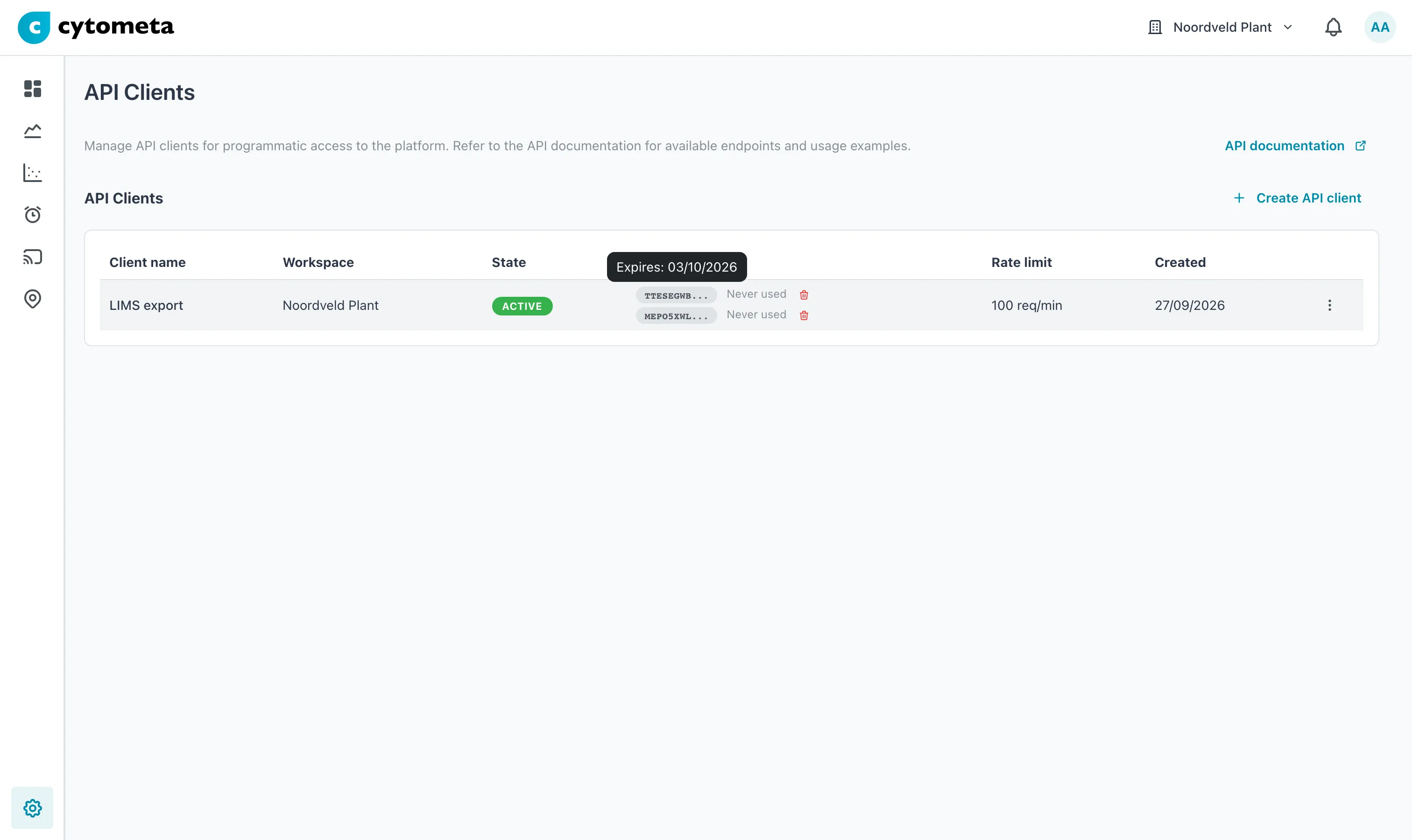 One client with two secrets, as it is while a secret is being replaced. Each secret shows when it was last used; point at a secret to see when it expires.
The API Clients table
Section titled “The API Clients table”| Column | Shows |
|---|---|
| Client name | The name you gave it. |
| Workspace | The one workspace the client can reach, or All workspaces (organization-scoped). |
| State | Active — can call the API. Disabled — switched off by an administrator; can be switched on again. Revoked — permanently withdrawn; cannot call the API. |
| Secrets | Each secret with its first characters (for example a1b2c3…), when it expires (or Never, or Expired), and when it was last used (or Never used). A button beside each secret deletes it. |
| Rate limit | 100 req/min — the most requests the client may make per minute. It is the same for every client and cannot be changed. |
| Created | The date the client was made. |
Create an API client
Section titled “Create an API client”-
Select the gear () at the bottom of the left navigation, then select API Clients.
-
Select Create API client.
-
Fill in the fields (see the table below).
-
Select Create.
-
In Secret created, select Copy client ID and Copy secret, and store both where the other system can use them — a password manager or the system’s secret store.
-
Select Done.
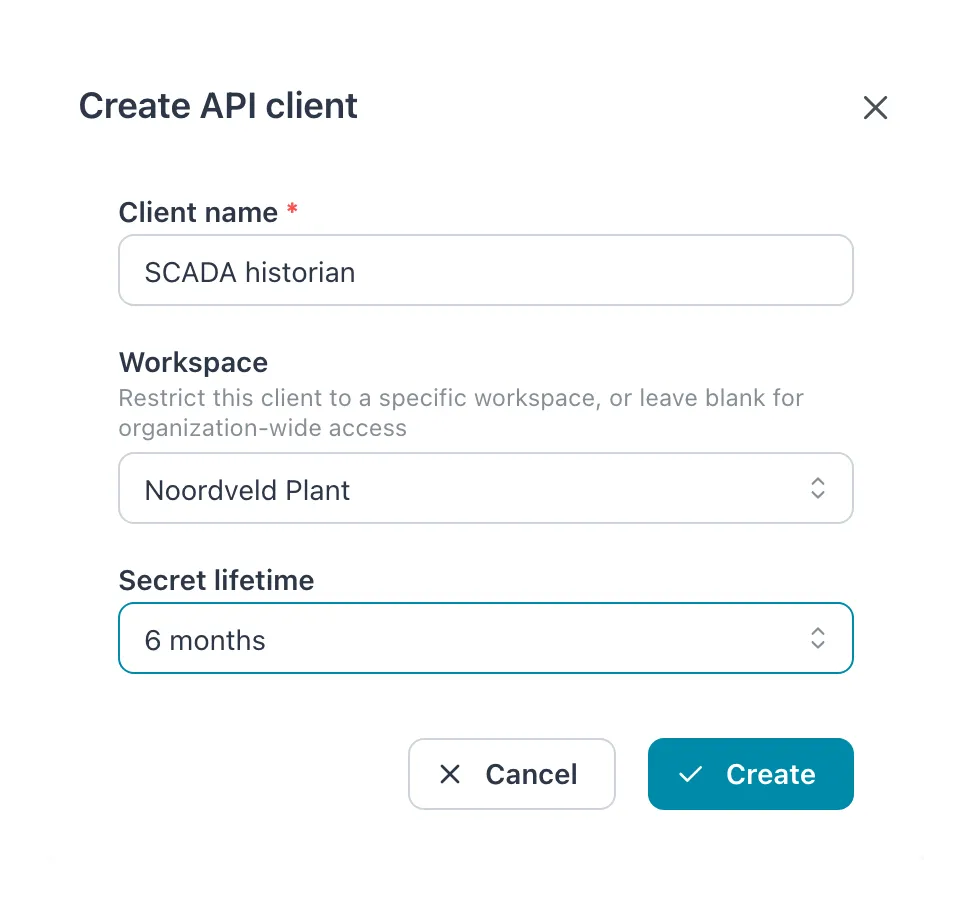 This client is limited to one workspace. Choose All workspaces (organization-scoped) instead for access to the whole organization.
| Field | What to enter |
|---|---|
| Client name | What the client is for, for example SCADA export. Required. |
| Workspace | Restrict the client to one workspace, or keep All workspaces (organization-scoped) for access to every workspace. Give a client only the workspace it needs. Cannot be changed later. |
| Secret lifetime | How long the first secret is valid: 1 month, 3 months, 6 months, 1 year (the default), 2 years or Unlimited. |
Result: the message API client created successfully appears and the client is listed as Active.
Rotate a secret without downtime
Section titled “Rotate a secret without downtime”A client can have two secrets at the same time, and either one works. Use that to replace a secret before it expires, or when it may have leaked:
-
Open the menu (⋮) at the end of the client’s row and select Add secret.
-
Choose the Secret lifetime and select Create.
-
Copy the new secret from Secret created, then select Done.
-
Put the new secret into the other system and check that it works — its Last used date changes when it is used.
-
Delete the old secret with the button beside it, and confirm with Delete.
Result: the client keeps working throughout. Add secret is disabled while a client already has two secrets; delete one first.
Edit, disable or enable an API client
Section titled “Edit, disable or enable an API client”-
Open the menu (⋮) on the client’s row and select Edit.
-
Change the Client name, or set State to Active or Disabled. The Workspace is shown but cannot be changed.
-
Select Save.
Result: the message API client updated successfully appears. A disabled client is refused at once but keeps its secrets, so switching it back to Active restores access without new credentials. You cannot set Revoked yourself; a revoked client shows Revoked in this dialog. If you no longer need a client, delete it.
Delete an API client
Section titled “Delete an API client”-
Open the menu (⋮) on the client’s row and select Delete.
-
In Delete API client, select Delete.
Result: the message API client deleted successfully appears. All its secrets are revoked and every integration that uses it stops working. This cannot be undone.
If it does not work
Section titled “If it does not work”| Symptom | What to do |
|---|---|
| Add secret is disabled | The client already has 2 secrets. Delete the one you no longer use. |
| The other system is refused | Check that the client is Active, that the secret has not Expired, and that the client’s Workspace covers the data the system asks for. |
| Requests are refused after a burst | The client has gone over 100 requests per minute. Spread the requests out. |
Related
Section titled “Related”- Roles and permissions
- Export metric data — for a one-off export, no API needed
- Limits and rules