

Edit or delete a location
Edit a location when its name or address changes. Delete it when the site is closed and no devices are left there.
Edit a location
Section titled “Edit a location”-
In the left navigation, open Locations and select the location.
-
Open the menu (⋮) at the top right and select Edit.
-
Change Name, Address line 1, Address line 2 (optional), City or Country. The map shows the new address as you type.
-
Select Save. The button stays disabled until you change something.
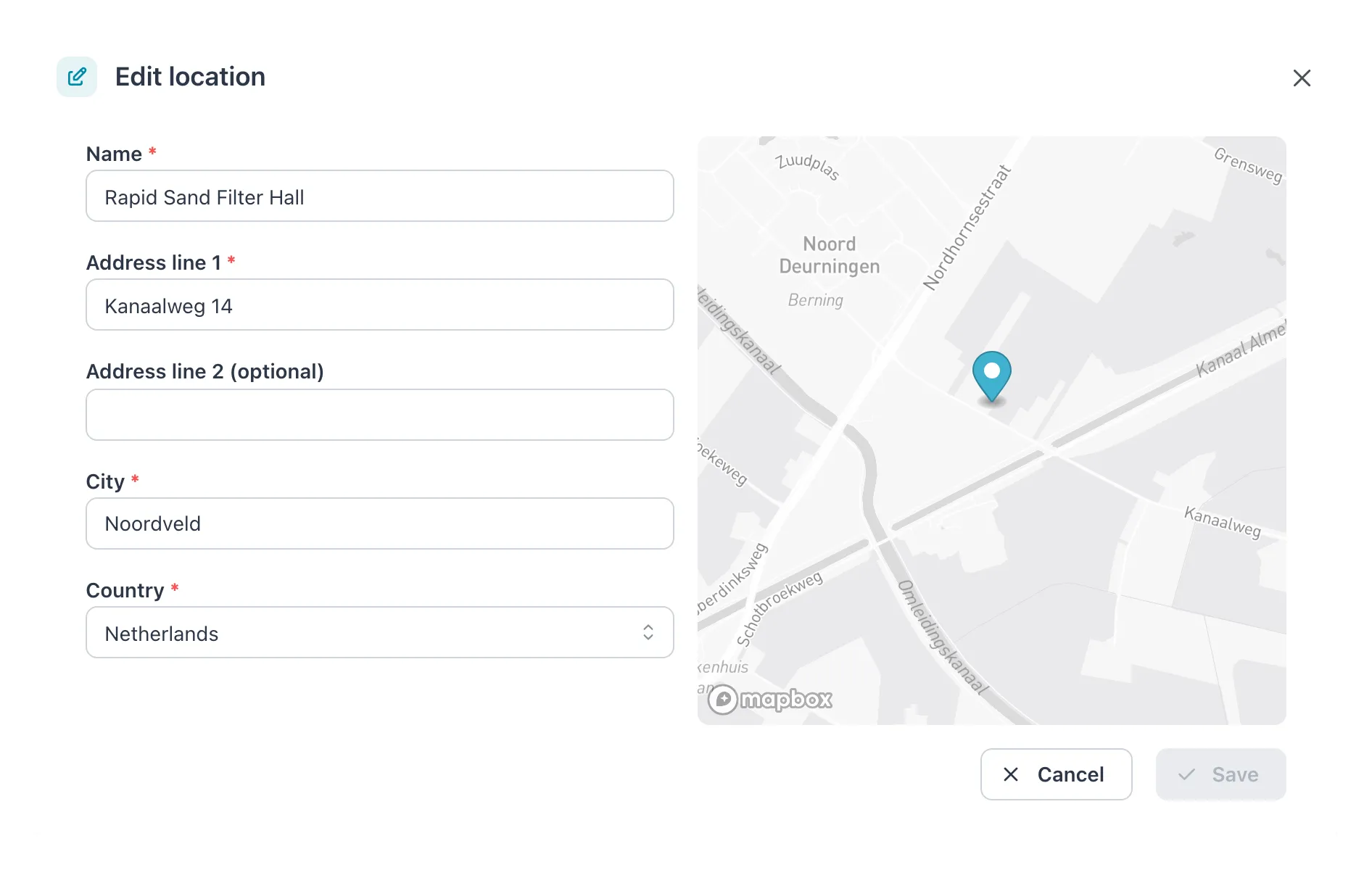 The same fields as when creating a location, except the tag. Save stays disabled until you change something.
Result: the message Location updated successfully appears and the page shows the new details. If you changed the address, the map position is looked up again.
The tag cannot be changed: it is not in the Edit location dialog. If a location needs a different tag, create a new location, move the devices to it and delete the old one.
Delete a location
Section titled “Delete a location”Before you start, move every device at the location to another location (Edit a device › Location) or delete it (Delete a device). Disabled devices count too.
-
Open the location.
-
Open the menu (⋮) and select Delete.
-
In Delete location, select Delete.
Result: the message Location deleted successfully appears and you are back on Locations.
If it does not work
Section titled “If it does not work”| Message | What to do |
|---|---|
| A location with this name already exists. | Choose another name. |
| Failed to update location. Please try again. | Often the new address could not be found. Check it until the map shows a pin. |
| Cannot delete location because it has connected devices. | Move or delete the devices listed under Devices on the location page first. |
| Failed to delete location. Please try again. | Try again; if it keeps failing, reload the page. |
| Edit and Delete are not in the menu | You are a Viewer or Operator. Ask a Manager or Admin. |