

Manage the gate library
The gate library lists every named gate in the workspace, with its full version history. Use it to see which gate shape was live when, to give a gate a clearer name or description, and to archive gates nobody uses any more.
Only Managers and Admins can edit or archive gates. Viewers and Operators have no Settings gear; the gates a series follows are visible to them on the samples themselves.
Gates are not created here. A gate is a shape drawn on a sample, so you create one — or a new version of one — in the gate editor: see Edit a gate.
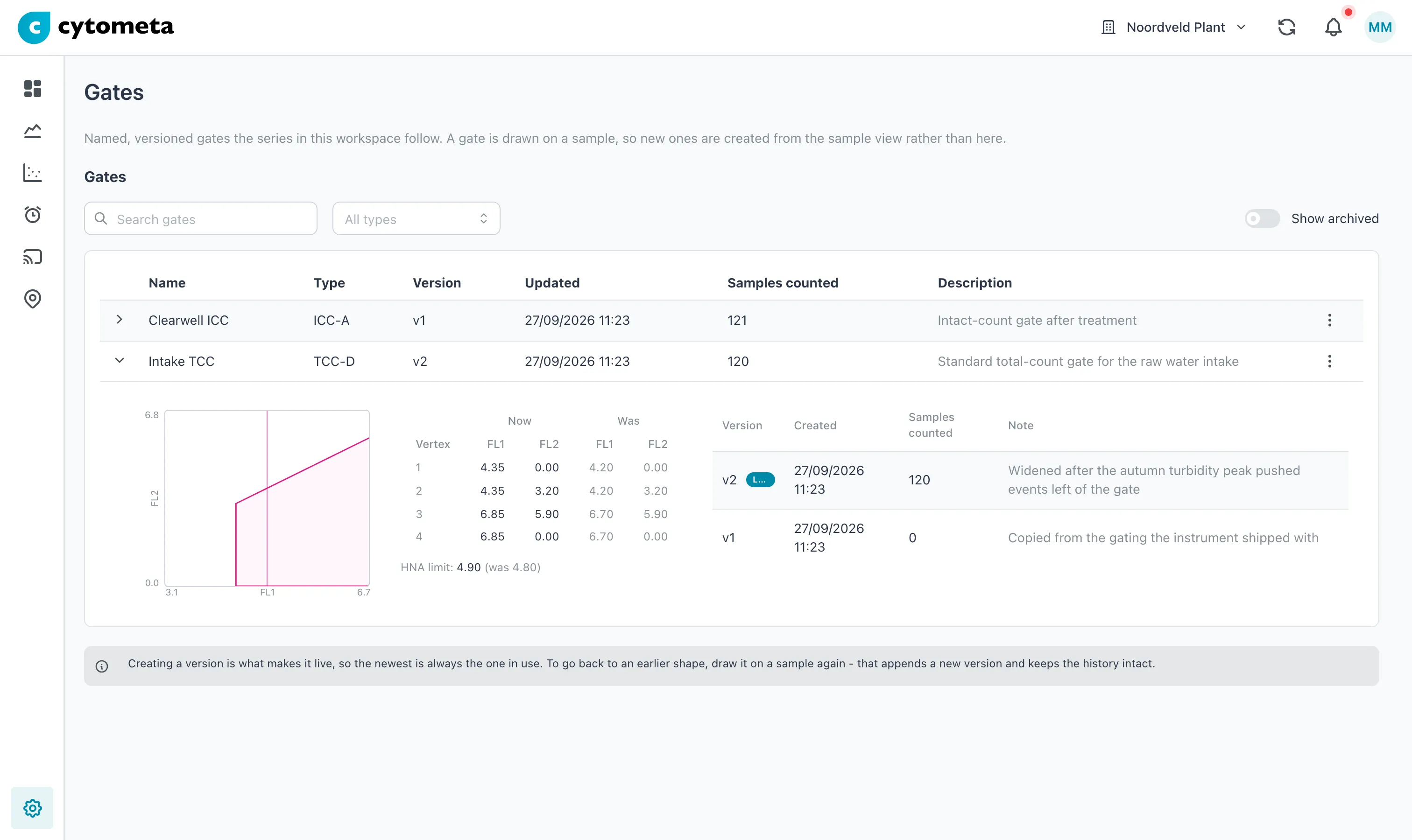 The gate library. The expanded gate shows its shape, what changed against the previous
version, and every version with the number of samples it counted.
The gate library. The expanded gate shows its shape, what changed against the previous
version, and every version with the number of samples it counted.
What is on the page
Section titled “What is on the page”Above the table:
- Search gates — filter by name.
- A type filter — All types, TCC-D or ICC-A.
- Show archived — include archived gates, marked Archived.
The table:
| Column | Shows |
|---|---|
| Opens the gate’s versions (see below). | |
| Name | The gate’s name. Names are unique within the workspace. |
| Type | The sample type the gate is for: TCC-D (total cell count) or ICC-A (intact cell count). |
| Version | The live version, for example v2. |
| Updated | When the gate last changed. |
| Samples counted | How many samples have been counted with this gate, across all its versions. |
| Description | What the gate is for, or -. |
Look through a gate’s versions
Section titled “Look through a gate’s versions”Select the arrow () at the start of a row. The row opens to show:
- The shape of the selected version, drawn as a polygon, with the HNA limit or ACC region where the sample type has one.
- What changed: the coordinates of each vertex (Now), with the previous version’s values (Was) beside anything that moved. A vertex that did not exist before is marked new.
- The versions: Version, Created, Samples counted and Note for each one. The version in use is marked Live. Select any version to see its shape.
The newest version is always the live one — creating a version is what makes it live. To go back to an earlier shape, draw that shape on a sample again. That adds a new version and keeps the history intact.
Edit a gate’s name or description
Section titled “Edit a gate’s name or description”-
Open the Actions menu (⋮) at the end of the gate’s row and select Edit.
-
Change Name or Description.
-
Select Save.
Result: the message Gate updated appears. Only the name and description change; the shape and its versions do not.
Archive a gate
Section titled “Archive a gate”Archive a gate that no series follows any more, so it no longer clutters the library.
-
Open the Actions menu (⋮) on the gate’s row and select Archive.
-
Read the dialog. It says how many series follow the gate: Followed by 0 series means you can go ahead.
-
Select Archive.
Result: the message Gate archived appears and the gate disappears from the list. Turn on Show archived to see it again. Its versions stay, because the samples counted with them still refer to them. An archived gate cannot be edited or un-archived.
If it does not work
Section titled “If it does not work”| Message | What to do |
|---|---|
| Another gate already has this name | Choose another name. |
| Detach it from N series first - they would fall back to the device gating. (the Archive button is disabled) | Series still follow this gate. Point each of them at another gate first — see Edit a gate — then archive. |
| There is no Create button | Gates are created in the gate editor on a sample, not here. |
Related
Section titled “Related”- How gating works — gates, versions and what a series follows
- Edit a gate — create a gate or a new version
- Apply a gate to history