

Suppress an alarm
Suppress an alarm that is going off when you already know why — maintenance, a flushing run, a sensor being replaced. It then cannot go off again until the time you choose has passed.
You can only suppress an alarm that is Alerting now. You cannot suppress an alarm in advance, before planned work. To keep an alarm quiet for longer, or before it goes off, a Manager or Admin can disable it.
-
In the left navigation, open Alarms and select the alerting alarm.
-
In the entry marked Alerting under name – Triggered, select the clock () beside the badge.
-
Under Suppress for, select 30 minutes, 1 hour, 2 hours, 4 hours, 8 hours or 24 hours.
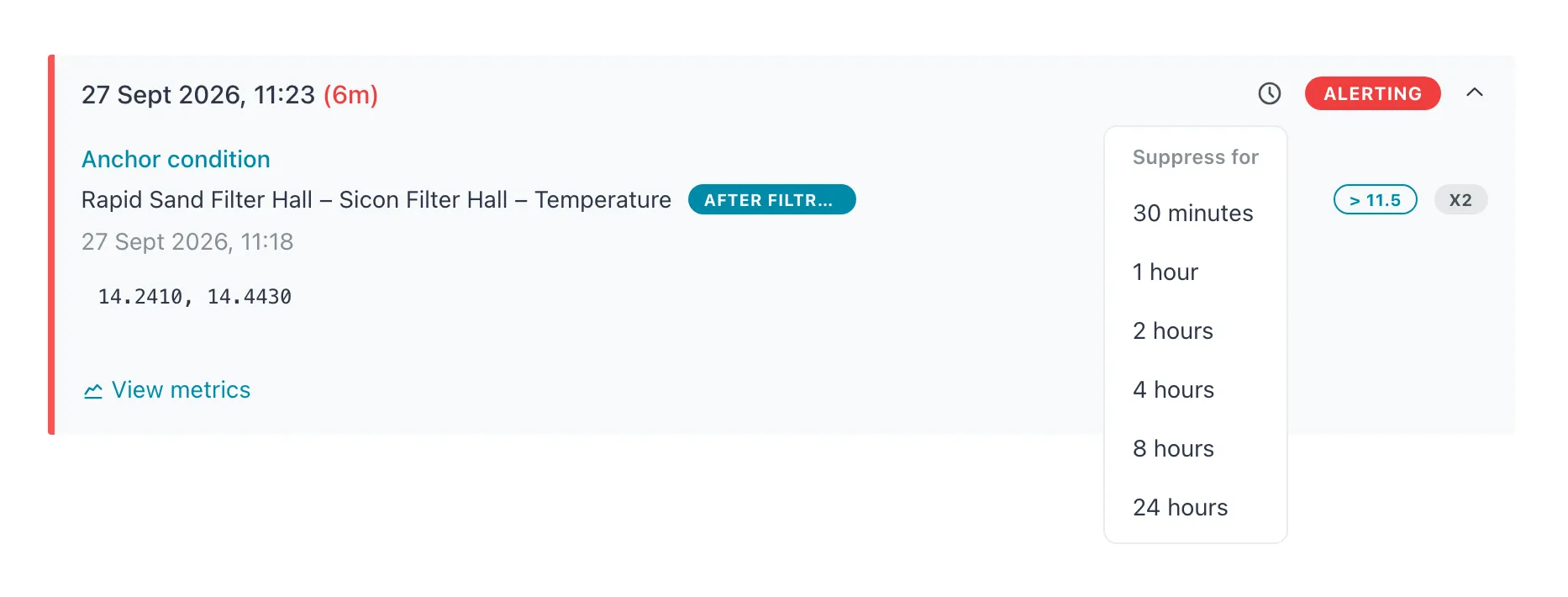 The clock beside Alerting opens Suppress for, with six periods from 30 minutes to 24 hours.
Result: the message Alarm suppressed successfully appears. The entry becomes Suppressed with the time remaining. The alarm’s card shows an orange badge with the same countdown. A notification Alarm suppressed goes to the workspace, saying until when. That way nobody is left wondering why an alarm went quiet.
What happens next
Section titled “What happens next”- While the suppression runs, the alarm is not evaluated. It cannot go off again, however the values change.
- When the time is up, the suppressed entry stays Suppressed and does not resolve on its own. The alarm is evaluated again. If its conditions are still met, it goes off again as a new Alerting entry, with a new Alarm triggered notification.
- Choose the duration carefully. Once set, a suppression cannot be shortened or canceled. Other durations are not offered, and you cannot pick a custom end time.
If it does not work
Section titled “If it does not work”| What you see | Why |
|---|---|
| No clock icon | The entry is not Alerting, or you are a Viewer. Only an alarm that is going off now can be suppressed, and only by an Operator or higher. |
| Failed to suppress alarm. Please try again. | The alarm resolved in the meantime. Select ⋮ › Refresh and check the entry’s state. |
Related
Section titled “Related”- Investigate an alarm
- Edit, disable or delete an alarm — disable an alarm for longer work
- Alarms