

Set up your account
Your Profile holds the settings that belong to you rather than to a workspace: your name, language and color scheme, your password, two-factor authentication and the browsers you trust. Each section on the page saves on its own.
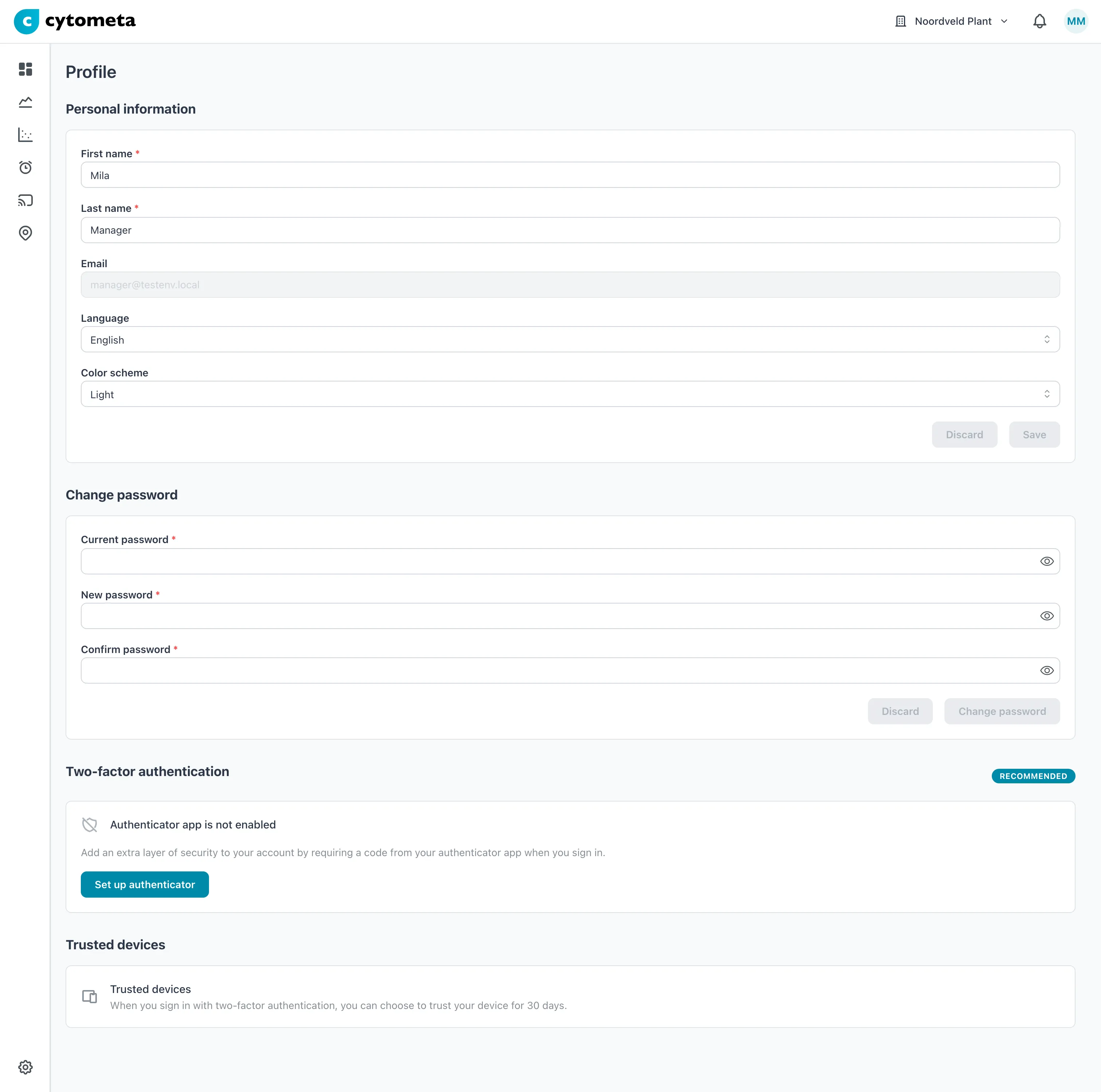 Personal information and Change password each have their own Save and Discard, so saving one leaves the other as it is.
Change your name, language or color scheme
Section titled “Change your name, language or color scheme”-
Select your initials at the top right, then View profile.
-
Under Personal information, change the fields (see the table below).
-
Select Save.
| Field | What it does |
|---|---|
| First name, Last name | Shown in the user menu and to your colleagues. Both are required, up to 255 characters each. |
| Your sign-in name. You cannot change it here; ask your organization administrator. | |
| Language | English or Nederlands. The app switches as soon as you choose. |
| Color scheme | Light or Dark. The app switches as soon as you choose. |
Result: the message Profile updated successfully appears. Your language and color scheme follow you to any browser you sign in on.
Save and Discard stay disabled until you change something. Discard puts back the saved values — also for a language or color scheme you were only trying out.
Change your password
Section titled “Change your password”Changing your password signs you out everywhere else, so use it when you think someone else knows your password.
-
On your Profile, go to Change password.
-
Enter your Current password.
-
Enter a New password. A requirements list ticks off each rule as you type.
-
Enter the same password in Confirm password.
-
Select Change password.
Result: the message Password changed successfully. All other sessions have been logged out. appears. You stay signed in on this browser; on every other browser and device you must sign in again.
The new password must have at least 12 characters, one uppercase letter, one lowercase letter, one digit and one special character, and must differ from the current one. The Change password button stays disabled until it does.
| Message | What to do |
|---|---|
| Current password is incorrect | Re-enter your current password. Forgotten it? Sign out and use Forgot password?. |
| New password must be different from current password | Choose a new password. |
| Passwords do not match | Type the same password in New password and Confirm password. |
| Password change is not available for this account. | Your account does not sign in with a Cytometa Cloud password. Ask your organization administrator. |
Set up two-factor authentication
Section titled “Set up two-factor authentication”With an authenticator app, every sign-in asks for a 6-digit code from your phone on top of your password, whatever your organization’s policy. A browser you let Cytometa Cloud remember skips the code for 30 days - see Revoke trusted devices. The section is marked Recommended.
Have your phone ready with an authenticator app installed, such as Microsoft Authenticator or Google Authenticator.
-
On your Profile, go to Two-factor authentication and select Set up authenticator.
-
Enter your password in Current password and select Continue.
-
Scan the QR code with the authenticator app. If you cannot scan, type the code shown under Or enter this code manually: into the app.
-
Under Verify setup, enter the 6-digit code the app shows and select Verify.
-
The dialog Save recovery codes shows ten codes. Select Copy all codes and store them somewhere safe, away from your phone — a password manager, for example.
-
Tick I have saved these codes in a secure location.
-
Select Done.
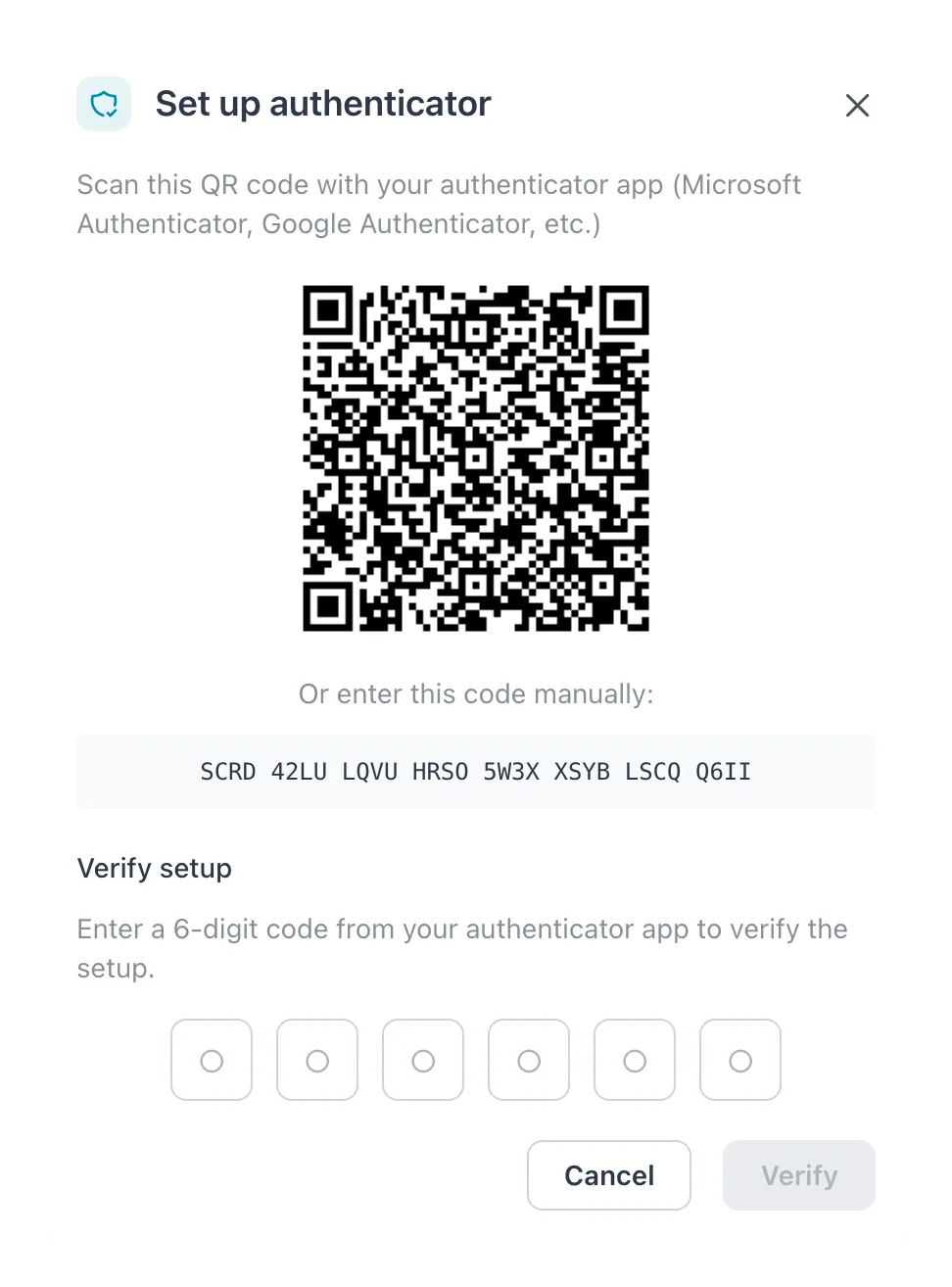 Scan the QR code, or type the code under it, then enter the 6-digit code the app shows.
Result: the message Authenticator app enabled successfully. appears. The section now reads Authenticator app is enabled and shows how many recovery codes are left.
The authenticator is switched on only when you select Done. If you close the dialog earlier, nothing changes and you can start again.
| Message | What to do |
|---|---|
| Current password is incorrect | Re-enter your password. |
Each recovery code works once. They are for the day you lose your phone; keep them out of the same place as the phone.
Disable two-factor authentication
Section titled “Disable two-factor authentication”-
On your Profile, go to Two-factor authentication and select Disable.
-
Enter your password in Current password.
-
Enter the current 6-digit code from your authenticator app. Without the app, select Use a recovery code and enter one of your recovery codes in Recovery code.
-
Select Disable.
Result: the message Authenticator app disabled. appears and the section reads Authenticator app is not enabled. Your recovery codes stop working.
Sign-in then no longer asks for a code, unless your organization requires two-factor authentication. Then it asks for a code by email instead, or, when your organization allows only the authenticator app, makes you set one up again at your next sign-in.
| Message | What to do |
|---|---|
| Current password is incorrect | Re-enter your password. |
| Failed to disable authenticator. The code may be incorrect. | Enter the code the app shows now. Codes change every 30 seconds. |
Revoke trusted devices
Section titled “Revoke trusted devices”When you tick Remember this device for 30 days at sign-in, that browser is listed under Trusted devices and skips the verification code for 30 days. Revoke a browser you no longer use, or all of them if you think one has fallen into the wrong hands.
-
On your Profile, go to Trusted devices. The table shows each Device, when it was Created and when it was Last used. The browser you are using is marked This device.
-
Select Revoke on the row of the browser, or Revoke all devices below the table.
-
Confirm with Revoke or Revoke all devices.
Result: the message Device revoked successfully. or All devices revoked successfully. appears. The revoked browsers must enter a verification code at their next sign-in.
Revoking does not sign anyone out; it only takes away the shortcut past the code. To sign out other sessions, change your password.
Related
Section titled “Related”- Sign in — the verification code at sign-in
- Choose email notifications — nobody gets email until they subscribe
- Set the security policy — what your organization requires
- Limits and rules — password rules and time limits