

Example: set up a first site
This page follows one site through Set up a workspace, with real values at every step. The screenshots in this manual show the same site, so you can compare what you see with them.
The site
Section titled “The site”Testenv Waterworks is a water company. Its workspace Noordveld Plant covers one treatment plant. The first site to go live is the raw water intake, where a Bactosense CORE flow cytometer measures the cell count of the incoming water.
| What | Value |
|---|---|
| Organization | Testenv Waterworks |
| Workspace | Noordveld Plant |
| Router | Noordveld gateway, serial number TESTENV01 |
| Tag | raw, display name Raw water |
| Location | Raw Water Intake, Kanaalweg 12, Noordveld, Netherlands |
| Device | BactoSense Intake, a Bactosense CORE, serial number TESTENV-BS-001, MAC address 00:1B:44:11:3A:01 |
| Colleague | Onno Operator, operator@testenv.local, on call for water quality |
The service provider has installed the router and the instrument at the intake. The organization administrator (Ada) has created the workspace and given Mila, the lab engineer, the Manager role in it. Ada does steps 1, 2 and 7, Onno step 10, and Mila the rest.
The steps
Section titled “The steps”-
Check the router. Ada opens Settings › Organization Settings › Routers. The router
TESTENV01is listed as Approved in the workspace Noordveld Plant, where Cytometa enrolled it. She checks the serial number against the label on the box at the intake. Manage routersYou should see: the router Approved with the connection Online. The Devices column shows the instruments the router has found, none of them linked yet.
-
Check service provider access. The service provider commissioned the site, so Ada leaves Allow service provider access on until the work is signed off, then turns it off. Allow service provider access
-
Create the tag. Mila opens Settings › Workspace Settings › Tags, selects Create tag, enters Tag name
rawand Display name Raw water, and selects Create. Manage tagsYou should see: Tag created successfully, and
rawin the table. -
Create the location. In Locations, Mila selects Create location and enters Name Raw Water Intake, Address line 1 Kanaalweg 12, City Noordveld, Country Netherlands and Tag
raw. She checks the pin on the map and selects Create location. Create a locationYou should see: Location created successfully, and the location’s page. The tag cannot be changed later, which is why step 3 comes first.
-
Create the device. In Devices, Mila selects Create device and enters Device name BactoSense Intake, Type Bactosense CORE, Serial number
TESTENV-BS-001, Location Raw Water Intake and MAC address00:1B:44:11:3A:01, copied from the instrument’s label. She selects Create device. Create a deviceYou should see: Device created successfully. Within a few minutes the router links the instrument by its MAC address: the device shows Online, and on the router’s row the linked count goes up by one. The first sample arrives at the next measurement.
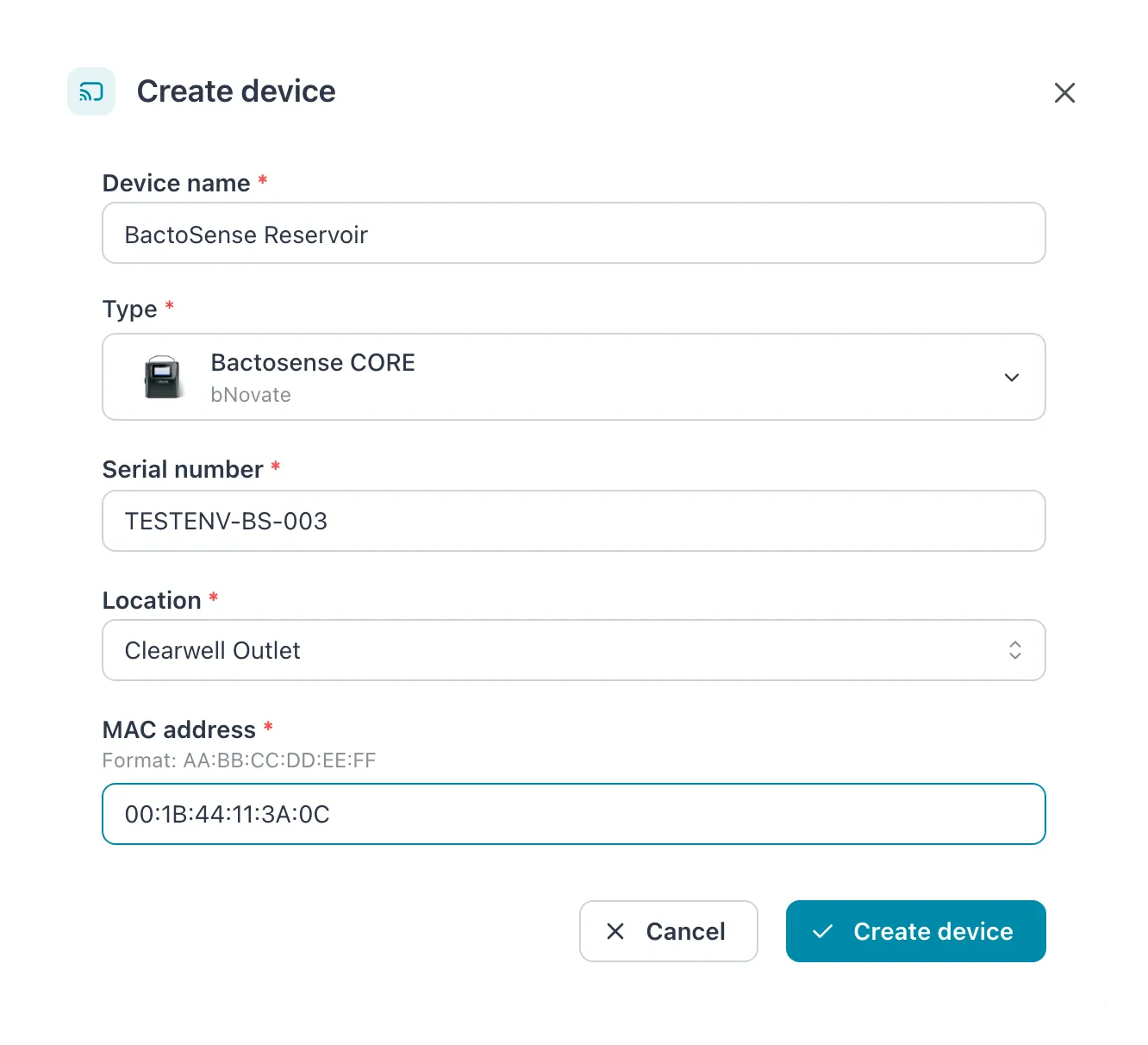 The device record for the intake. The MAC address must match the instrument’s label exactly.
 -
Draw the first gate. When a few samples have arrived, Mila opens Flow Cytometry, selects the series Raw Water Intake – BactoSense Intake, tag
raw, a TCC-D sample that shows the population well, and Analyze sample. She shapes the gate around the population, selects Save gate, chooses This series, new samples only and A new gate for this series, names it Intake TCC, and selects Save gate again. How gating works · Edit a gateYou should see: Gate saved. The sample now shows Intake TCC v1 as its gate, and so does every new sample of the series. Intake TCC is listed under Settings › Workspace Settings › Gates.
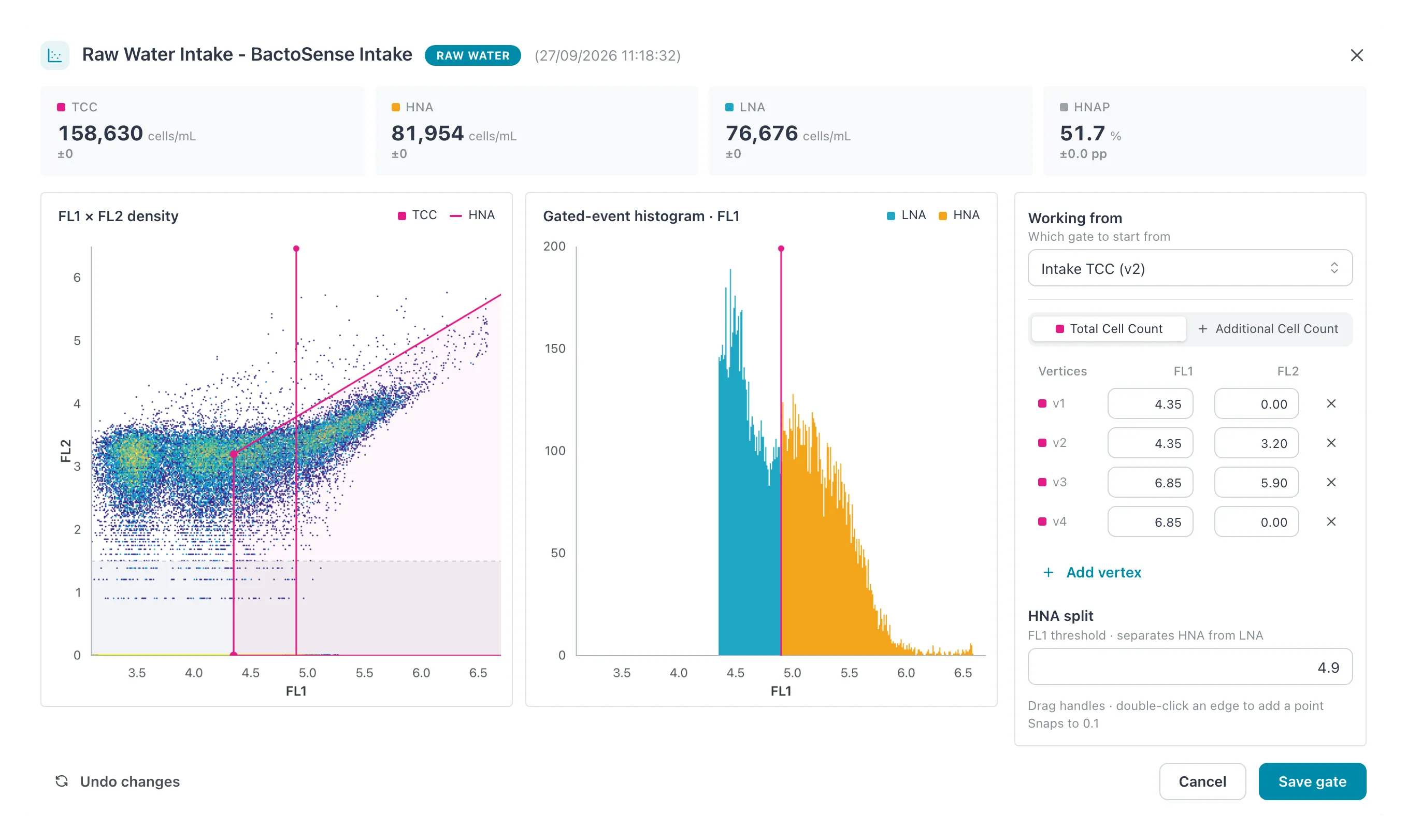 The gate editor. The result tiles above the plots show how the counts change.
 -
Invite the colleague. Ada opens Settings › Organization Settings › Users, selects Create user, and enters First name Onno, Last name Operator, Email
operator@testenv.localand Organization role Member. Under Workspaces, she adds Noordveld Plant with the role Operator, and selects Create. Invite and manage users · Roles and permissionsYou should see: User created successfully, and Onno listed as Invited until he sets his password from the invitation email. Operator is enough to follow the site and suppress its alarms; he cannot change the setup.
-
Create the alarm. Mila opens Alarms, selects Create alarm, and enters Alarm name Intake cell count high and a Description saying what to do. Under Anchor condition she chooses the series Raw Water Intake – Total Cell Count, tag
raw, Operator>, Threshold 400000 and Consecutive values 2, and selects Create. Create an alarmYou should see: Alarm created successfully, and the alarm in the list with Never triggered. Two consecutive values means one stray sample does not set it off: the alarm goes off at the second high count in a row. How the check works is explained in How alarms work.
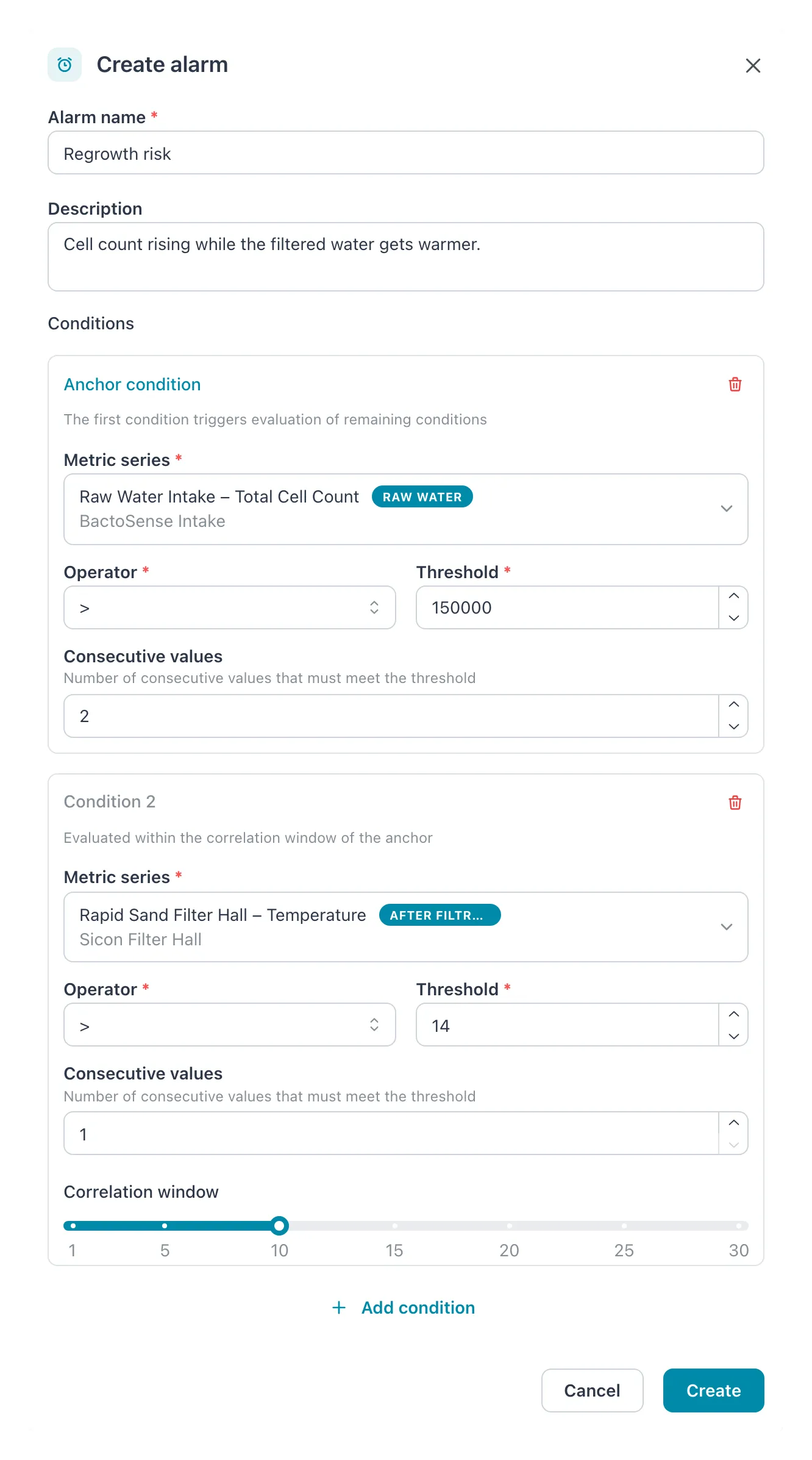 The Create alarm dialog. The screenshot also has a second condition; this example needs only the anchor.
 -
Save a shared view. In Metrics, Mila selects the series of the intake — the Total Cell Count, High Nucleic Acid Count and Low Nucleic Acid Count of the BactoSense Intake — selects Views, then Create view. She enters View name Raw water intake, Time range Dynamic, Last 7 days, switches on Share with workspace and selects Create. Save and share a view
You should see: the view opens, and its name is on the Views button. Onno and every other member of the workspace find it under Views.
-
Subscribe to email. Once Onno has signed in, he selects the bell, then View all notifications, and under Email Preferences switches on Alarm triggered and Device offline. Choose email notifications
You should see: Subscriptions saved and Subscribed to 2 of 14 notification types. From now on an alarm on the intake reaches his mailbox as well as the bell.
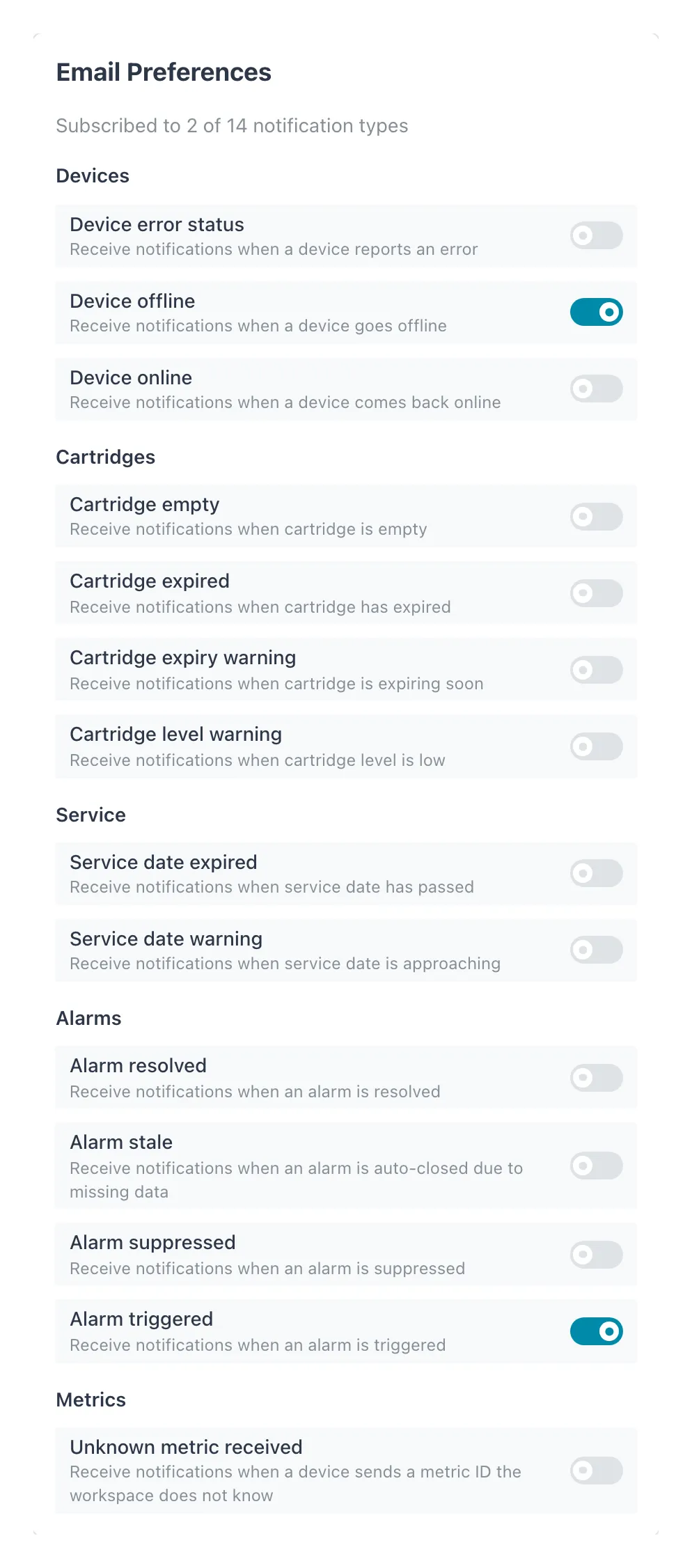 Onno’s choice: the two types that need someone on call.
Result: the dashboard of Noordveld Plant shows BactoSense Intake Online, samples of the intake counted with Intake TCC, one alarm watching the cell count, and a shared view for the site. Onno is told by email when the count stays high.
If a step does not give what you should see
Section titled “If a step does not give what you should see”| At step | What you see | Where to look |
|---|---|---|
| 1 | No router, or not TESTENV01 |
The router has not connected yet. Ask your service provider. |
| 5 | The device stays without data | Compare the MAC address with the label, and with the router’s Discovered devices. See Create a device. |
| 6 | No samples in Flow Cytometry | The instrument has not measured yet, or the device is not linked (step 5). |
| 8 | The series is not in the list | The series exists only once data has arrived. Wait for the first samples. |
| 10 | No email arrives | Check the spam folder. Email is sent only for notifications after he subscribed. |
More in Troubleshooting.
Related
Section titled “Related”- Set up a workspace — the order of work, for any site
- Use the setup wizard — tag, location and device in one go
- Check your sites daily — what Onno does once it runs